
Browse the guides
Getting help
How to reach us, what to include, and what happens after you send a request.
If the guides don't answer your question, send us a message. You don't need an account, and we reply by email.
Students: ask your instructor first
Your instructor can see how the deck is set up, and can reach us for you. Most problems are solved by opening the deck again from your course. See Troubleshooting for what each message means.
Send us a message
- The chat button. Select Contact support, the chat button in the bottom-right corner of our website, the sign-in pages, and your dashboard or admin pages. It isn't shown on phones.
- The support page. Go to the support page, on any device.
Both have the same form:
- Choose what it's about: A question, Something isn't working, Connecting an LMS, Plans and billing or A suggestion.
- If you're not signed in, enter your name and email address. We'll reply there.
- Enter a Subject and your message, and select Send.
If something isn't working, tell us what you did, what you saw, and which deck or course it was in. The exact words of any message on screen, and which LMS and browser you use, help too.
What happens next
We email you a copy of your request, with its reference. When we reply, we email you again.
Each email has a button to your request's page. Reply there, not by replying to the email, so your reply stays with your request. When your question's answered, select Mark as resolved. Replying to a resolved request opens it again.
Your request's page shows where it's at: Open, In progress, Answered (we've replied and are waiting to hear from you) or Closed.
Finding your requests
- Signed in: the support page lists your requests under Your requests.
- Not signed in: use the link in our emails. Each link works for 30 days, and every email has a fresh one. If a link has expired, its page offers to email you a new one.
Only you and our support team can see your requests. Your organization's admins can't.
What's changed
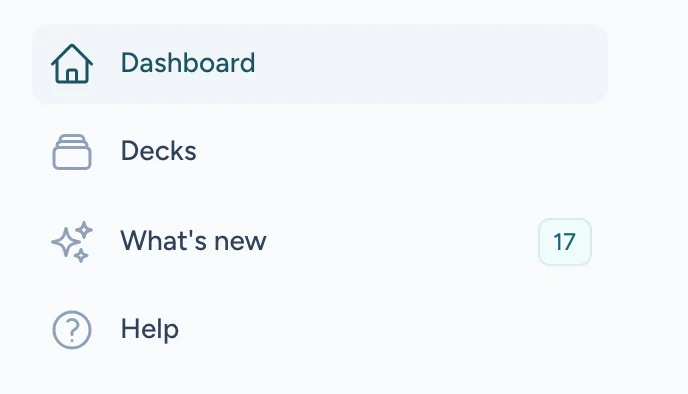
What's new lists every change you'd notice, newest first, and says whether it affects students, instructors or admins. Instructors and admins can open it from What's new in the sidebar, where a number shows how many changes went live since they last looked.
Problems connecting your LMS
Check your LMS's settings against the guide for your LMS. If you're still stuck, choose Connecting an LMS when you write to us, and tell us which LMS you use. We're happy to help set it up.
Accessibility problems
If something in Flash Reference is hard to use with your keyboard, screen reader or other assistive technology, please tell us. Our accessibility statement explains what we've tested and what we know still needs work.