
Browse the guides
Adding a deck to your course
Choose a deck from inside your LMS, and check it before students see it.
Students open decks from your course. You add a deck the same way you'd add any other tool or activity, then choose the deck from a list.
Your organization's admin connects Flash Reference to your LMS first. If you don't see Flash Reference in your course's tools, ask them, or point them to Connecting your LMS.
Choose a deck
When you add Flash Reference to your course, it opens Choose a deck:
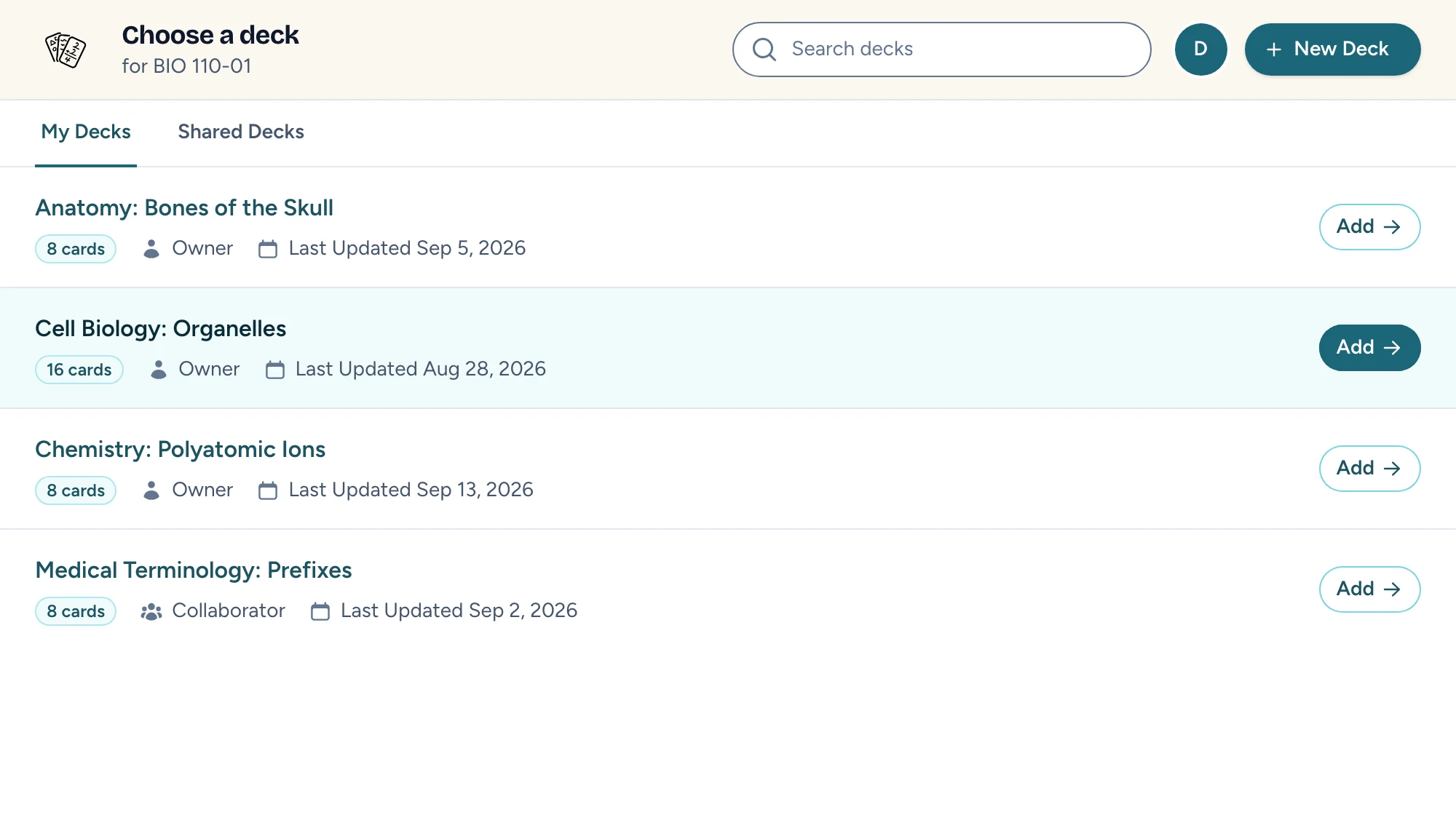
- My Decks lists the decks you own or help edit.
- Shared Decks lists decks other instructors made public to your organization.
- Type in Search decks to find a deck by name.
- Select a deck, or its Add button, to add it. Your LMS takes it from there, and the link is named after the deck.
New Deck opens a new deck form in Flash Reference, in a new tab. When the deck is ready, come back and search for it.
In your LMS
The steps to reach Choose a deck depend on your LMS:
| LMS | Where to add a deck |
|---|---|
| Canvas | In Modules, select + (Add Item), choose External Tool, then Flash Reference. You can also add one from the rich content editor's apps menu. |
| Moodle | Add an activity, choose Flash Reference, and select Select content. |
| D2L Brightspace, Schoology and Blackboard | If your school connected Flash Reference with LTI 1.3, add it from your course's content tools and choose the deck. Otherwise, each deck needs its own link: ask your admin, who can contact us to set them up. |
The guides for connecting each LMS have the details for each system.
Check it first
Select Preview at the top of the card editor to see the deck as students will, in a new tab. Nothing you do in a preview is saved or counted in your results.
You can also open the link in your course while signed in to your LMS as yourself. Flash Reference knows you're the instructor, so you don't show up in your results.
Tell students what to expect
Students don't need an account. The guide for students shows them how to study a deck; you can link it in your course.
Changing a deck later
Edit the deck in Flash Reference and students see the changes the next time they open it. You don't need to add it to your course again.