
Browse the guides
Choosing how students study
Turn on marking, multiple choice and spaced repetition.
Every deck lets students flip through cards. The Study options tab of a deck's Settings adds more ways to study. Select Settings at the top of the card editor, or on the deck's row in the list of decks, then select Study options.
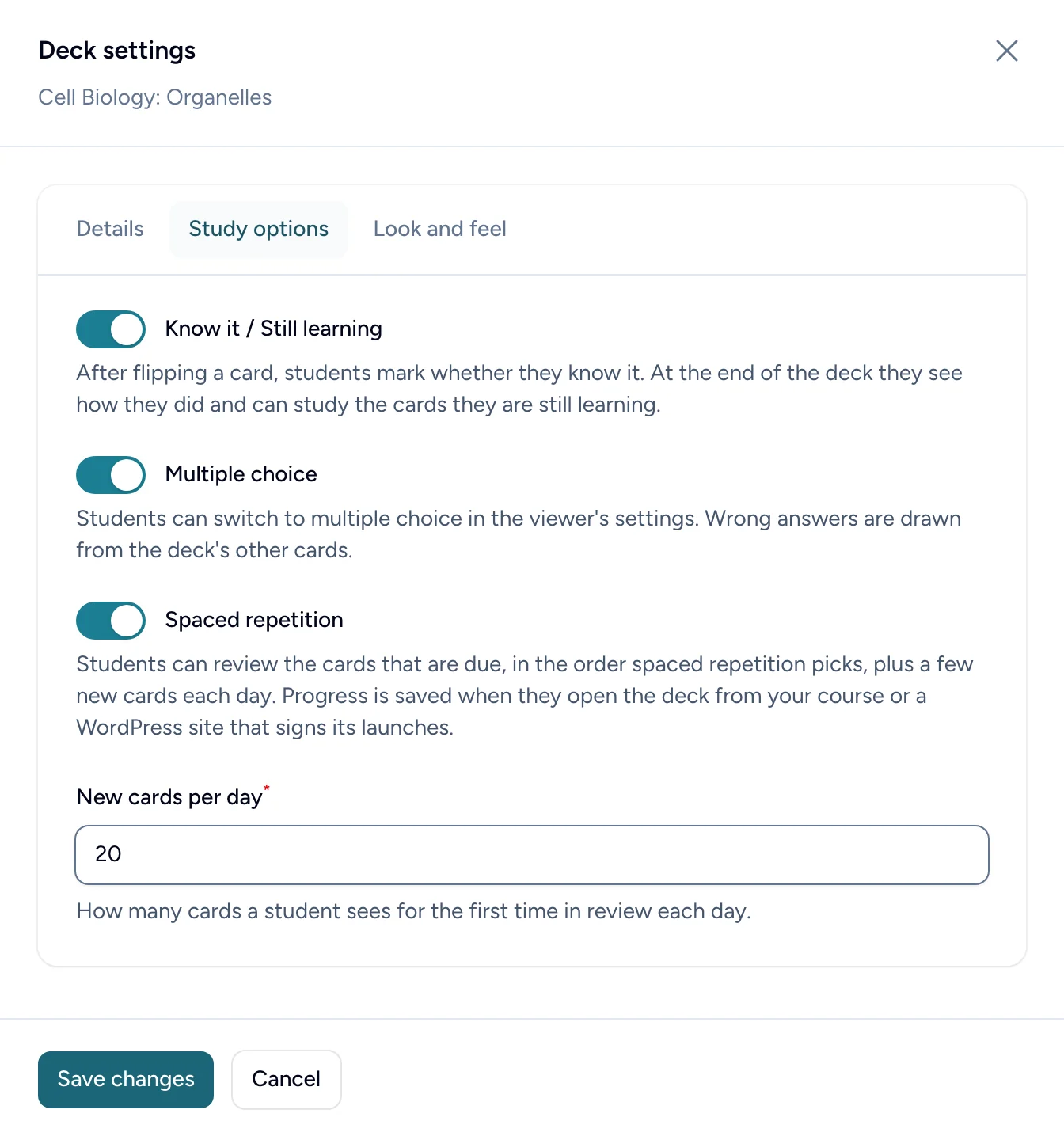
Know it / Still learning
After flipping a card, students mark whether they know it. At the end of the deck they see how they did and can study just the cards they're still learning.
This is on for new decks. Leave it on: marks are what your results are made of, and what spaced repetition schedules from.
Multiple choice
Students can switch to multiple choice in Deck Settings while they study. Each card becomes a question with four answers; the wrong answers are taken from the deck's other cards.
A deck needs at least 4 different short answers (200 characters or fewer, or pictures with alt text) before students see this option. Cards whose answers don't qualify are shown as ordinary flip cards. The Study options tab tells you if your deck isn't ready yet.
Spaced repetition
Students can review the cards that are due, in the order spaced repetition picks, plus a few new cards each day. Cards a student knows come back after longer and longer gaps; cards they're still learning come back soon.
- New cards per day (shown when spaced repetition is on) sets how many cards a student sees for the first time in review each day. The default is 20.
- Progress is saved when students open the deck from your course, or from a WordPress site that signs its launches. See Putting a deck on a WordPress site.
- Your results gain a Cards due count and a Due now column.
Select Save changes to save.
What students see
The guide for students shows each of these from their side, if you'd like to share it with your class: