
Browse the guides
Studying on a phone
Tap, swipe, and where the controls are on a small screen.
Flash Reference works on phones and tablets, in your LMS's app or in a browser. On narrow screens the controls change a little.
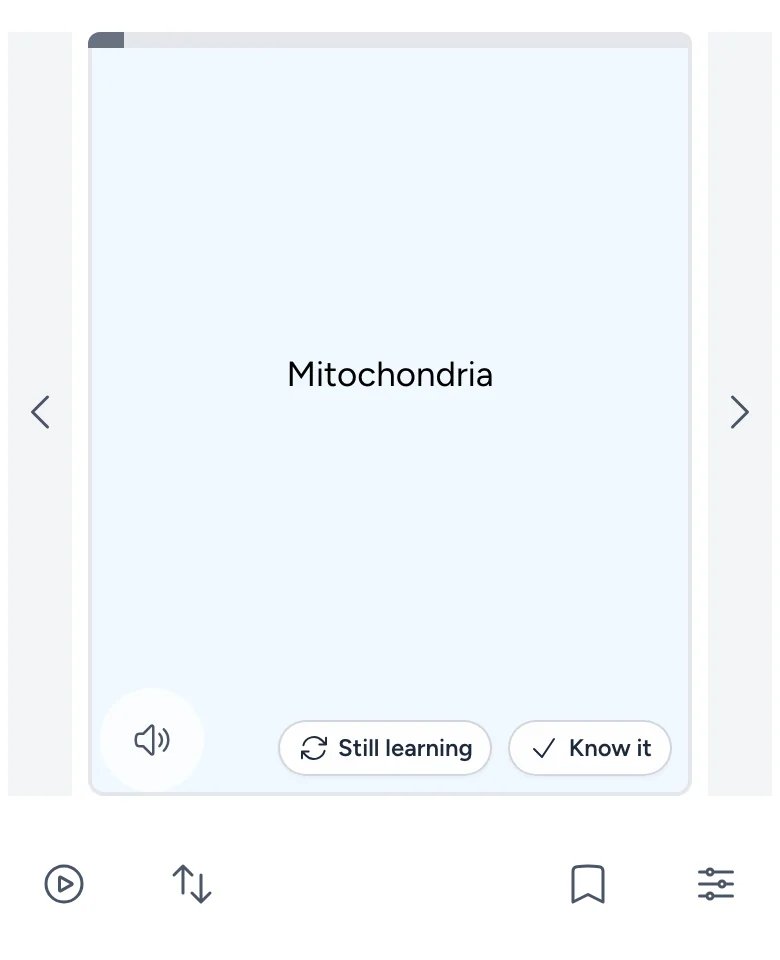
Flip and move
- Tap the card to flip it.
- Swipe left for the next card and right for the previous one, or tap the grey strips on either side of the card.
- After you flip a card, Still learning and Know it are in its corner, if the deck uses marks.
The buttons below the card
On a phone you'll see Play, Shuffle, Bookmark and Settings. The card counter and the to review button don't fit on narrow screens, so:
- To review the cards that are due, open Settings, choose Review under Study mode, and select Done.
- The bar along the top of the card still shows how far through the deck you are.
Tablets and wider screens show the same controls as a computer. See Studying with flashcards.
If the deck is hard to see
- Turn your phone sideways for a bigger card.
- If your LMS app shows the deck in a small frame, look for an option to open it in your browser.