
Browse the guides
Multiple choice
Pick each card's answer from four options instead of flipping.
Some decks also offer multiple choice: instead of flipping a card, you pick its answer from four options.
Switch to multiple choice
- Select Settings, the gear below the card on the right.
- Under Study mode, choose Multiple choice.
- Select Done.
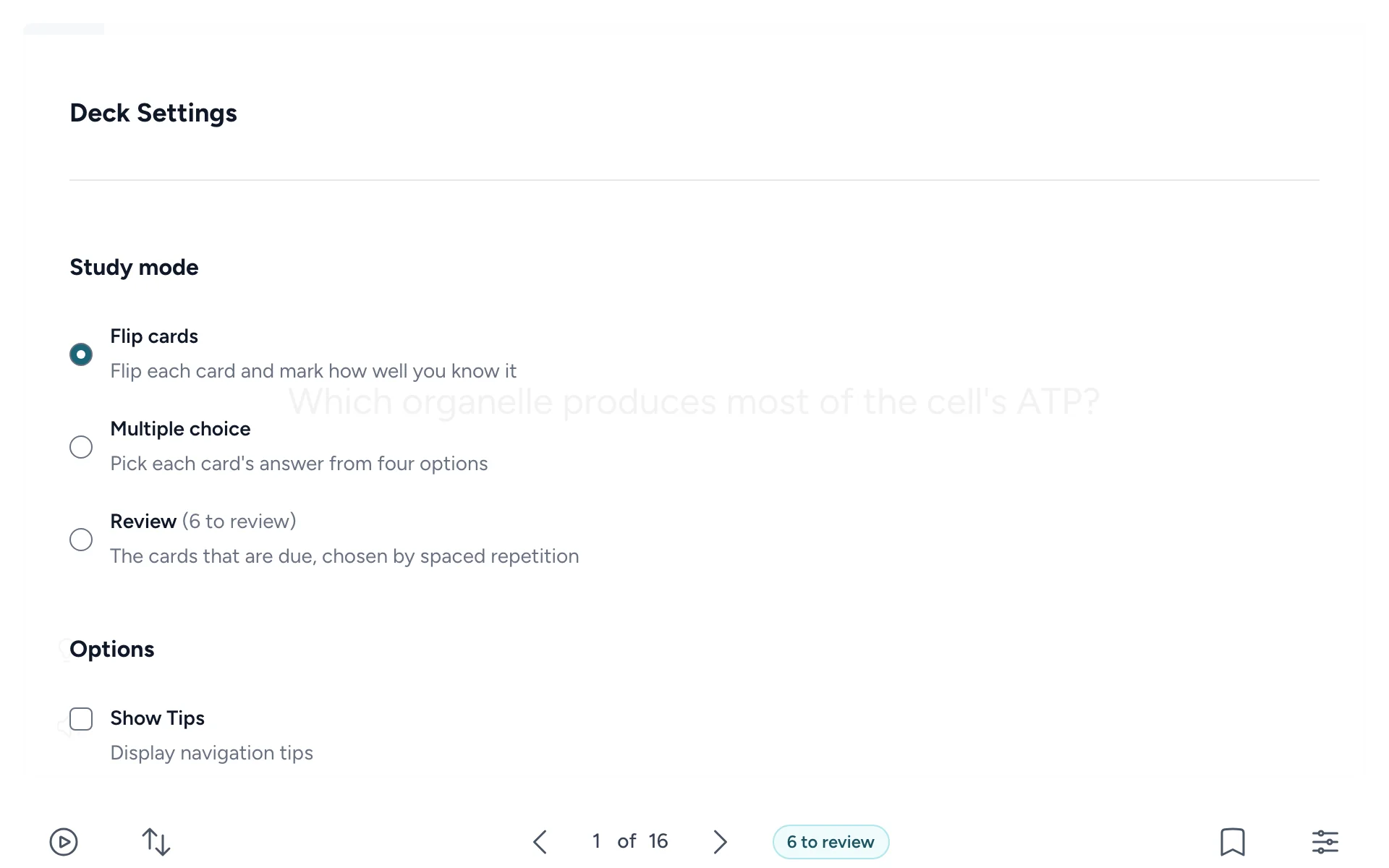
Multiple choice only shows in Settings when your instructor has turned it on and the deck has enough different answers to make the options from.
Each time you open a deck it starts with flip cards, so choose multiple choice again next time.
Answer a question
Select one of the four answers, or press 1 to 4.
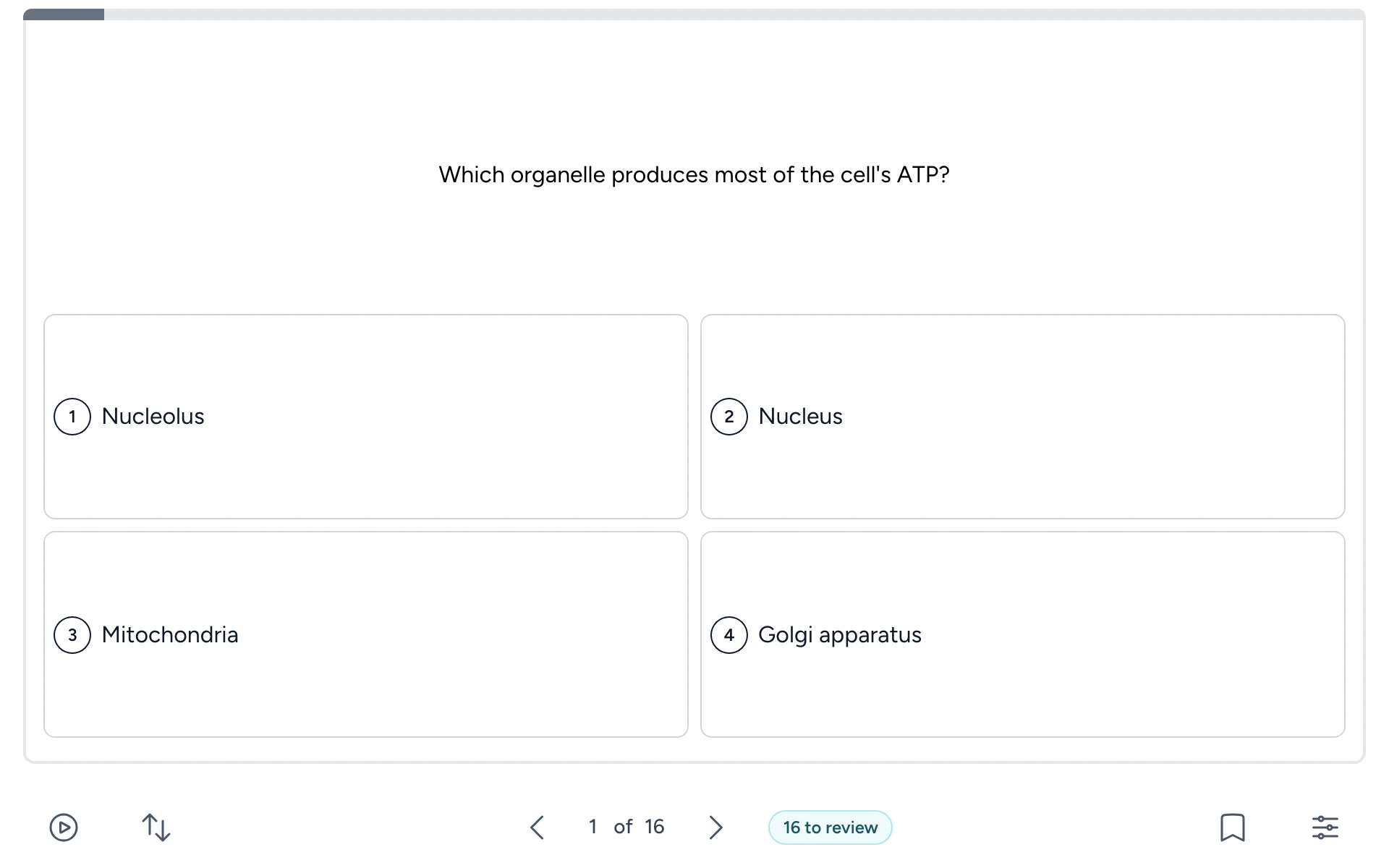
Flash Reference shows Correct answer on the right option, and Your answer on yours if it was wrong. Select Continue for the next question.
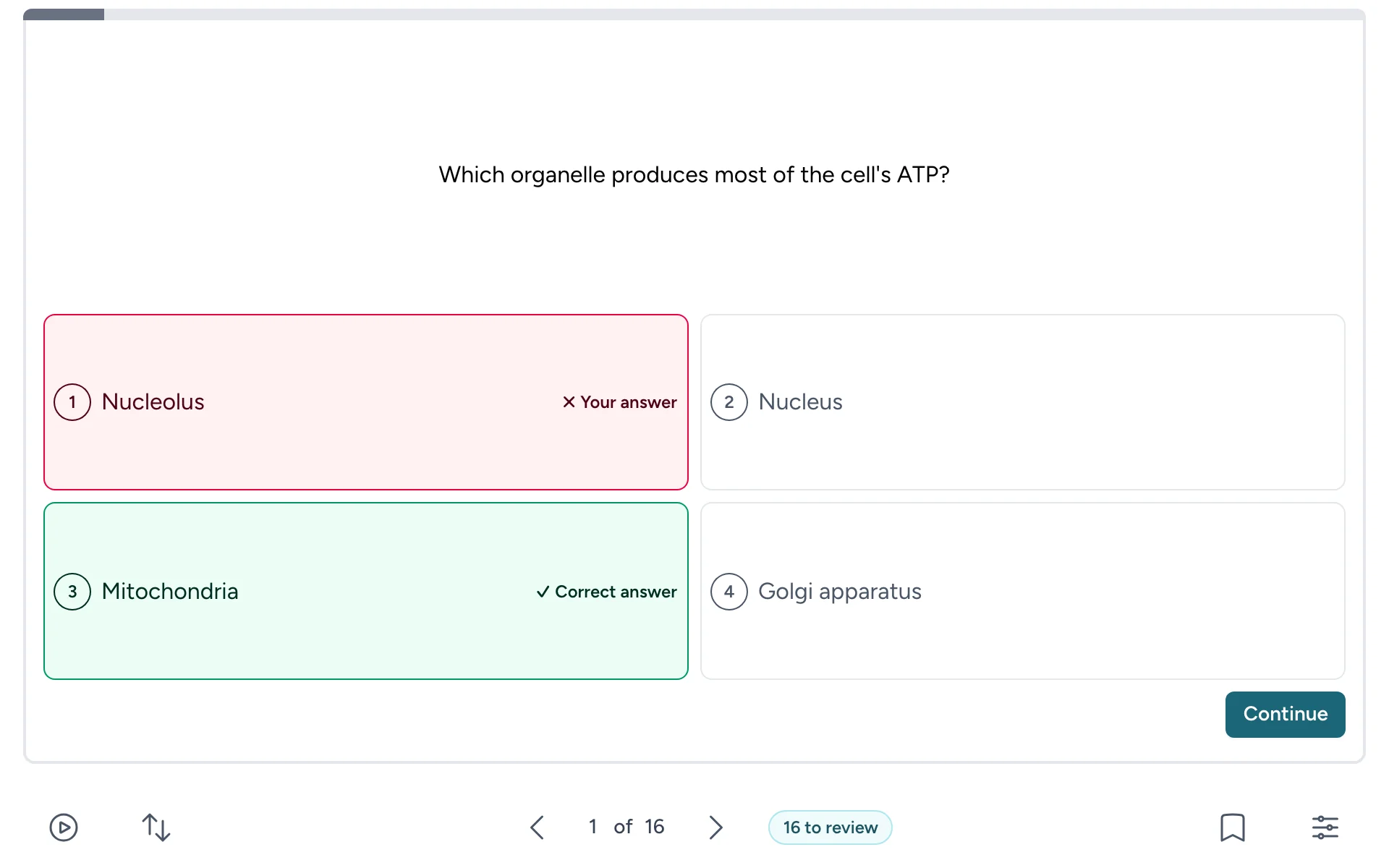
A right answer counts as Know it and a wrong one as Still learning, so multiple choice updates your review schedule just like marking.
Some cards can't be made into a question, for example when the answer is long. They show Shown as a flip card: flip and mark them as usual.
The end of a round
Round complete shows how many you got right and how many you missed. Try the missed cards again asks just the questions you missed.