
Browse the guides
Folders, collaborators and sharing
Organize decks, edit them with colleagues, and share them with your organization.
Folders
Folders keep your list of decks tidy, for example one folder per course. A deck can be in more than one folder, and folders are yours alone: other instructors don't see them.
- Put decks in a folder: in the list of decks, tick the decks' boxes, open the bulk actions menu and choose Add to Folder. Choose a folder, or select + to create one.
- Show one folder: select Filters above the list and choose the Folder.
- You can also choose folders when you create a deck, or on the Details tab of its Settings.
Collaborators
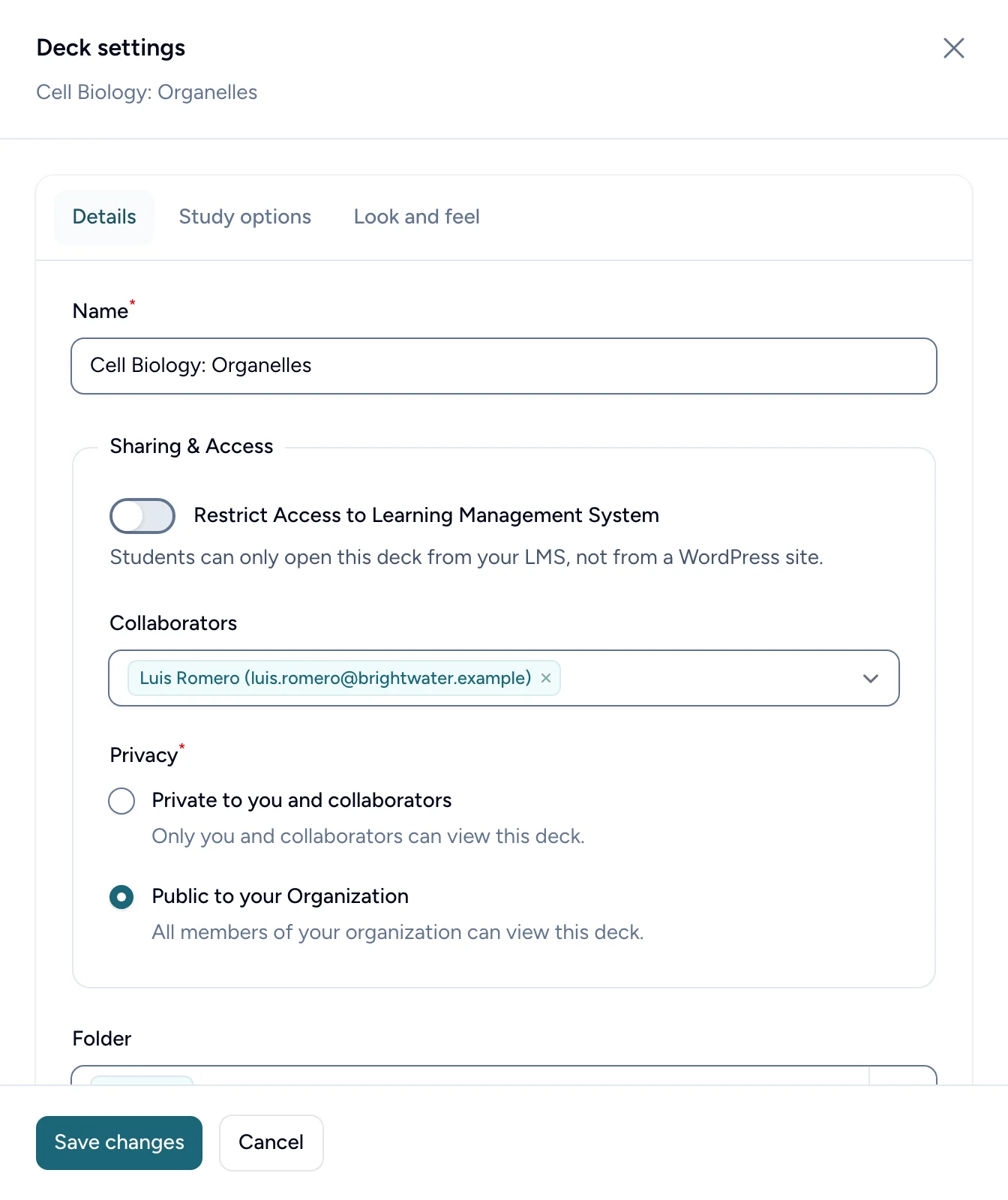
Collaborators are other instructors in your organization who can edit a deck with you. To add them, select Settings on the deck's row in the list of decks (or at the top of the card editor), choose them under Collaborators on the Details tab, and select Save changes.
Adding collaborators needs a plan that includes them. On other plans, and during a free trial, the Collaborators box is turned off and says so; anyone added before keeps their access.
Collaborators can:
- add, change and delete the deck's cards and settings,
- add the deck to their own courses,
- see the deck's results,
- delete the deck. Only add people you trust with it.
Only instructors who already have an account in your organization are listed. To bring in someone new, ask your admin to invite them.
Share a deck with your organization
A deck's Privacy decides who else can use it:
- Private to you and collaborators (the default): only you and your collaborators see the deck.
- Public to your Organization: every instructor in your organization can add the deck to their courses. It shows under Shared Decks when they choose a deck in your LMS.
Sharing with your organization needs a plan that includes shared decks. On other plans, and during a free trial, Public to your Organization is turned off. Decks that were already shared stay shared.
Sharing a deck doesn't let other instructors edit it or see its results. When a student opens a shared deck from another instructor's course, they show up in your results, and that course appears in your Course filter.
Admins and your decks
Your organization's admins can see every deck's results, but they can't edit decks they don't own or collaborate on.