
Browse the guides
Settings, shortcuts and accessibility
Deck settings, keyboard shortcuts, and how Flash Reference works with screen readers and zoom.
Deck settings
Select Settings, the gear at the bottom right, to open Deck Settings.
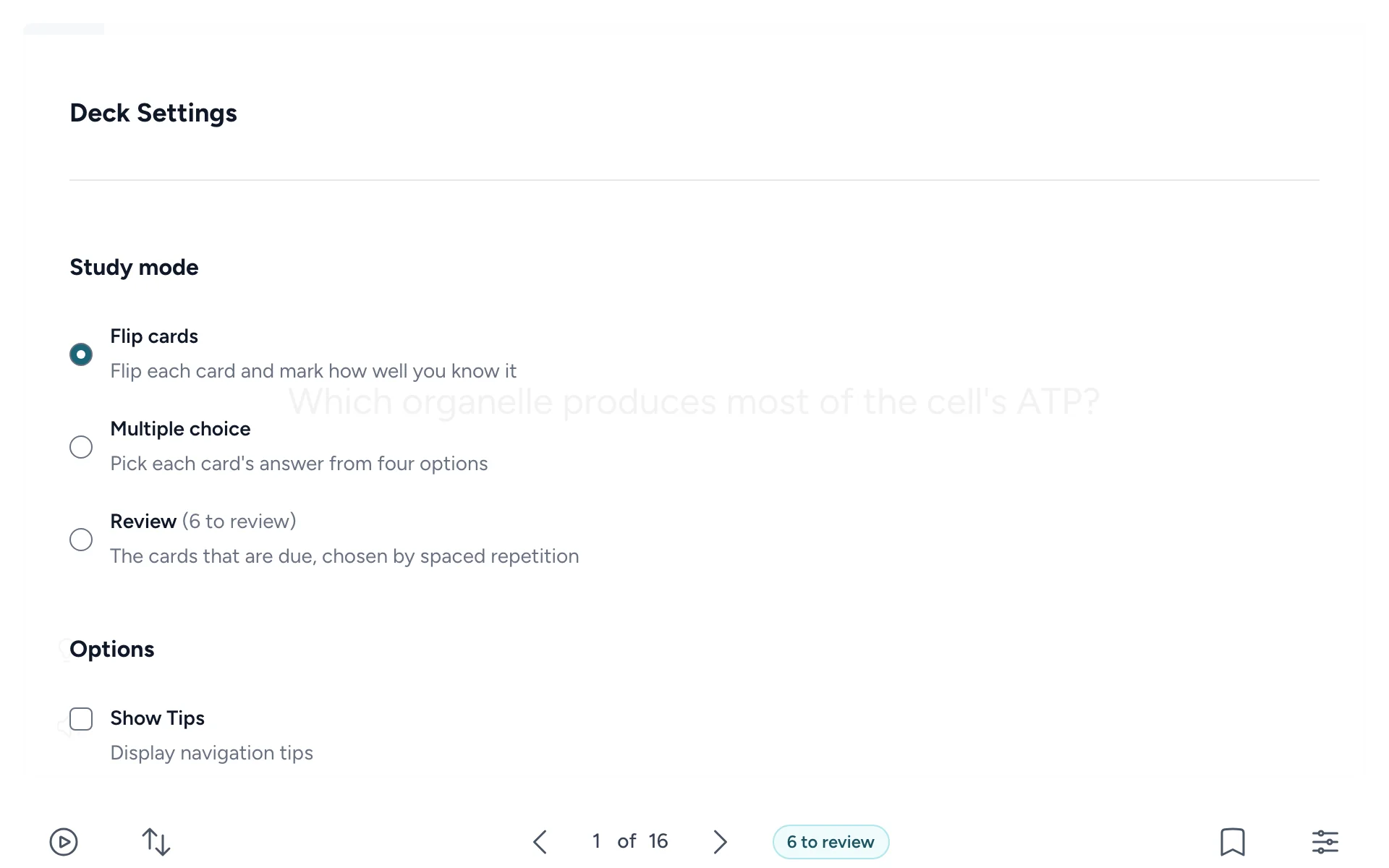
| Setting | What it does |
|---|---|
| Study mode | Flip cards, Multiple choice or Review. Only the modes your instructor turned on are listed. |
| Show Tips | Shows the tips on the first card. |
| Show Bookmarked Cards | Shows only the cards you've bookmarked. |
| Single-key shortcuts | Lets B and the number keys work on their own. Turn it off if you use speech input. This browser remembers it. |
| Restore original order | Shows after you shuffle, and puts the cards back in your instructor's order. |
Select Done, or press Esc, to close the dialog.
Each time you open a deck, it starts with flip cards, in your instructor's order, showing every card.
Keyboard shortcuts
| Key | What it does |
|---|---|
| Space | Flip the card |
| ← → | Previous and next card |
| B | Bookmark the card |
| 1 2 | After flipping: Still learning and Know it |
| 1 to 4 | Choose an answer in multiple choice |
| Esc | Close Settings, the round summary or a tooltip |
- The space bar and arrow keys always work. B and the number keys only work while Single-key shortcuts is on, which it is unless you turn it off.
- Shortcuts don't work while Settings or the round summary is open, or while you hold Ctrl, Alt or ⌘.
- If you've moved to a button with the Tab key, the space bar presses that button instead of flipping the card.
Settings lists the shortcuts that work in the deck you're studying.
Accessibility
Flash Reference is built to work with a keyboard, screen readers, zoom and other assistive technology.
- Keyboard. Every button can be reached with Tab. When you Tab into the card, a Show answer button appears at its top; it becomes Show question once the card is flipped.
- Screen readers. Flash Reference announces the card number, the question and answer as you flip, hints, bookmarks, marks, multiple-choice results and the end of each round. The two sides of a card are labelled Question and Answer, and the hidden side can't be reached.
- Zoom and text size. Card text grows with your browser's zoom and text size, and the page works on screens as narrow as 320 pixels.
- Less motion. If your device is set to reduce motion, cards flip without the animation.
- Languages. When your instructor sets a deck's language, screen readers and Read aloud use it, and right-to-left languages read right to left.
- Read aloud. The speaker button on the card reads it to you. See Studying with flashcards.
Our accessibility statement explains what we've tested and what we know still needs work. Your instructor chooses card colors, so if a deck is hard to read, let them know.