Browse the guides
The admin home
Find your way around the admin area and read your organization's activity.
Sign in
Go to flash-reference.com/login and sign in. Admins land on the admin home.
Getting around
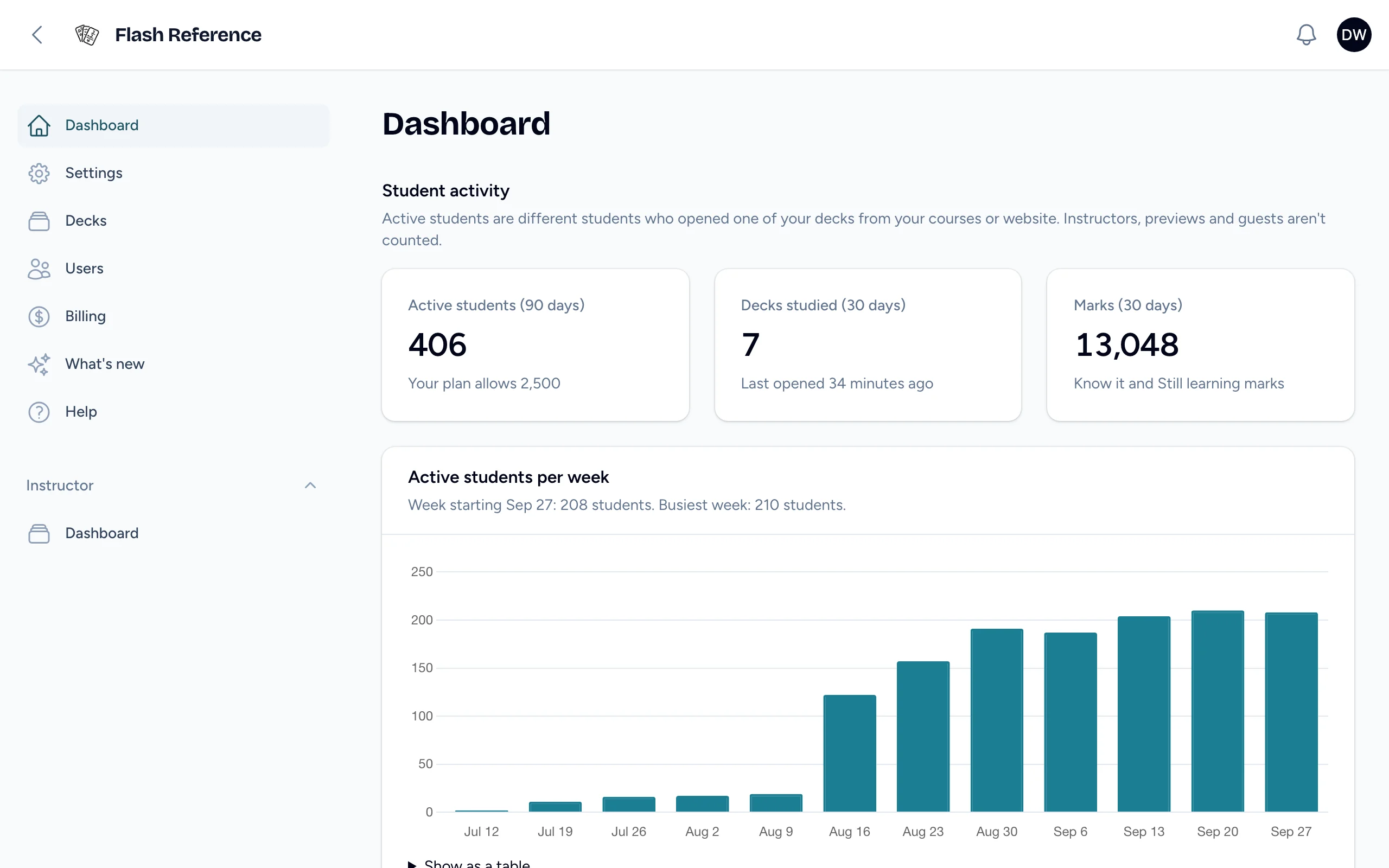
The sidebar has:
| Page | What's there |
|---|---|
| Dashboard | This page: student activity and the most-used decks. |
| Settings | Your LMS connection details and WordPress. See Connecting your LMS. |
| Decks | Every deck in your organization. See Your organization's decks. |
| Users | Everyone in your organization, and invitations. See Inviting and managing people. |
| Billing | Your plan, payment and invoices, in a new tab. Only shown to people who manage billing. See Plans and billing. |
| What's new | Our latest changes, in a new tab. The number beside it counts the changes for admins since you last looked. |
| Help | This guide, in a new tab. |
| Instructor → Dashboard | The instructor dashboard, where you build your own decks. |
The bell at the top holds announcements from us, and your name opens a menu with Notification settings. See Announcements.
The chat button in the bottom-right corner sends us a message. See Getting help.
Student activity
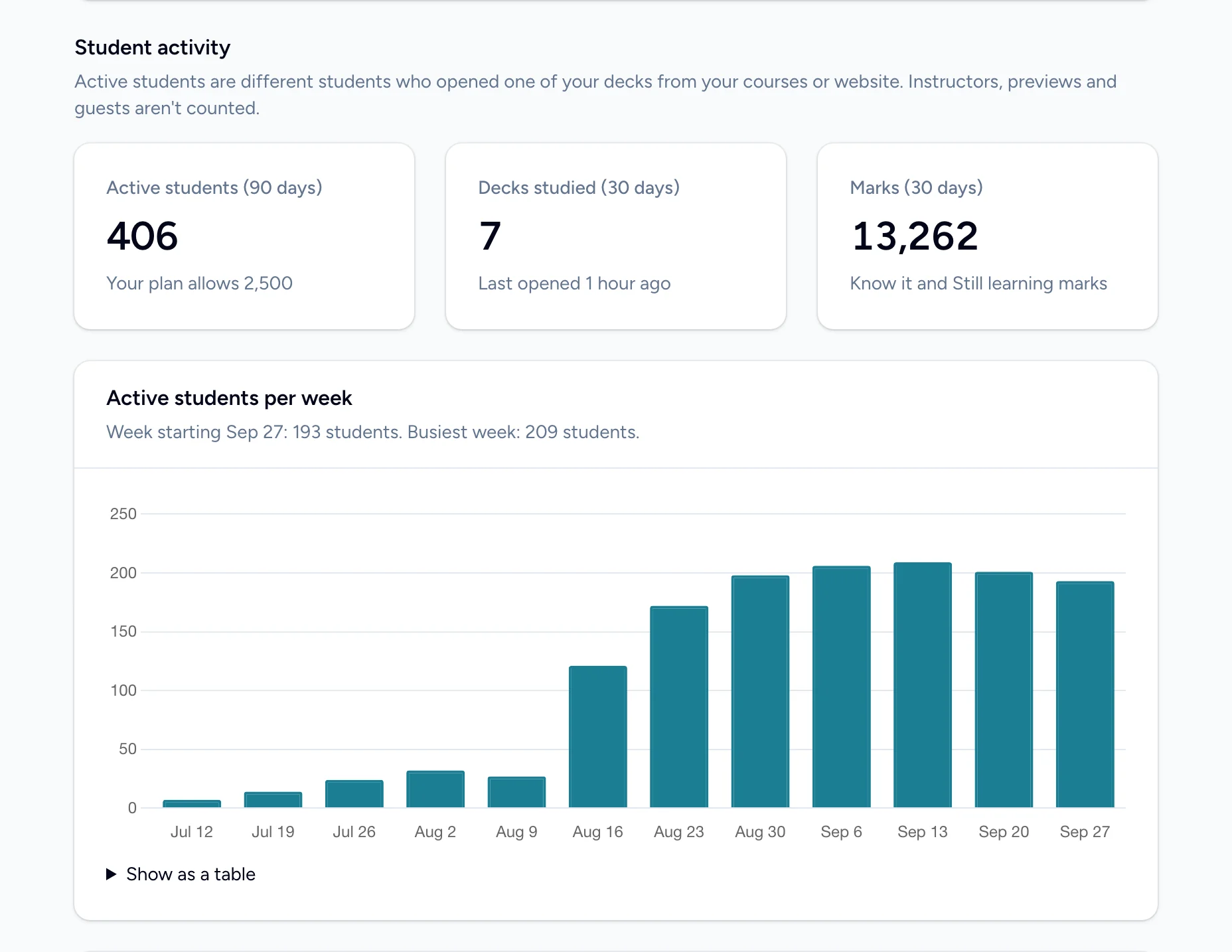
Student activity shows how much your decks are used:
- Active students (90 days): different students who opened one of your decks from your courses or website in the last 90 days, and how that compares with your plan's limit. Instructors, previews and website guests aren't counted. See Active students and your plan.
- Decks studied (30 days): how many decks students opened, and when one was last opened.
- Marks (30 days): Know it and Still learning marks students made.
Active students per week charts the last 12 weeks. Select Show as a table to read the numbers.
Most-used decks
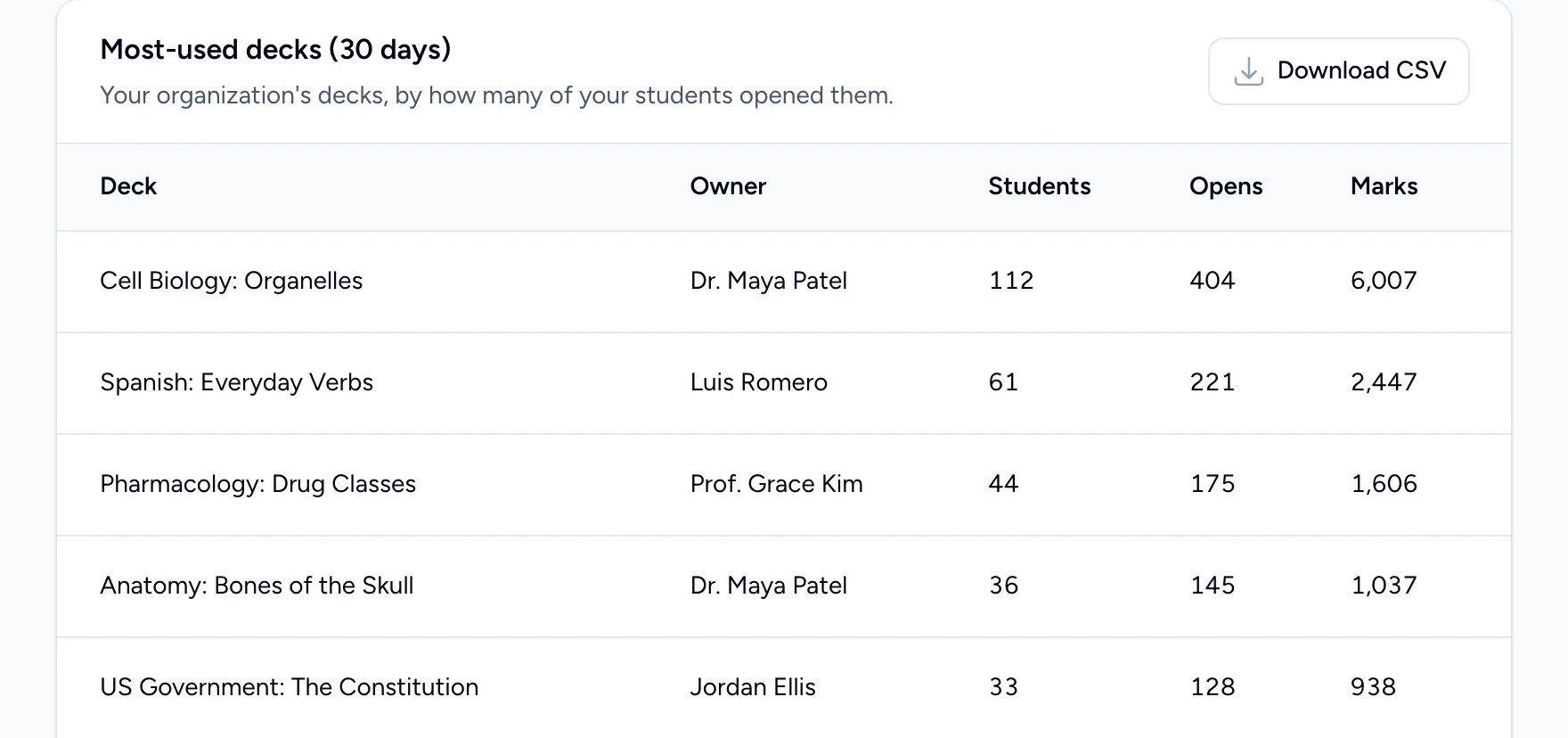
Most-used decks (30 days) lists your organization's decks by how many students opened them, with each deck's owner, opens and marks. Select a deck to see its results. Download CSV saves the table as a spreadsheet.