
Browse the guides
Inviting and managing people
Roles, invitations, and changing or removing someone's access.
Who can do what
| Role | Can |
|---|---|
| Instructor | Build decks, add them to courses, and see their own decks' results. |
| Admin | Everything an instructor can, plus see every deck's results, connect your LMS and WordPress, and invite and manage people. Admins edit only their own decks and ones they collaborate on. |
| Billing | Choose and pay for your plan, and get account emails about the trial and student limits. Usually given to an admin. |
Students don't need an account or an invitation. They're added automatically the first time they open a deck from your LMS or website.
The Users page
Users lists everyone in your organization: instructors and admins, and also the students and instructors your LMS has sent to Flash Reference. Select Filters to show only one role.
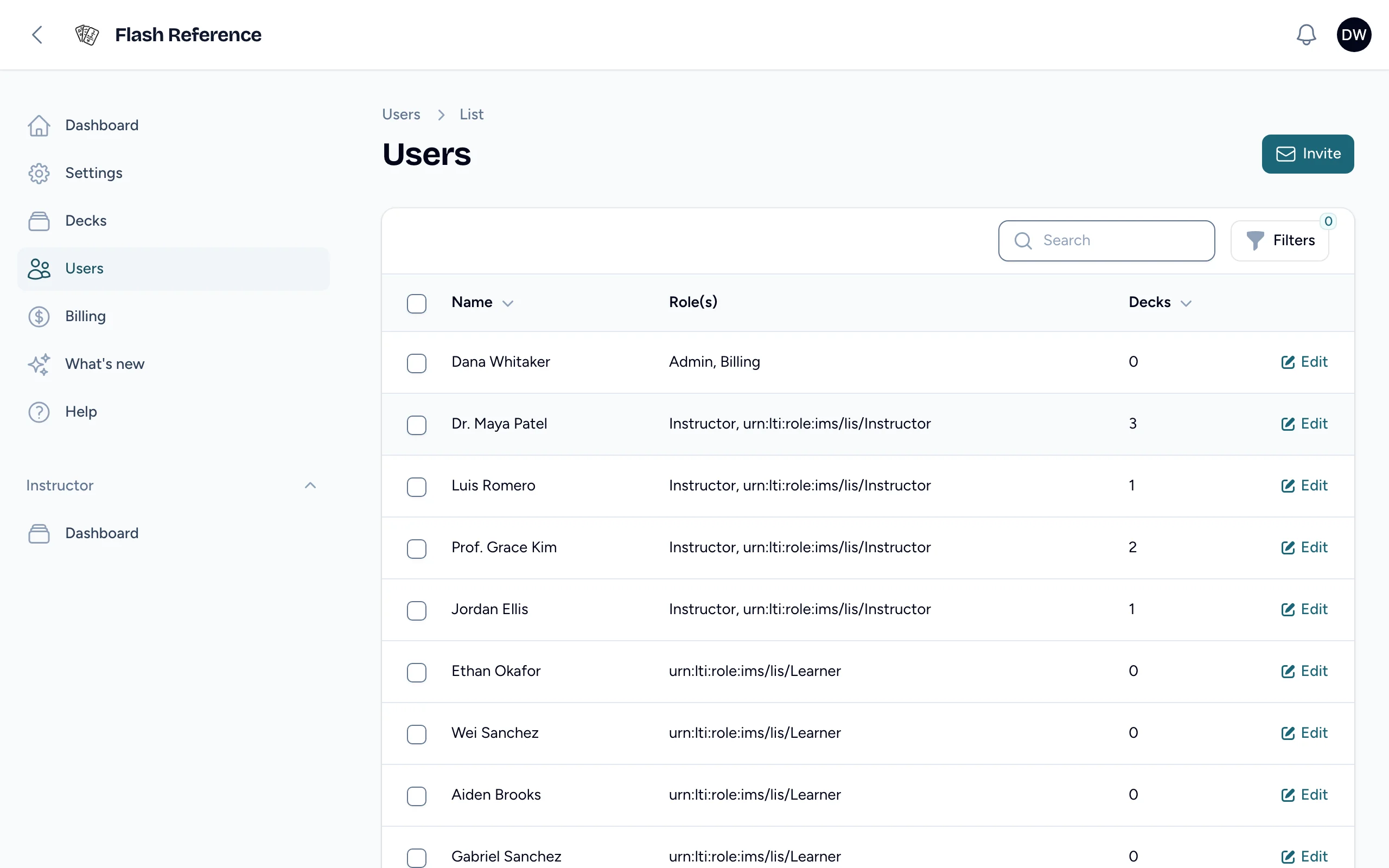
Invite someone
- On Users, select Invite.
- Enter their Email and choose a role: Instructor or Admin.
- For an admin, turn on Can manage billing if they should handle your plan and payments too.
- Select Submit. They get an email with a link to join your team and choose a password.
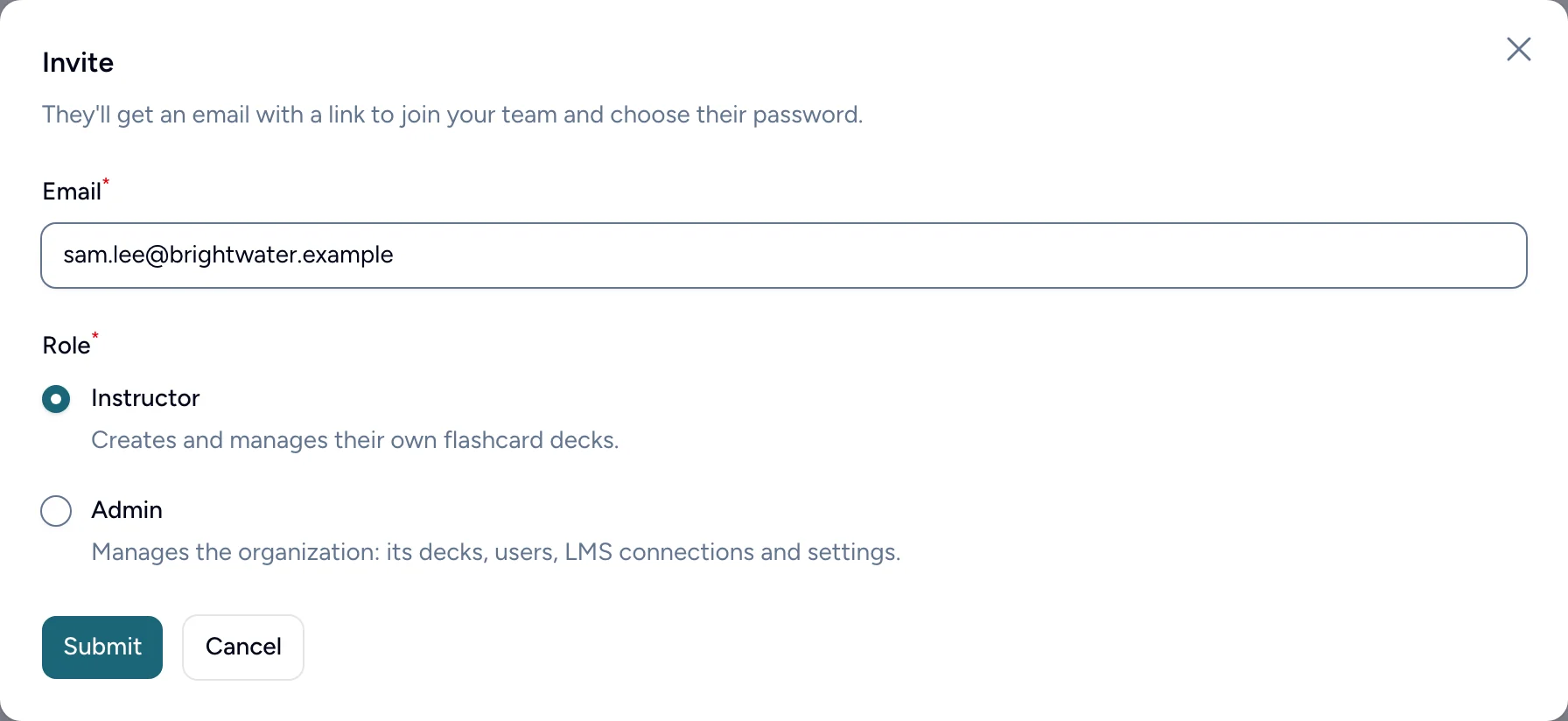
Invitations last 7 days. You can send up to 20 a day, or 5 a day during a free trial. Inviting the same address again replaces the earlier link.
Admins: your first admin is always included. More admins need a plan that includes multiple admins; until then, the Admin choice is turned off and says so. Pending admin invitations count toward the limit.
Pending invitations
The bottom of the Users page lists invitations that haven't been accepted yet, with who sent them and when they expire.
- Resend sends the email again, with a new link that lasts another 7 days.
- Withdraw cancels it. The link in the email stops working.
Change someone's role
On Users, select Edit on the person's row, tick or untick Admin, Billing and Instructor, and select Save changes. You can also correct their name and email here.
Remove someone
- On Users, tick the box on their row.
- Open the bulk actions menu and choose Delete selected.
- If they own decks, choose who takes them over under Move their decks to. Only instructors in your organization are listed.
- Select Delete.
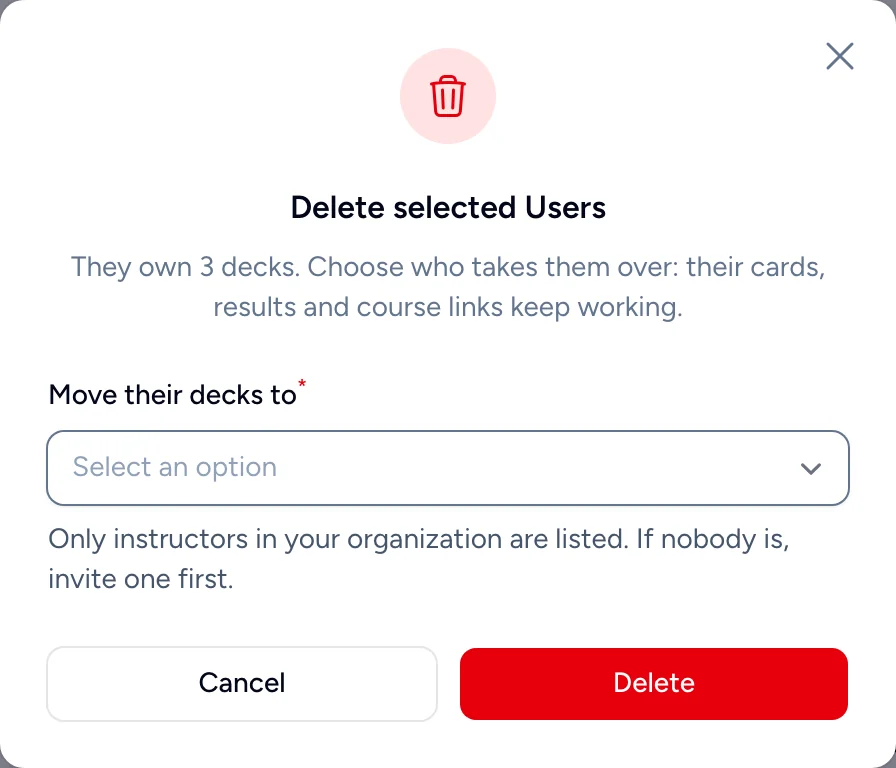
Their decks keep working: the cards, results and links in courses stay as they were, and the new owner finds them in their list of decks. Removing the person's account can't be undone.
If nobody is listed under Move their decks to, invite an instructor first.
Someone can't join
If the invitation page says This invitation isn't available, it has expired or was already used: send a new one. If the person already has a Flash Reference account with another organization, they'll be asked to contact support, and we'll sort it out.