
Browse the guides
Moodle
Add Flash Reference to Moodle as an external tool, so teachers can add decks as activities, choosing each from a list.
You'll need to be an admin in Flash Reference and a site administrator in Moodle.
Tip: Moodle 4.1 and later can connect with LTI 1.3 instead. See Moodle with LTI 1.3.
Before you start
In Flash Reference, open Settings → Production and keep these at hand:
- Launch URL:
https://flash-reference.com/lti/launch - Production Consumer Key and Production Secret, which are your organization's own.
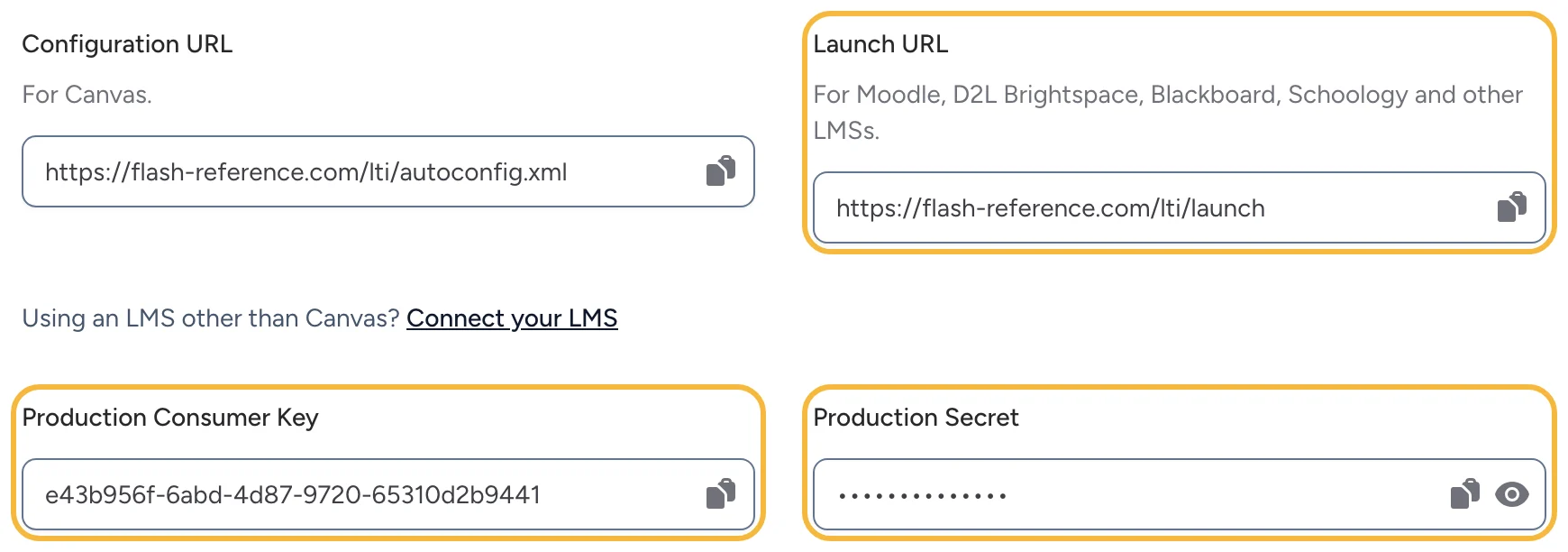
The Test tab has a second key and secret, for a test copy of Moodle.
Add Flash Reference to Moodle
- Go to Site administration → Plugins → Activity modules → External tool → Manage tools and select configure a tool manually.
- Enter:
- Tool name: Flash Reference
- Tool URL: the Launch URL
- LTI version: LTI 1.0/1.1
- Consumer key and Shared secret: your Production Consumer Key and Secret
- Tool configuration usage: Show in activity chooser and as a preconfigured tool
- Supports Deep Linking (Content-Item Message): on, with the Launch URL as the Content Selection URL
- Under Privacy, set Share launcher's name with tool and Share launcher's email with tool to Always.
- Select Save changes.
Adding decks to a course
Teachers add an activity, choose Flash Reference, and use Select content to choose one of their decks. See Adding a deck to your course.
If something looks different
These steps follow Moodle's own documentation, and menus can differ between versions and setups. If a screen doesn't match, contact us and we'll help.