
Browse the guides
Studying with flashcards
Flip cards, move between them, and use hints, read aloud, shuffle and bookmarks.
Each card has a question on the front and an answer on the back. Read the question, think of the answer, then flip the card to check.
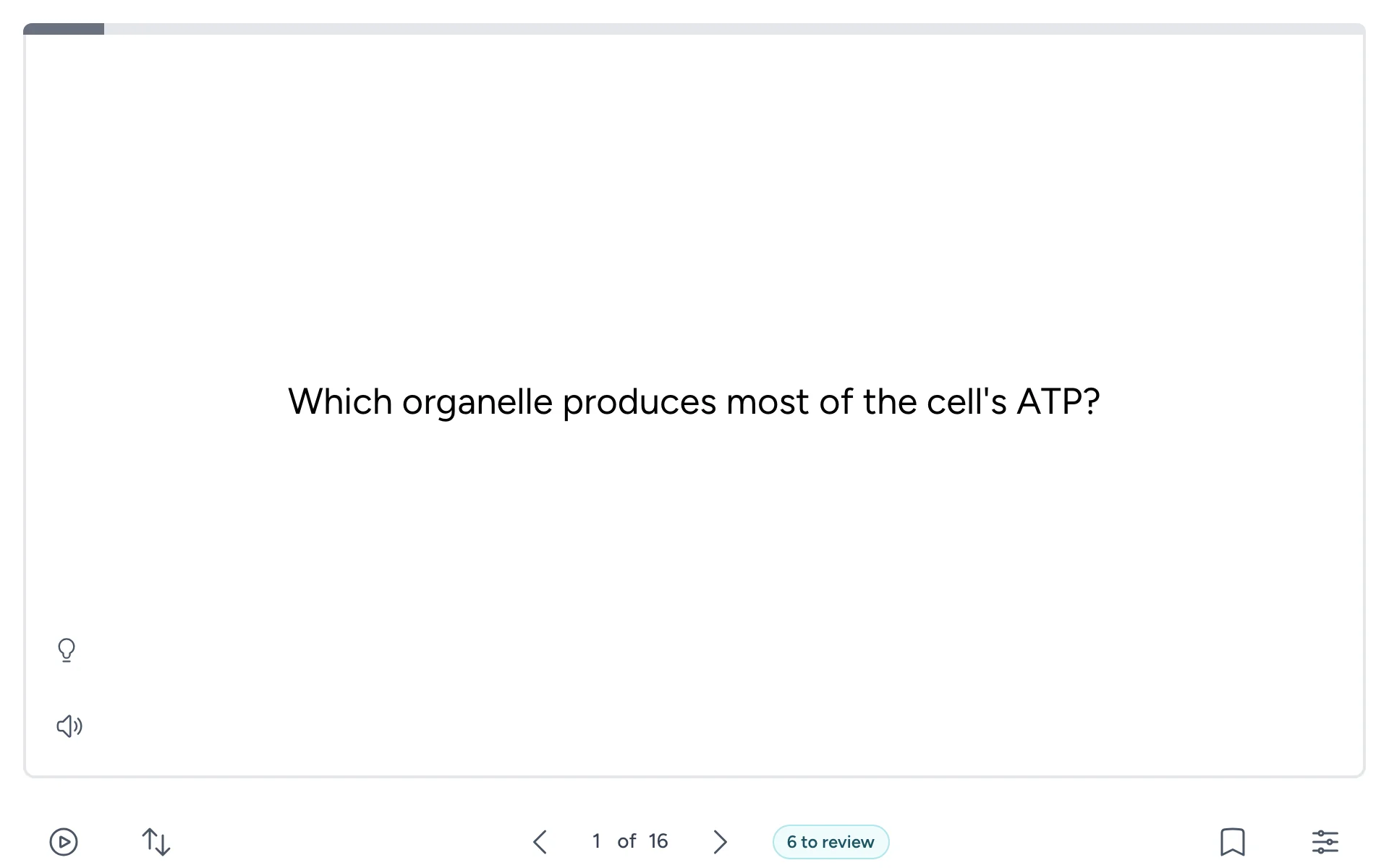
Flip a card
- Click or tap the card, or press the space bar.
- Flip it again to go back to the question.
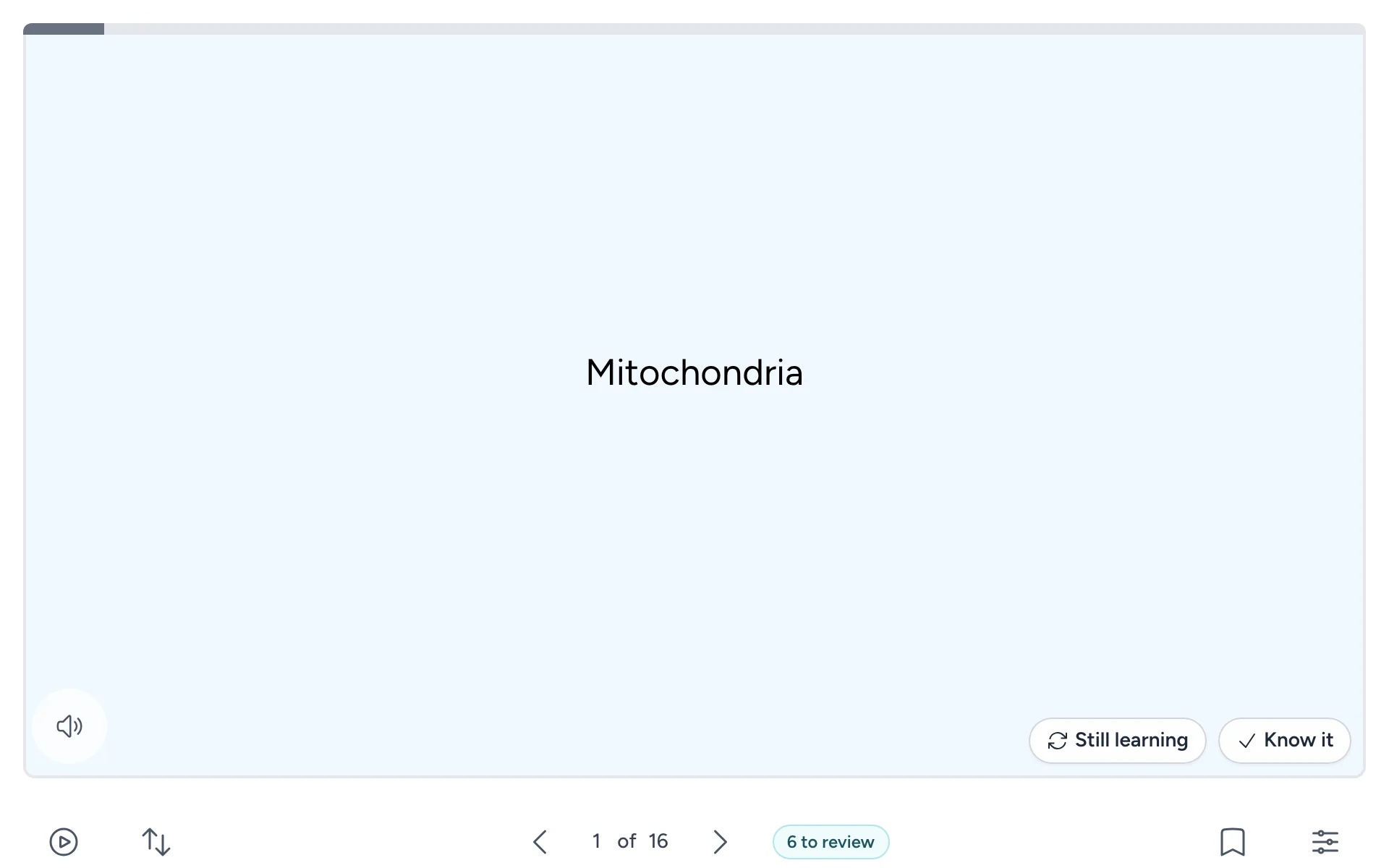
If you see Still learning and Know it on the back, see Still learning or Know it.
Move between cards
- Select Next or Previous, the arrows below the card, or press the right and left arrow keys.
- The counter between them, such as 3 of 16, shows where you are. Selecting it flips the card too.
- The bar along the top of the card fills as you go.
The buttons below the card

| Button | What it does |
|---|---|
| Play | Plays the deck by itself: each card's front for 5 seconds, its back for 4, then the next card. Select it again to stop. It stops at the last card, or when you mark a card. |
| Shuffle | Mixes up the cards and starts again from the first. To put them back, open Settings and select Restore original order. |
| Previous and Next | Go back or forward one card. |
| N to review | Shows when some cards are due for review. See Reviewing cards that are due. |
| Bookmark | Saves the card so you can study just your bookmarked cards. It turns yellow when the card is bookmarked; select it again to remove the bookmark. |
| Settings | Study mode, tips, bookmarks and keyboard options. See Settings, shortcuts and accessibility. |
Point at a button, or move to it with the Tab key, to see its name.
Hints
If your instructor added a hint to a card, the front has a lightbulb button in its bottom corner. Select it to show the hint along the bottom of the card. The hint hides again when you move to another card.
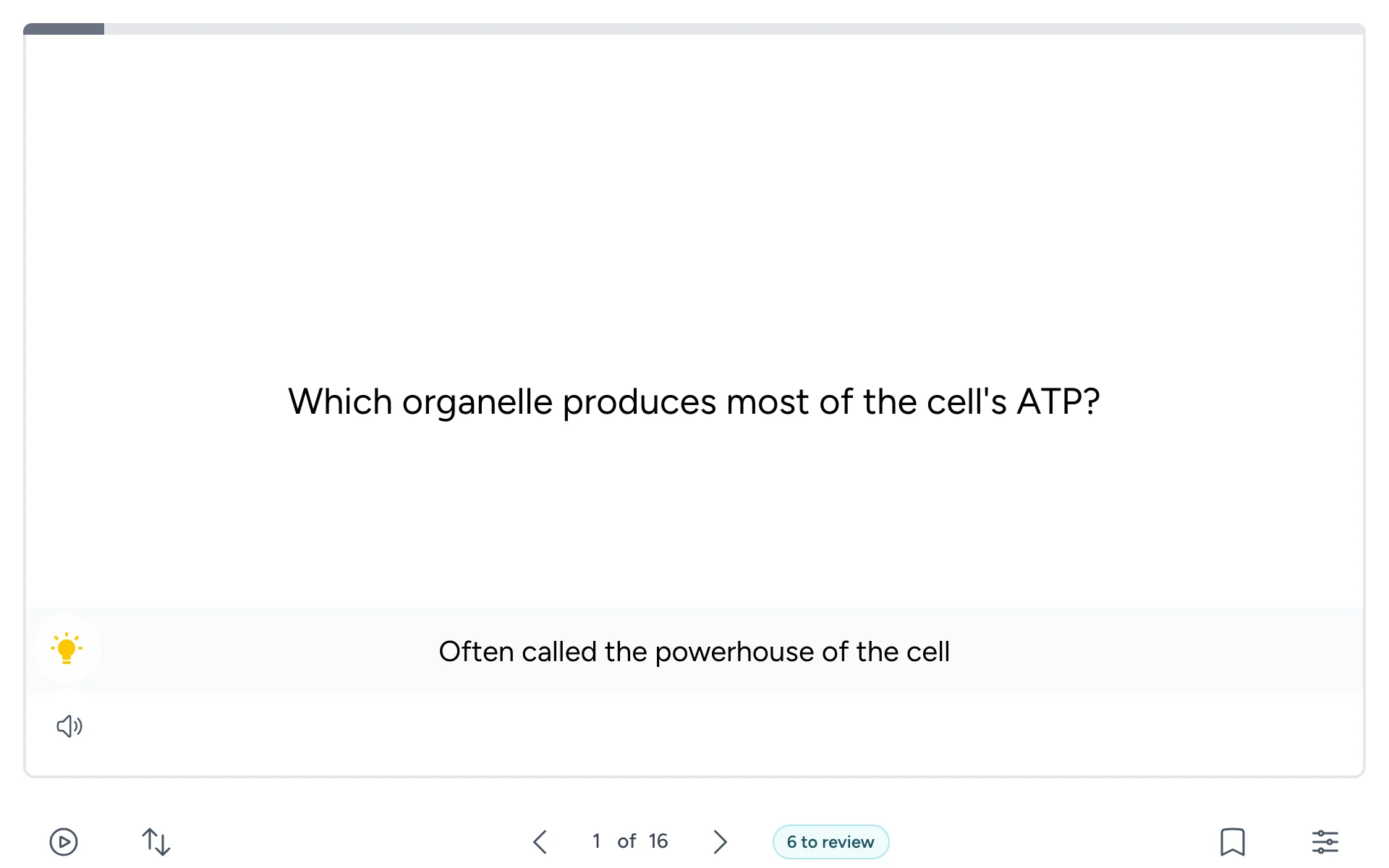
Read a card aloud
The speaker button in the card's bottom corner reads aloud the side you're looking at, in the deck's language. Select it again to stop. If that side is a picture, it reads the picture's description.
The button only shows when your browser can read text aloud.
Bookmarks
Bookmark the cards you want to come back to. Then, to study only those cards, open Settings and turn on Show Bookmarked Cards. Turn it off to see the whole deck again.
When you open the deck from your course, your bookmarks are saved to you and are there next time. As a guest on a website, they're kept only in that browser.