
Browse the guides
Opening a deck
Open a deck from your course or a website. No account or password needed.
Your instructor puts Flash Reference decks in your course. You don't need an account or a password: when you open a deck, your course tells Flash Reference who you are, so your progress is saved to you.
From your course
- Go to your course in Canvas, Moodle, Brightspace, Blackboard, Schoology or whichever system your school uses.
- Open the item your instructor added. It's usually in a module or on a content page, and looks like any other link or assignment.
- The deck opens on its first card, either inside the course page or in a new tab.
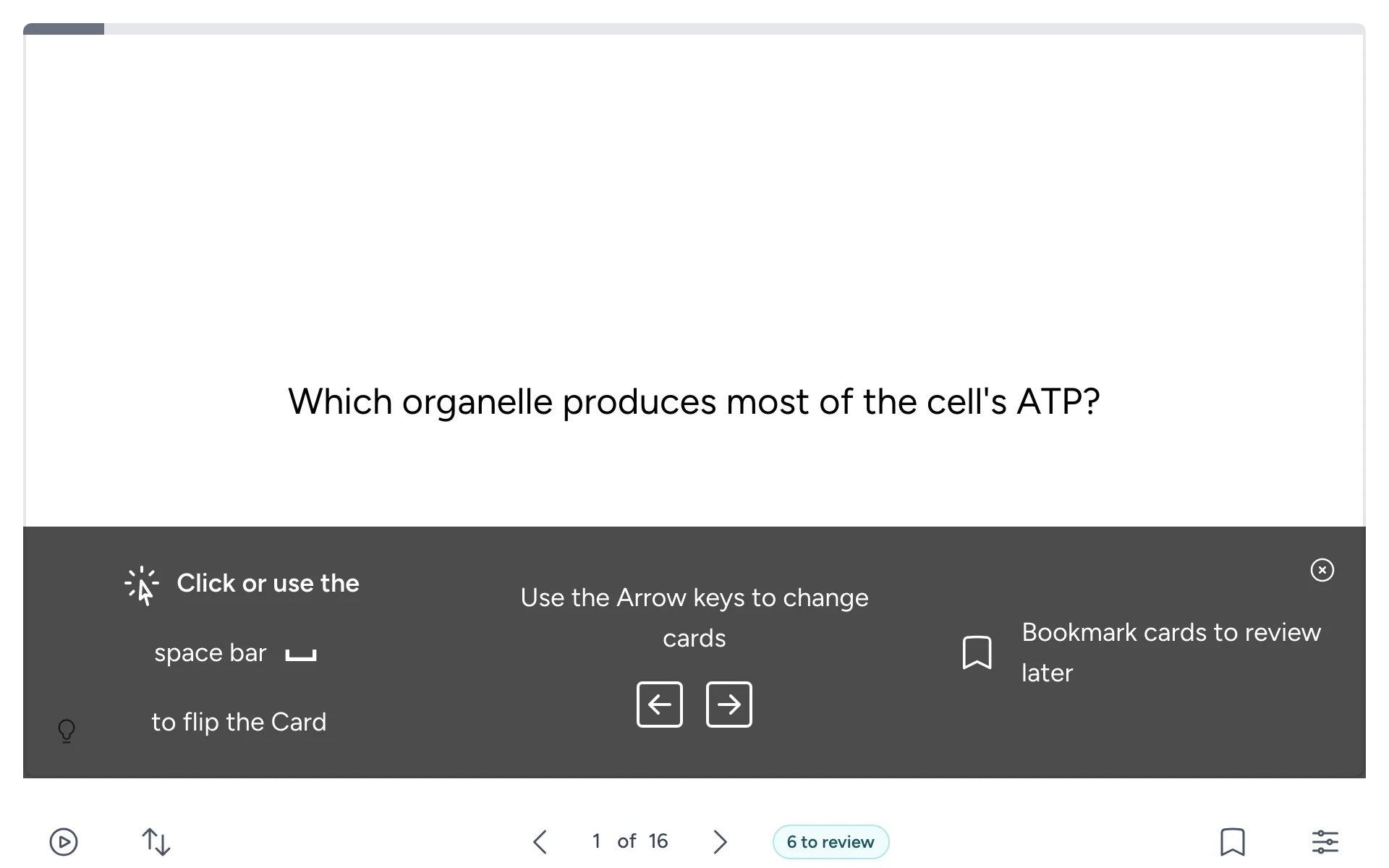
The tips close when you click them or select the × in their corner. To see them again, open Settings and turn on Show Tips.
From a website
Some instructors put decks on a WordPress website instead. The deck sits in the page, like a video.
- If you see Log in to study this deck., log in to the website first.
- If you see This deck is only available in your course, open it from your course instead.
- If the site doesn't ask you to log in, you can study as a guest. Guests can use every card, but nothing is saved for them. See Your progress and privacy.
Always open the deck from your course
Each time you open a deck, Flash Reference makes a private link for that visit. The link stops working after 12 hours without use, and after 7 days at most.
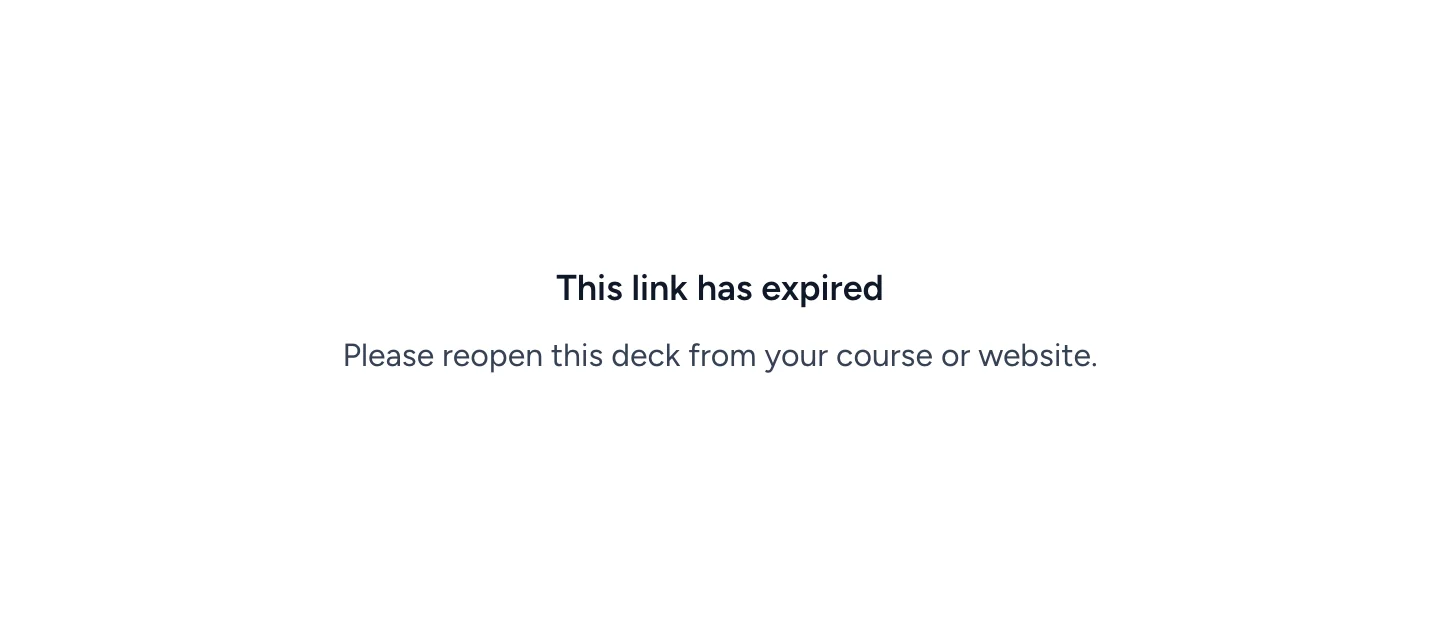
If you bookmark the deck's page in your browser, or open it again from your browser history, you'll see This link has expired. Go back to your course or website and open the deck from there.
Tip: To come back to particular cards later, use the bookmark button below the card, not your browser's bookmarks. See Studying with flashcards.