
Browse the guides
Card colors and languages
Set a deck's colors, text alignment and languages.
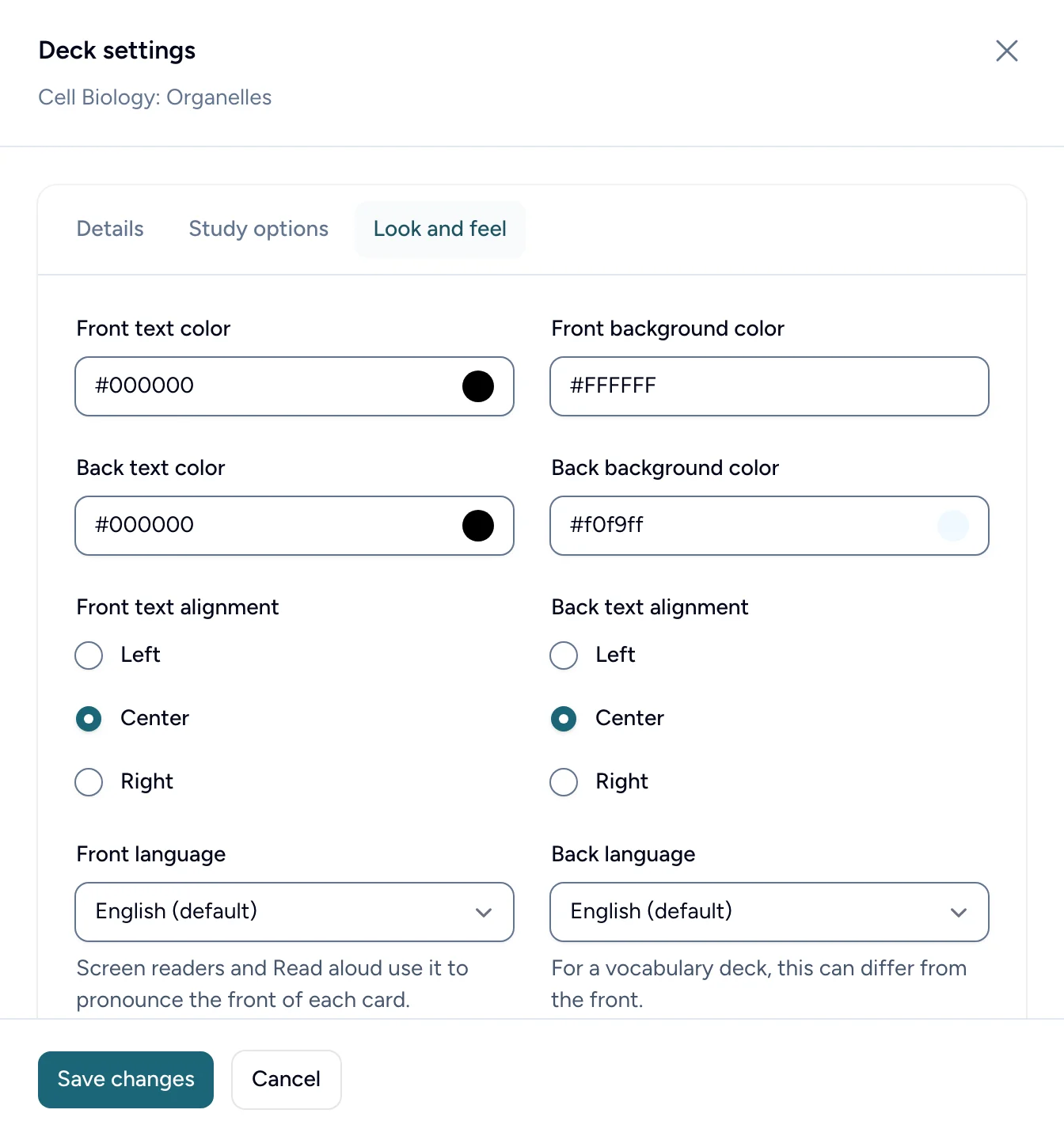
Every card in a deck shares the same colors, text alignment and languages. Change them on the Look and feel tab of the deck's Settings: select Settings at the top of the card editor, or on the deck's row in the list of decks, then select Look and feel.
Colors
Choose a text color and a background color for each side: Front text color, Front background color, Back text color and Back background color. A different background on the back helps students see at a glance that they've flipped the card.
Check that text stays easy to read against its background. Flash Reference doesn't check your colors' contrast for you; dark text on a light background is the safe choice.
Alignment
Front text alignment and Back text alignment set each side's text to the left, center (the default) or right. Left suits longer answers.
Languages
Front language and Back language tell screen readers and Read aloud how to pronounce each side. English is the default. For a vocabulary deck, set the front to the language students are learning and leave the back in English, or the other way round.
Arabic, Hebrew, Persian and Urdu cards display right to left.
Select Save changes to save. The changes apply to every card in the deck.