
Browse the guides
Adding and editing cards
Write cards, add pictures and hints, and put cards in order.
Selecting a deck opens the card editor. The deck's cards are on the left; the card you're editing is on the right.
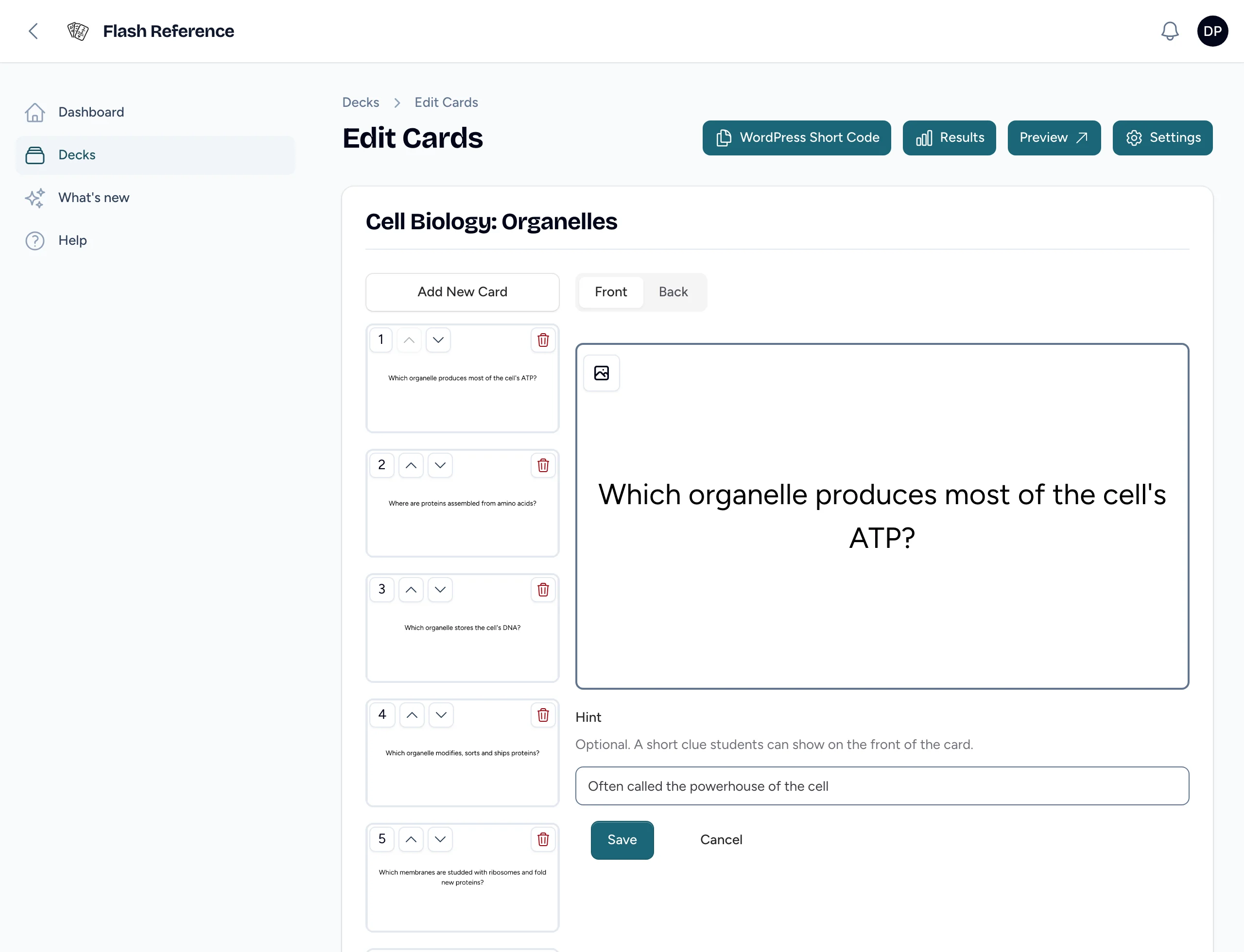
Add a card
- Select Add New Card at the top of the list. A blank card is added at the end and opens.
- Type the question on the Front tab.
- Select the Back tab and type the answer.
- Select Save.
To format text, select it: a toolbar appears with bold, italic, underline, superscript and subscript, font size, color, lists and line spacing.
Keep cards short. One question and one answer per card works best, and short answers let students use multiple choice.
Add a picture
Either side of a card can be a picture instead of text.
- On the Front or Back tab, select the picture button in the top corner and choose an image.
- Fill in Alt Text: describe the picture for students who can't see it. Screen readers and Read aloud use it, and so does multiple choice when the answer is a picture. Leave it blank only if the picture is decorative.
- Select Save.
A side with a picture shows only the picture, not text. To go back to text, select the trash button on the picture.
Hints
A hint is a short clue, up to 128 characters, that students can show on the front of a card. Type it in the Hint box under the Front tab, and select Save. Hints are optional: students only see the lightbulb button on cards that have one.
You can also add hints when you add cards in bulk.
Edit a card
Select a card in the list, make your changes, and select Save. Cancel throws away changes you haven't saved. Students see the change the next time they open the deck.
Put cards in order
Students see the cards in this order unless they shuffle. To move a card:
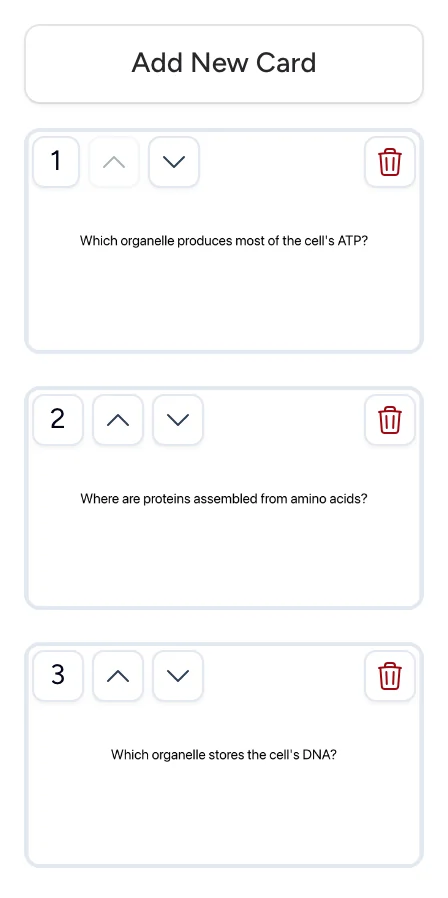
- drag it up or down the list, or
- use the up and down arrows on the card.
Delete a card
Select the trash button on the card in the list, and confirm. A deleted card can't be brought back.
Check your work
Select Preview at the top to open the deck as students see it, in a new tab. Nothing you do in a preview is saved or counted in your results.