
Browse the guides
Adding cards in bulk
Add many cards at once from a list or a spreadsheet.
If your cards are already in a list or a spreadsheet, you can add them all at once. The bulk tools show in the card editor whenever no card is open: select Cancel on an open card to see them.
New cards are added after the deck's existing cards.
From a list
- Select the Create From List tab.
- Type or paste one card per line, with the parts separated by a vertical bar:
front text|back text, orfront text|hint|back textto give the card a hint. - Select Import.
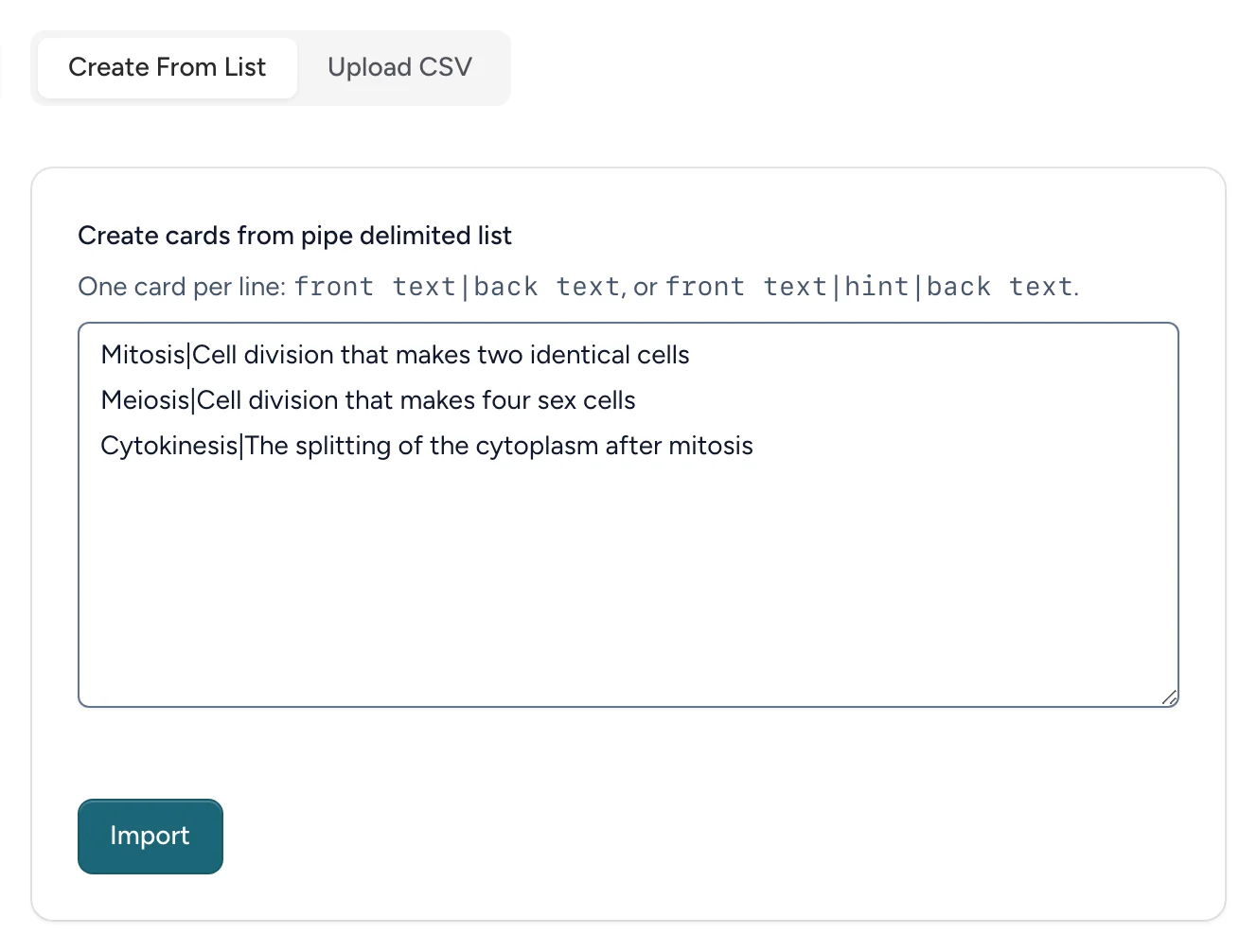
For example:
Mitochondria|Produces most of the cell's ATP
Ribosome|Tiny, and found on the rough ER|Assembles proteins from amino acids
Nucleus|Stores the cell's DNA
The second line has a hint in the middle. Hints are cut to 128 characters. Lines with no vertical bar, or more than two, are skipped.
From a spreadsheet (CSV)
Use this when your cards are already in a spreadsheet, or there are a lot of them.
- Select the Upload CSV tab. To start from our layout, select Download Template.
- Save your spreadsheet as a CSV file. The first row must be column headings, and each following row is a card.
- Choose the file under CSV File.
- Match your columns to Front Text, Hint and Back Text. Columns headed
front,hintandbackare matched for you. Hint is optional. - Select Import. Flash Reference says how many cards it added.
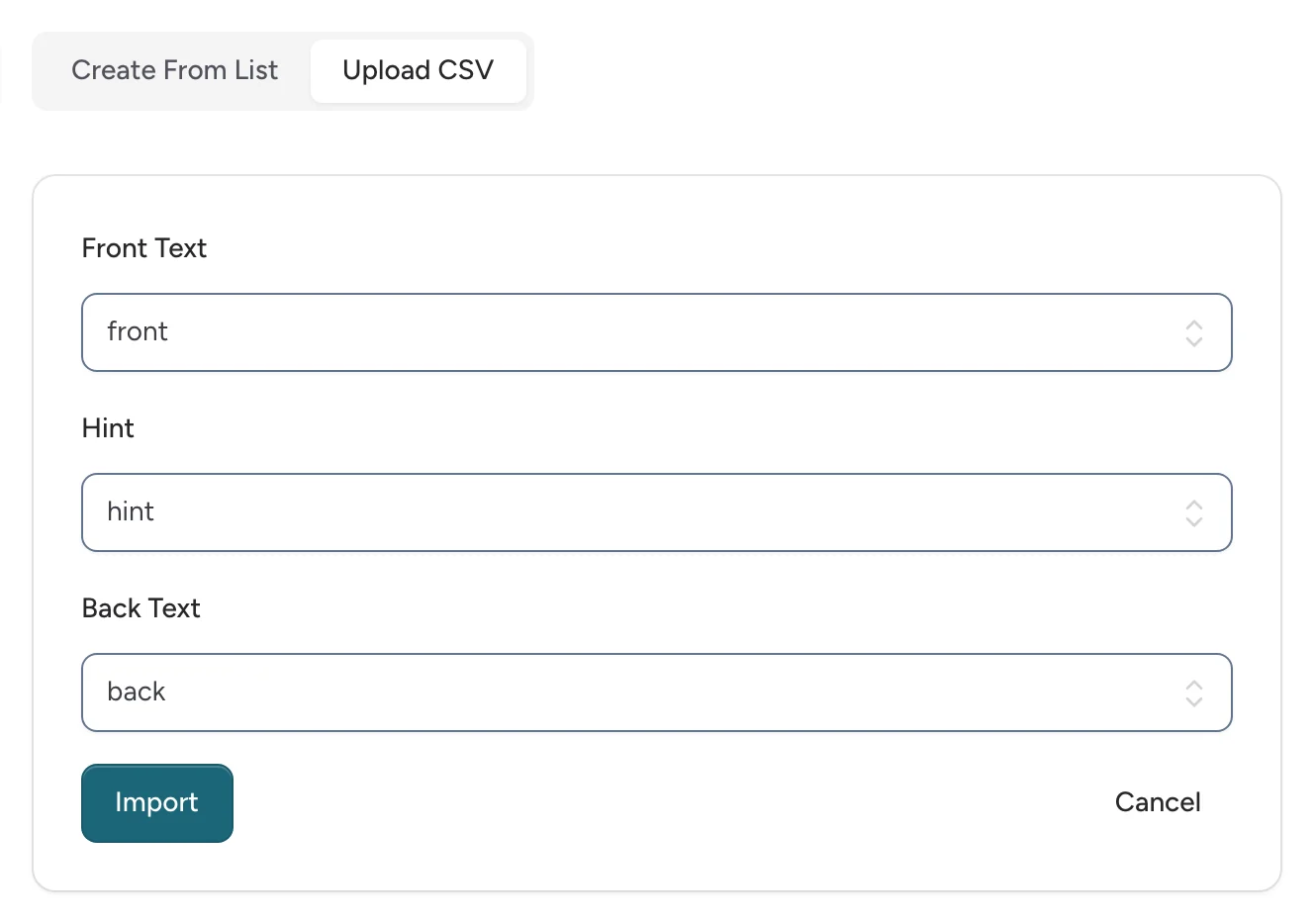
Tip: Excel and Google Sheets both save CSV files: use File → Save As (Excel) or File → Download → Comma-separated values (Google Sheets).
After importing, check a few cards in the editor, and fix any formatting your spreadsheet added.