
Browse the guides
Canvas
Add Flash Reference to your Canvas account once, so instructors in every course can choose decks from a list.
You'll need to be an admin in Flash Reference and in Canvas.
Tip: Canvas can also connect with LTI 1.3. See Canvas with LTI 1.3.
Before you start
In Flash Reference, open Settings → Production and keep these at hand:
- Configuration URL:
https://flash-reference.com/lti/autoconfig.xml - Production Consumer Key and Production Secret, which are your organization's own.
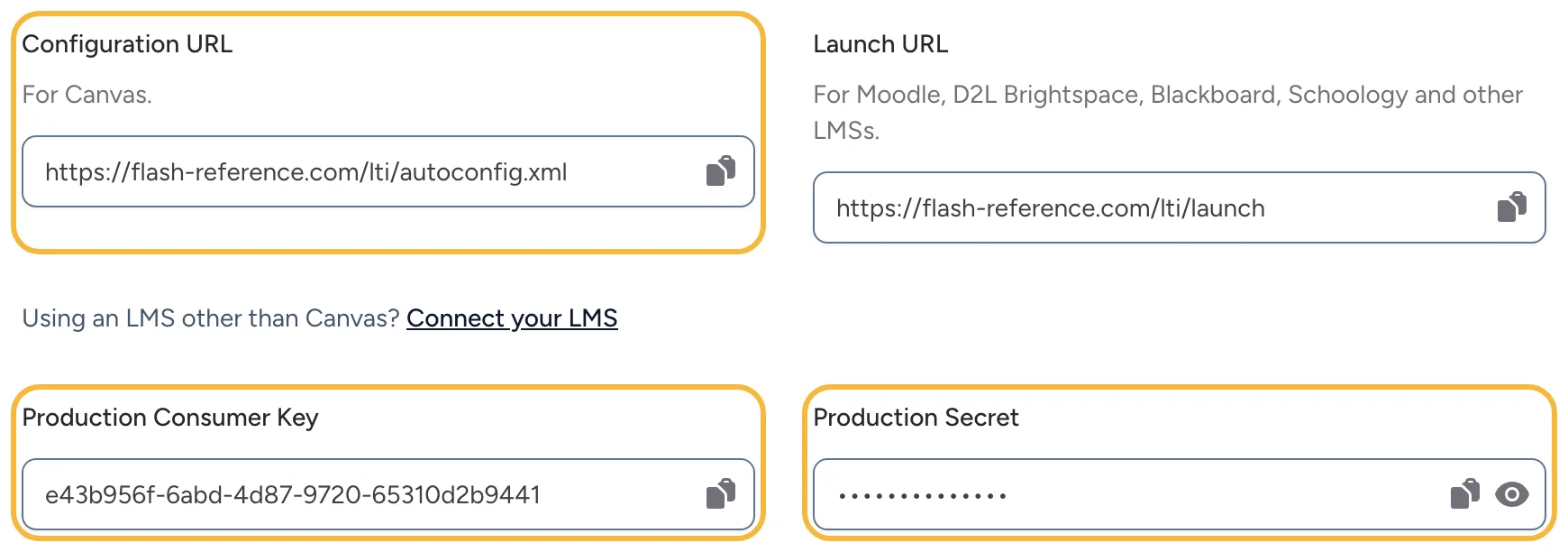
Add Flash Reference to your Canvas account
- In Canvas, select Admin, choose your account, and select Settings.
- Select the Apps tab, then View App Configurations, then + App.
- Set Configuration Type to By URL, and enter:
- Name: Flash Reference
- Consumer Key: your Production Consumer Key
- Shared Secret: your Production Secret
- Config URL:
https://flash-reference.com/lti/autoconfig.xml
- Select Submit.
Flash Reference is now available in every course in the account. The configuration asks Canvas to send names and email addresses, which Flash Reference needs.
To try it in a test or beta copy of Canvas first, do the same there with the Test tab's key and secret.
Or add it to a single course
If you can't change the whole account, a teacher can add Flash Reference to one course: in the course, select Settings, then the Apps tab, then View App Configurations and + App, and fill it in the same way.
Adding decks to a course
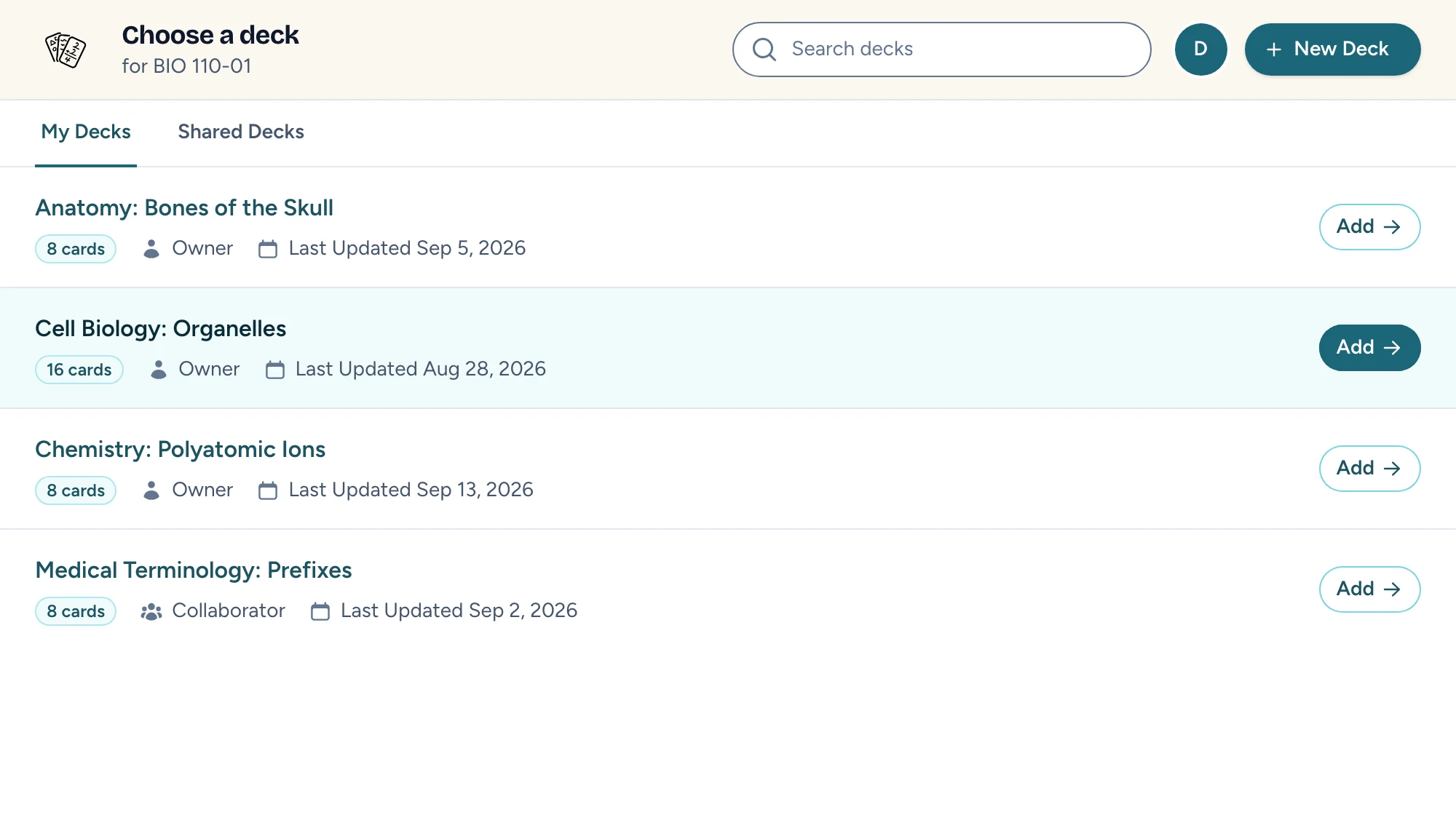
Instructors add a deck from a module's + button: they choose External Tool, then Flash Reference, and pick the deck. They can also add one from the rich content editor's apps menu. See Adding a deck to your course.
If something looks different
These steps follow Canvas's own documentation, and menus can differ between versions and setups. If a screen doesn't match, contact us and we'll help.