
Browse the guides
Signing in and your dashboard
Join your team, sign in, and see how students are doing on your decks.
Get an account
Your organization's admin invites you. The invitation email has a link to Join your team: open it, enter your name, choose a password, and you're in. Invitations last 7 days, so if yours has expired, ask your admin to send it again.
If your school doesn't use Flash Reference yet, you can start a free trial yourself. You'll be your organization's admin as well as an instructor.
Sign in
Go to flash-reference.com/login, or select Sign in on our website, and sign in with your email address and password. You land on your dashboard. (If you're also an admin, you land on the admin home instead; the Instructor section of its sidebar brings you here.)
Forgot your password? Select Forgot your password? on the sign-in page, and we'll email you a link to choose a new one.
Your dashboard
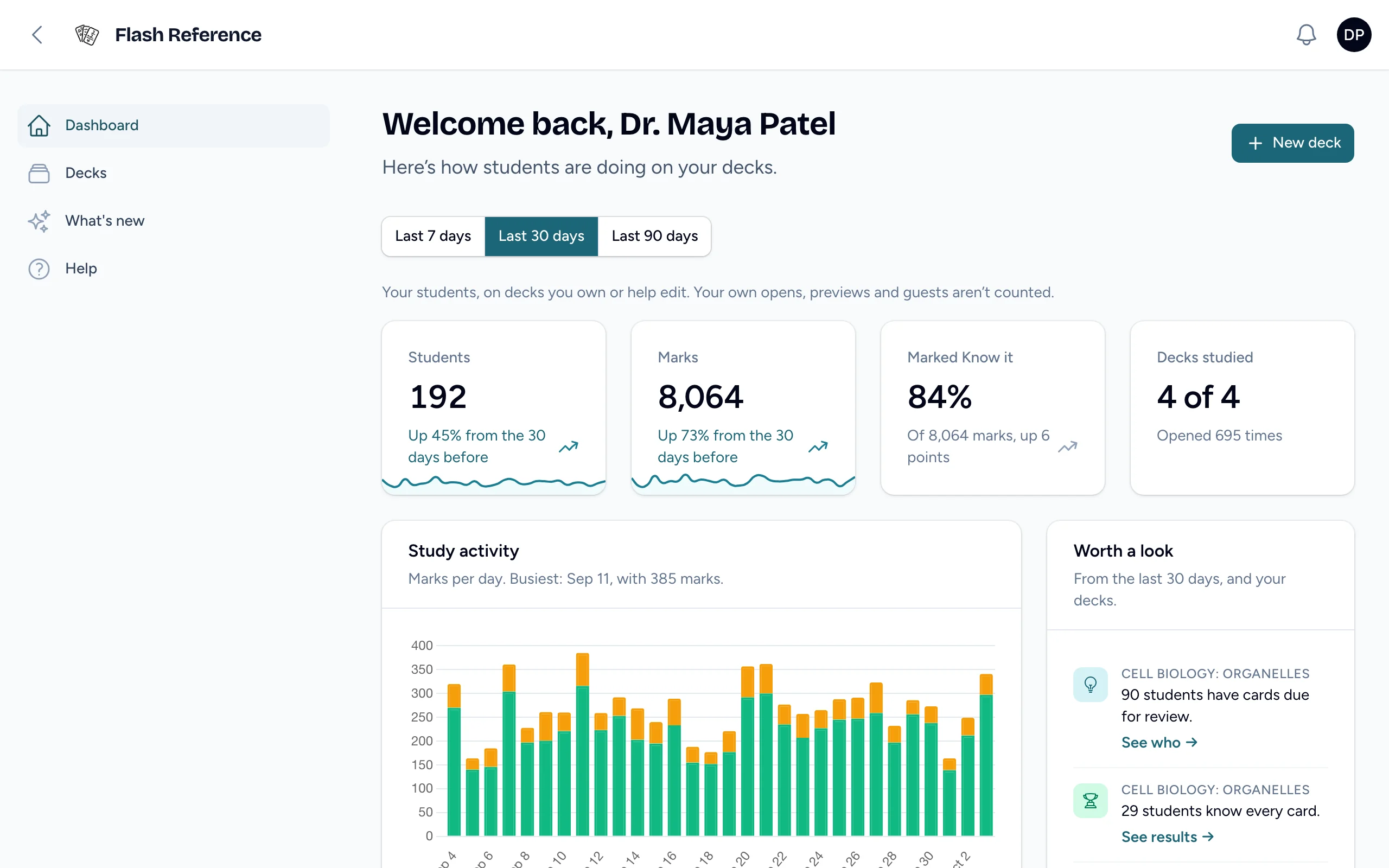
The dashboard shows how students are doing on every deck you own or help edit. Choose Last 7 days, Last 30 days or Last 90 days at the top to change the period, and select New deck to start one.
- The totals: students, marks, the share marked Know it, and how many of your decks students opened, each compared with the period before.
- Study activity: Know it and Still learning marks per day (per six days, over 90 days). Show as a table lists the numbers.
- Worth a look: what to do next. It points out cards students keep missing, decks with marking off, decks with no cards or that students haven't opened, students with cards due for review, and students who know every card. Each comes with a link.
- Your decks: each deck's students, marks and Know it share, and when a student last opened it. Select a deck to edit its cards, or Results to see its Results page.
- Cards students find hardest: the cards marked Still learning most, across all your decks. A card needs 5 marks to be listed. A hint or a clearer question can help.
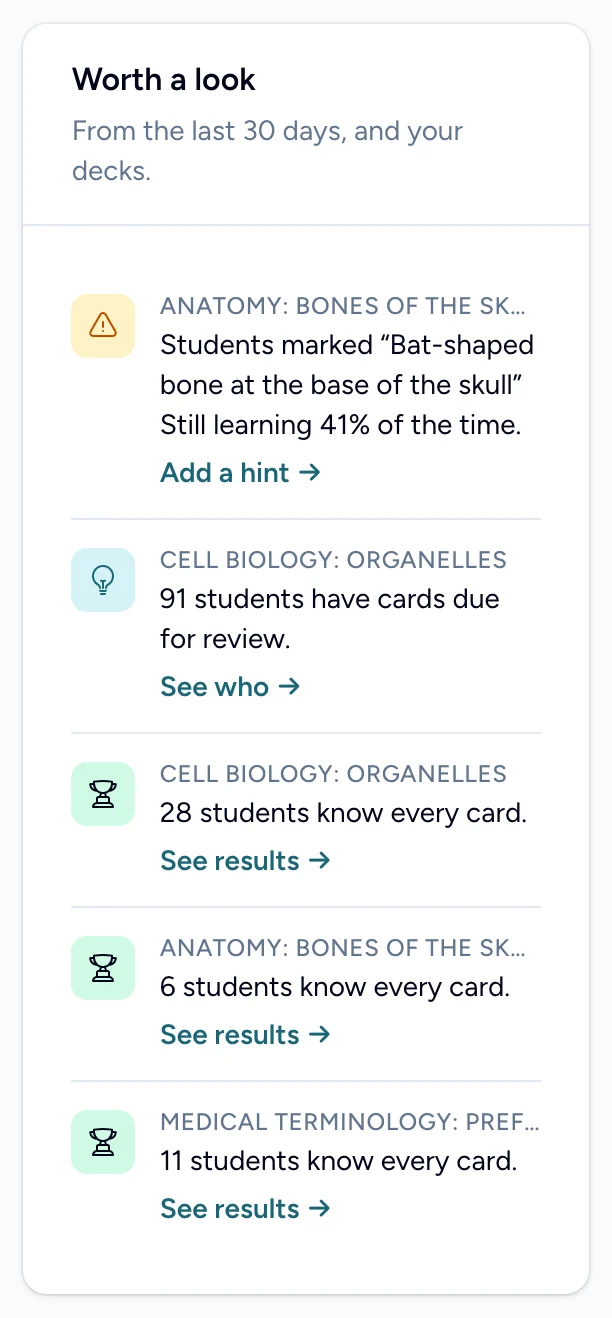
Students are counted the way each deck's Results page counts them: only students from your organization's courses and website, not your own opens, previews or guests. The dashboard shows numbers only. To see students by name, open a deck's Results.
Until your organization is set up, Get your decks to students appears at the top: a checklist of the four steps from a new account to a student studying. Select Hide this list when you no longer need it.
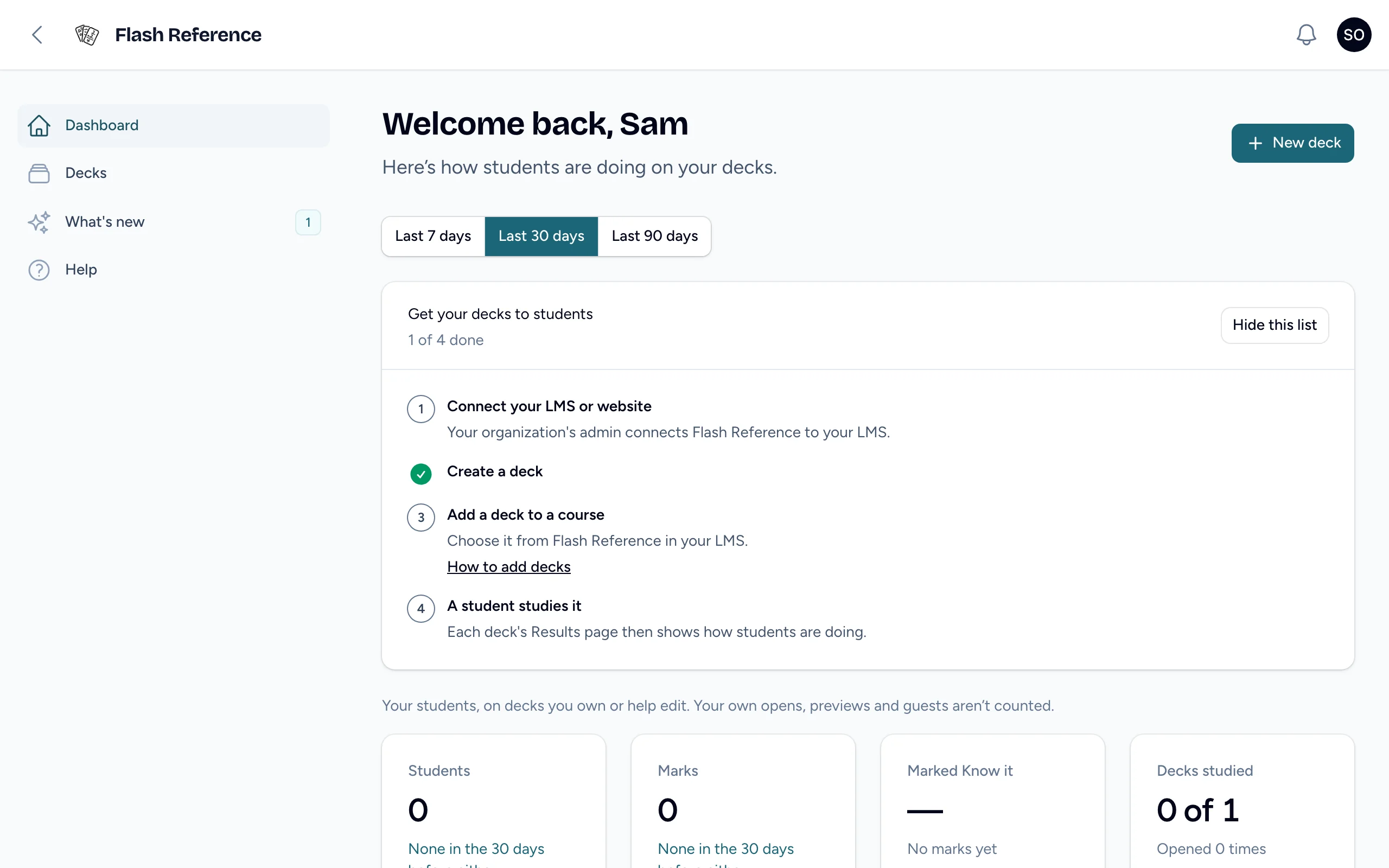
The sidebar has:
- Dashboard, the home page.
- Decks, every deck you own or help edit. See Creating a deck.
- What's new, which lists our latest changes in a new tab. The number beside it counts the changes for you and your students since you last looked.
- Help, which opens this guide in a new tab.
If you're also an admin, an Admin link takes you to the admin area. See the guide for admins.
Your name in the top corner opens a menu with Notification settings (see Emails and announcements) and Sign out. The bell next to it holds announcements from us.
The chat button in the bottom-right corner sends us a message. See Getting help.
Where students fit in
Students never sign in to Flash Reference. They open your decks from your course in your LMS, or from a website, and their progress is saved to them automatically. See Adding a deck to your course, and the guide for students to share with your class.