
Browse the guides
Setting up WordPress
Turn on WordPress, install the plugin, and save students' progress with a site secret.
Flash Reference decks can go on a WordPress website as well as in your LMS. You turn WordPress on and install our plugin once; then instructors copy each deck's shortcode into a page.
Turn on WordPress
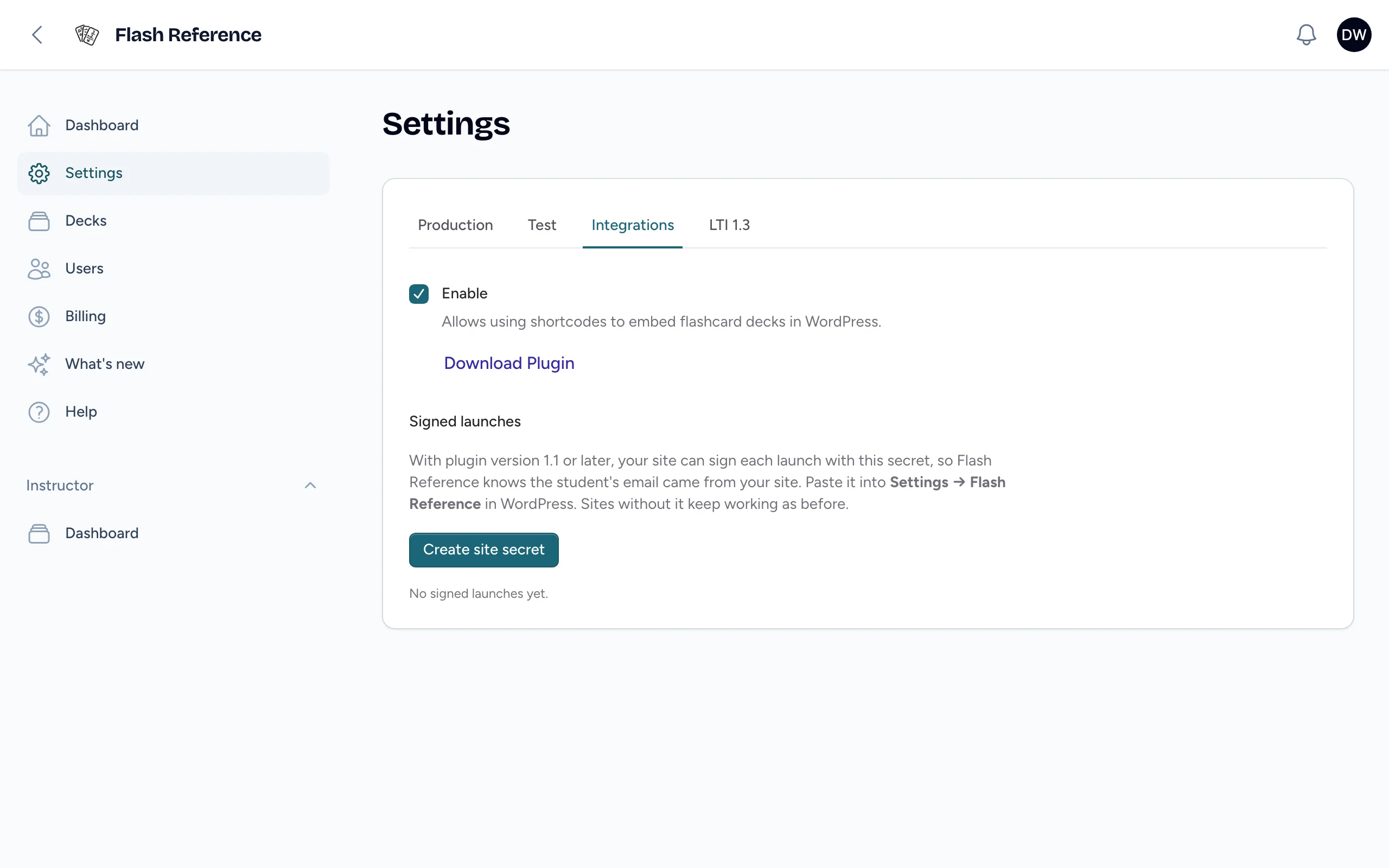
- Open Settings and select the Integrations tab.
- Tick Enable. It's saved straight away, and instructors now see a WordPress Short Code button on each deck.
- Select Download Plugin to get the plugin.
Install the plugin
- In WordPress, go to Plugins → Add New Plugin → Upload Plugin.
- Choose the file you downloaded, select Install Now, then Activate.
Save students' progress with a site secret
Without a secret, anyone can study a deck on your site, but Flash Reference can't be sure who's studying, so it doesn't save their progress. With a secret, your site signs each visit, and logged-in visitors' marks and review schedules are saved like they are from your LMS.
- In Flash Reference, under Signed launches, select Create site secret, and copy it.
- In WordPress, go to Settings → Flash Reference and paste it into Site secret. Save.
- Back in Flash Reference, Last signed launch shows the date once a visitor studies a deck.
This needs version 1.1 or later of the plugin. To change the secret, select Replace secret, then paste the new one into WordPress straight away: launches using the old secret aren't signed.
Choose who can study
In WordPress, Settings → Flash Reference also has Require login:
- Off (the default): visitors who aren't logged in can study as guests. Nothing is saved for guests.
- On: visitors who aren't logged in see Log in to study this deck. instead of the deck.
Add decks to pages
Instructors copy a deck's shortcode and paste it into a page. See Putting a deck on a WordPress site. Visitors who are logged in when they study count toward your active students and show in each deck's results under WordPress. Guests aren't counted.