
Browse the guides
D2L Brightspace
Add Flash Reference to Brightspace as an external learning tool for your organization.
You'll need to be an admin in Flash Reference and an administrator in Brightspace.
Before you start
In Flash Reference, open Settings → Production and keep these at hand:
- Launch URL:
https://flash-reference.com/lti/launch - Production Consumer Key and Production Secret, which are your organization's own.
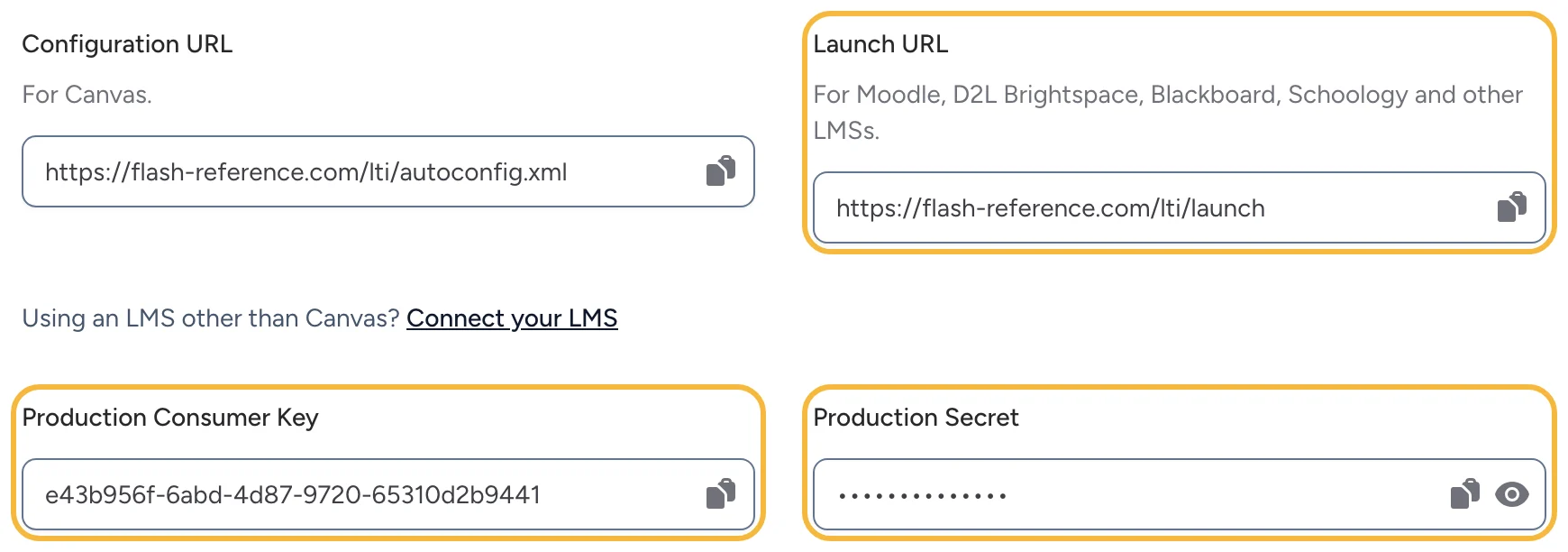
The Test tab has a second key and secret, for a test copy of Brightspace.
Add Flash Reference to Brightspace
- Go to Admin Tools → External Learning Tools → Manage Tool Providers and select New Tool Provider.
- Enter:
- Launch Point: the Launch URL
- OAuth Signature Method: HMAC-SHA1
- Key and Secret: your Production Consumer Key and Secret
- Under Security Settings, send at least the user name, user email, LTI user ID and role, context (course) information and the link title to the tool.
- Make the tool available to your organization, then save.
Adding decks to a course
With an LTI 1.1 connection, each deck needs its own link in Brightspace. Contact us and we'll help set those links up. With LTI 1.3 (below), instructors choose decks from a list instead.
LTI 1.3
Brightspace can connect with LTI 1.3 instead, which lets instructors pick decks from a list:
- In Flash Reference, open Settings → LTI 1.3 and copy the Registration URL.
- In Brightspace, go to Admin Tools → Manage Extensibility → LTI Advantage and select Register Tool.
- Choose Dynamic, paste the registration URL, and select Register. Then make sure the new tool is enabled.
- Add a deployment of the tool that sends users' names and email addresses, and make it available to your courses.
Instructors then add decks from their course's content tools and choose each deck in Flash Reference. See Adding a deck to your course.
If something looks different
These steps follow Brightspace's own documentation, and menus can differ between versions and setups. If a screen doesn't match, contact us and we'll help.