
Browse the guides
Overview
Which guide to follow, where your connection details are, and how to check it works.
Flash Reference works inside your LMS as an LTI tool. Once it's connected, instructors add decks to their courses, and students open them without another account. You connect it once for your whole organization.
You'll need to be an admin in Flash Reference and an administrator in your LMS.
Choose your LMS
- Canvas, or Canvas with LTI 1.3- Moodle, or Moodle with LTI 1.3- D2L Brightspace
- Blackboard Learn
- Schoology
- Another LMS, or another LMS with LTI 1.3 For a website instead of an LMS, see WordPress.
Find your connection details
Open Settings in the sidebar. The Production tab has everything your LMS asks for:
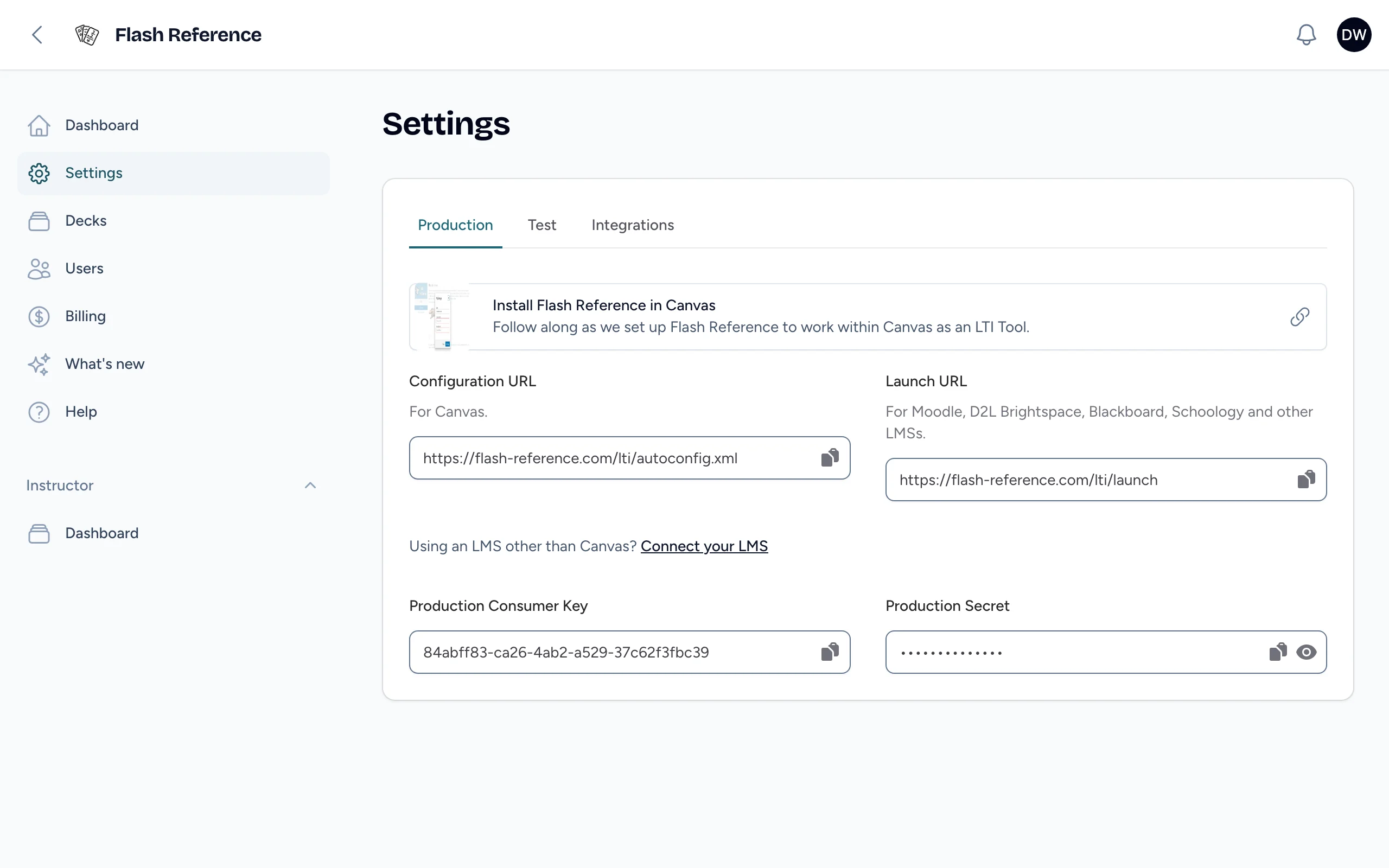
| Detail | Used for |
|---|---|
| Configuration URL | Canvas: adds Flash Reference from a URL. |
| Launch URL | Moodle, D2L Brightspace, Blackboard, Schoology and other LMSs. |
| Production Consumer Key | Every LMS: identifies your organization. Copy it with the button beside it. |
| Production Secret | Every LMS: proves the launches are yours. Copy it with the button beside it, or select the eye to show it. Keep it private. |
The Test tab has a second key and secret that work the same way. Use them in a test or sandbox copy of your LMS, so you can try things out without touching your real courses.
Whichever LMS you use, set the tool to send users' names and email addresses. Flash Reference shows instructors their students' names in results, and matches instructors to their Flash Reference accounts by email.
LTI 1.1 or LTI 1.3
Flash Reference connects with either version of LTI:
- LTI 1.1 uses the consumer key and secret above, and works with every LMS in these guides.
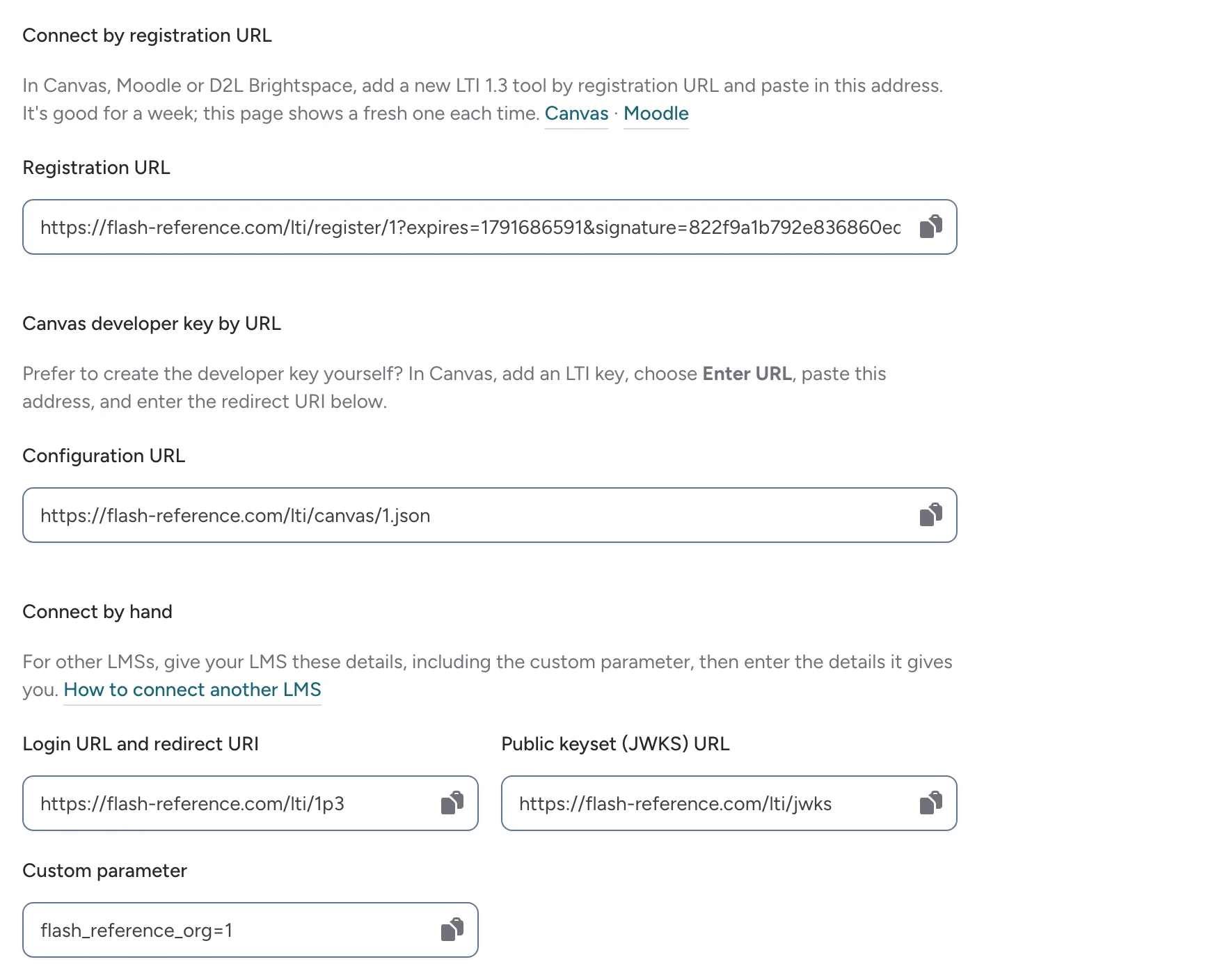
- LTI 1.3 is the newer standard. Its Registration URL connects Canvas, Moodle and Brightspace in one step, and it lets instructors in Brightspace and Schoology choose decks from a list. Blackboard is retiring LTI 1.1 tools by September 30, 2027.
The LTI 1.3 tab of Settings has the registration URL, the details for connecting by hand, and the LMSs you've connected with LTI 1.3. Connections made with a consumer key and secret keep working alongside LTI 1.3 ones.
Check that it works
- Ask an instructor (or yourself, as an instructor) to add a deck to a course.
- Open the link as a student, for example with your LMS's student view.
- On your admin home, the setup checklist ticks off Connect your LMS or website once the first launch arrives.
If a student sees This LMS connection isn't set up correctly, check the tool's settings in your LMS against your connection details. Contact support if you're stuck; we're happy to help set it up.
If your plan ends
Your LMS connection stays in place, but students can't open decks through it while your organization has no plan. Choosing a plan turns it back on. See Plans and billing.