Flash Reference

What's new

What's new in Flash Reference

New features and improvements, newest first. Each one says who it affects, so you can skip what isn't for you.

  • Instructors
  • Admins

See what's changed, and who it affects

This page lists every change you'd notice in Flash Reference, newest first. Each one says whether it affects students, instructors or admins, so you can skip what isn't for you, or use the buttons at the top to see only one group's changes.

Open it any time from What's new in the sidebar of your dashboard or admin pages. The number beside it shows how many changes have gone live since you last looked.
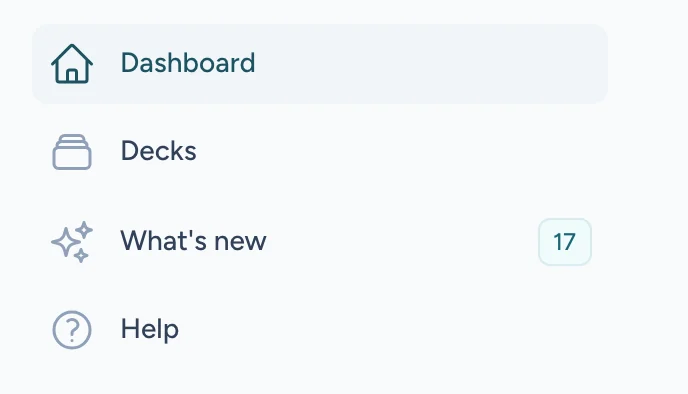
The dashboard's sidebar, with What's new and a count of changes beside it
What's new in the sidebar, with the number of changes since your last look.

Read the guide

  • Instructors
  • Admins

News from our team, in the app and by email

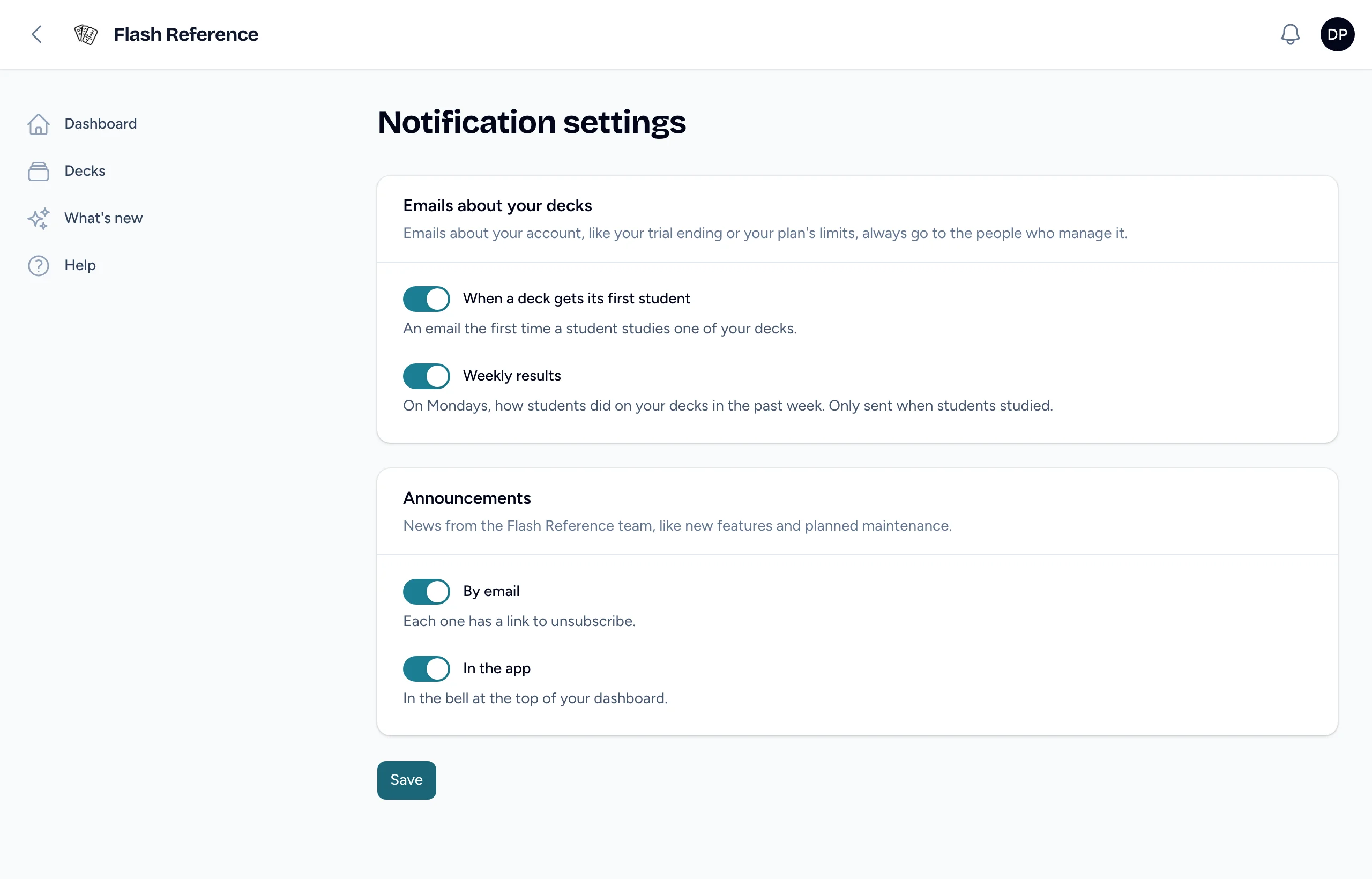
Now and then we send instructors and admins news about Flash Reference, like new features or planned maintenance. It arrives in the bell at the top of your dashboard and admin pages, and by email.

You get both until you turn one off: select your name in the top corner, then Notification settings (it used to be called Email settings). Unsubscribing from an announcement email leaves announcements on in the app.

Notification settings, with switches for each kind of email and for getting announcements by email or in the app
Turn announcements by email or in the app on or off.

Read the guide

  • Instructors

A deck's settings are all in one place

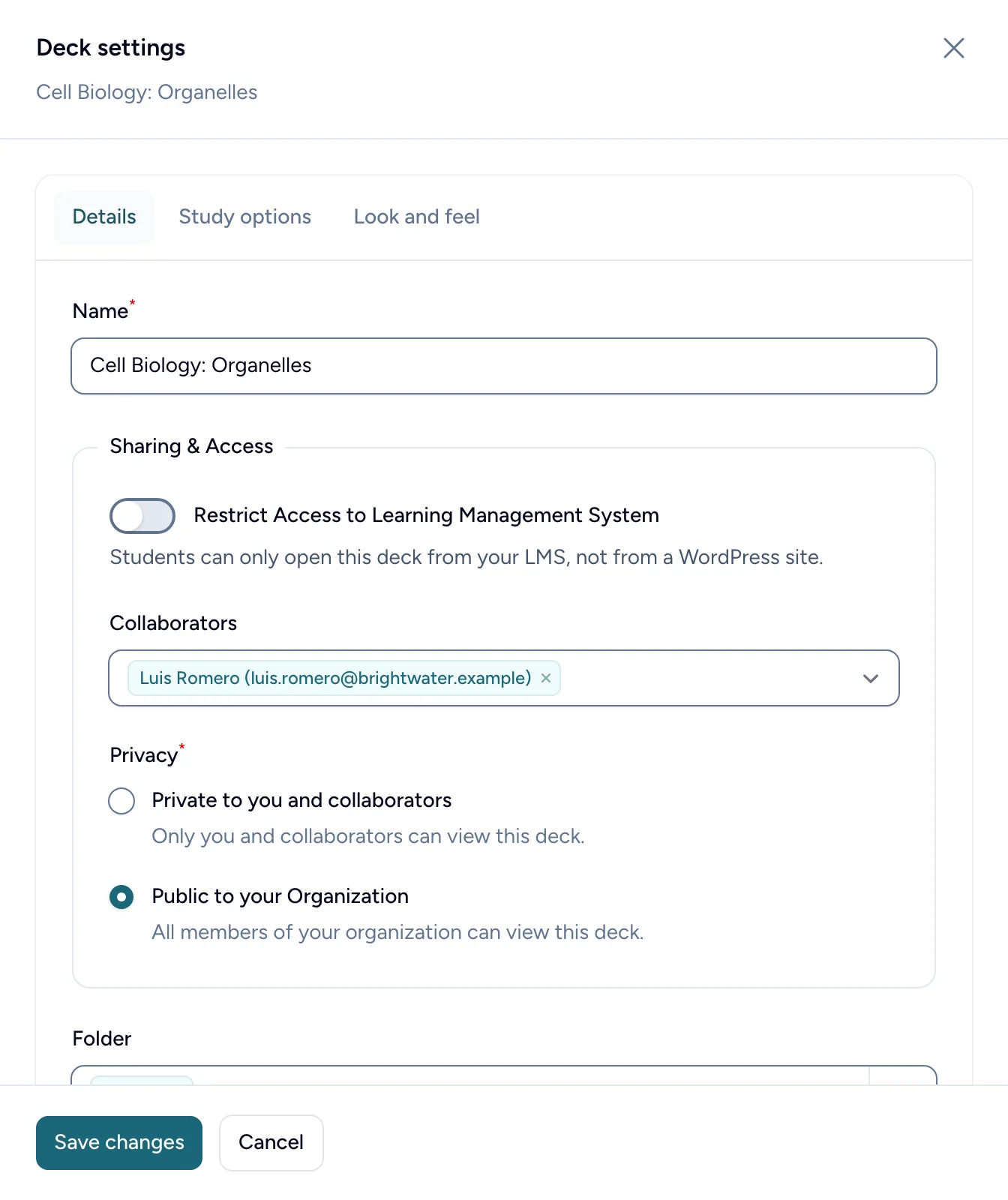
A deck's name, sharing, folders, study options and look and feel are now together in one Settings panel, with tabs for Details, Study options and Look and feel. Change anything on any tab, then select Save changes once to save it all.

Open it with Settings on the deck's row in your list of decks, or at the top of the card editor. It replaces the Edit, Study Options and Edit Deck Look and Feel buttons.

The Details tab of a deck's settings, with its name, sharing and folders
Details, study options and look and feel, saved together.

Read the guide

  • Students
  • Instructors
  • Admins

Step-by-step guides for students, instructors and admins

Flash Reference now has step-by-step guides with pictures of the real app. Students learn how to open and study a deck, instructors how to build decks and read results, and admins how to set up the account, manage people and handle billing. Setup guides cover Canvas, Moodle, D2L Brightspace, Blackboard Learn, Schoology, other LMSs and WordPress.

Select Help in the sidebar of your dashboard or admin pages to open your guide, or Docs on our website. Students can read theirs without signing in.

Read the guide

  • Instructors

See how students are doing across all your decks

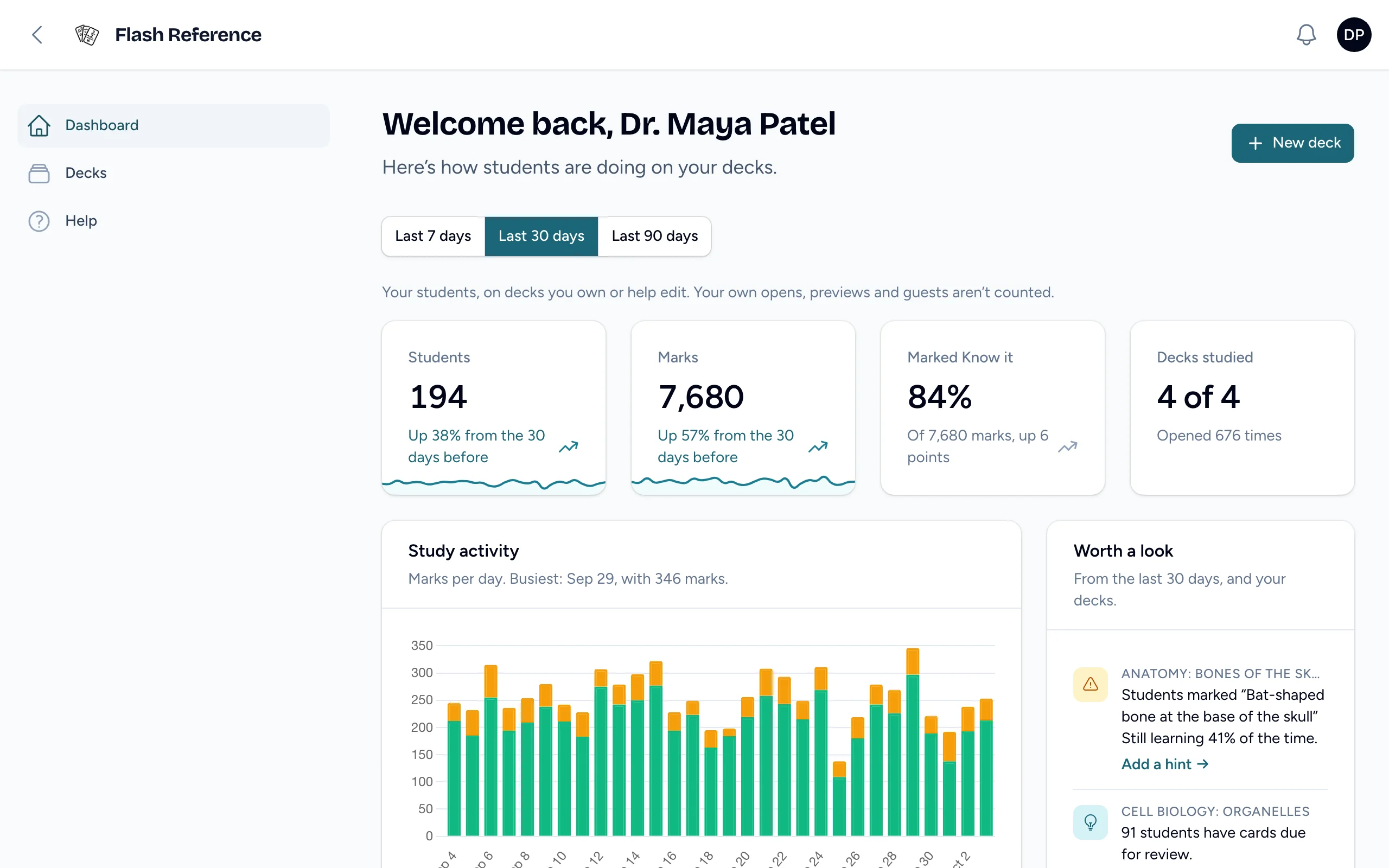
Your dashboard now shows how students are doing on every deck you own or help edit, over the last 7, 30 or 90 days: how many studied, their marks, and the share marked Know it, each compared with the period before.

Worth a look suggests what to do next, like adding a hint to a card students keep missing. Your decks and Cards students find hardest follow. It shows numbers only; a deck's results show students by name.

The Getting Started videos are no longer on the dashboard.

The instructor dashboard, with totals for the last 30 days, a chart of study activity, and Worth a look
How students are doing on your decks, and what's worth a look.

Read the guide

  • Students
  • Instructors
  • Admins

A round of smaller fixes and improvements

These went live together:

  • Any card can have a hint, not only cards with a picture.
  • Deleting a card asks you to confirm first.
  • Adding cards from a list saves the hint you put between the front and back.
  • Signing in takes you straight to the right page for your role.
  • In your LMS, Choose a deck has a cleaner look, an Add button on each deck, and a New Deck button that opens the new deck form.
  • Your LMS secrets in Settings have a copy button.
  • Removing someone from your organization keeps their decks: you choose the instructor who takes them over.
  • Restrict Access to Learning Management System now keeps a deck off WordPress sites, and students there are asked to open it from their course.
  • Instructors
  • Admins

Ask us for help and follow your request

Send us a question from the chat button in the bottom-right corner of our website and your dashboard, or from the support page on any device. You don't need an account: just give your name and email address.

We email you a copy of your request, and email you again when we reply. Each email links to the request's own page, where you can reply and see where it's at. Only you and our support team can see it.

Read the guide

  • Students
  • Instructors
  • Admins

Easier to use with a keyboard, screen reader or zoom

Students can now study a deck from the keyboard alone, and screen readers announce each card, the answer when it's flipped, marks and multiple-choice results. Card text grows with the browser's zoom and text size, and Single-key shortcuts can be turned off in Settings for people who use speech input.

Instructor and admin pages start with a Skip to content link, and cards can be put in order with arrow buttons instead of dragging.

Our accessibility statement and conformance report say what we've tested, what we haven't yet, and what still needs work.

Read the guide

  • Instructors
  • Admins

See how students are doing on each deck

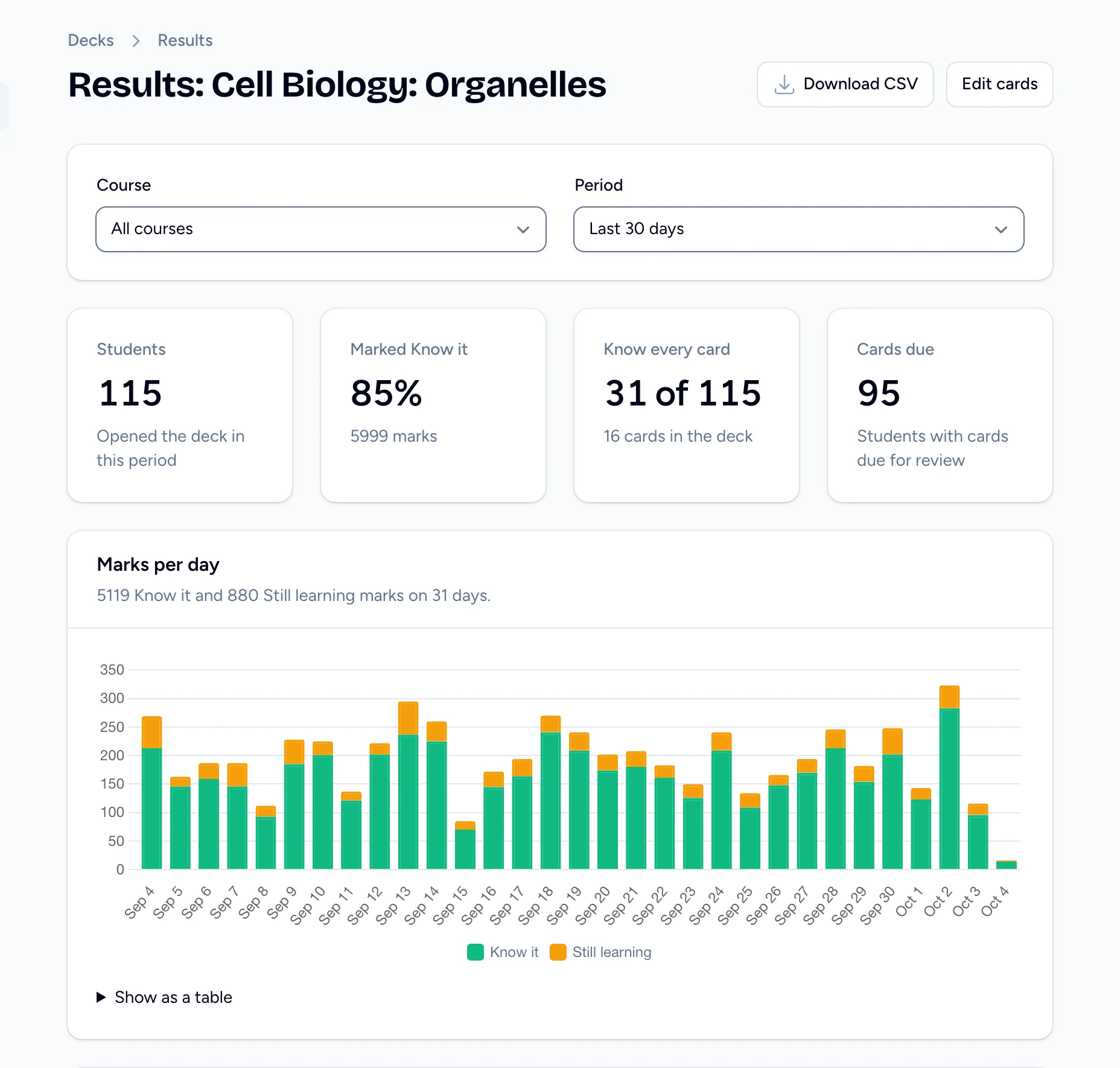
Each deck now has a Results page that shows who's studying it, how they're doing, and which cards the class finds hardest, so you can see what to go over in class or which cards need rewording.

Open it with Results at the top of the card editor. Look at one course or all of them over the last 7, 30 or 90 days, and select Download CSV to save the students or the cards as a spreadsheet. Admins can see results for every deck in their organization.

A deck's Results page, with course and period filters, totals for students, Know it marks, students who know every card and cards due, and a chart of marks per day
The top of a deck's results: totals for the period, then marks per day.

Read the guide

  • Admins
  • Instructors

Invite your instructors and admins by email

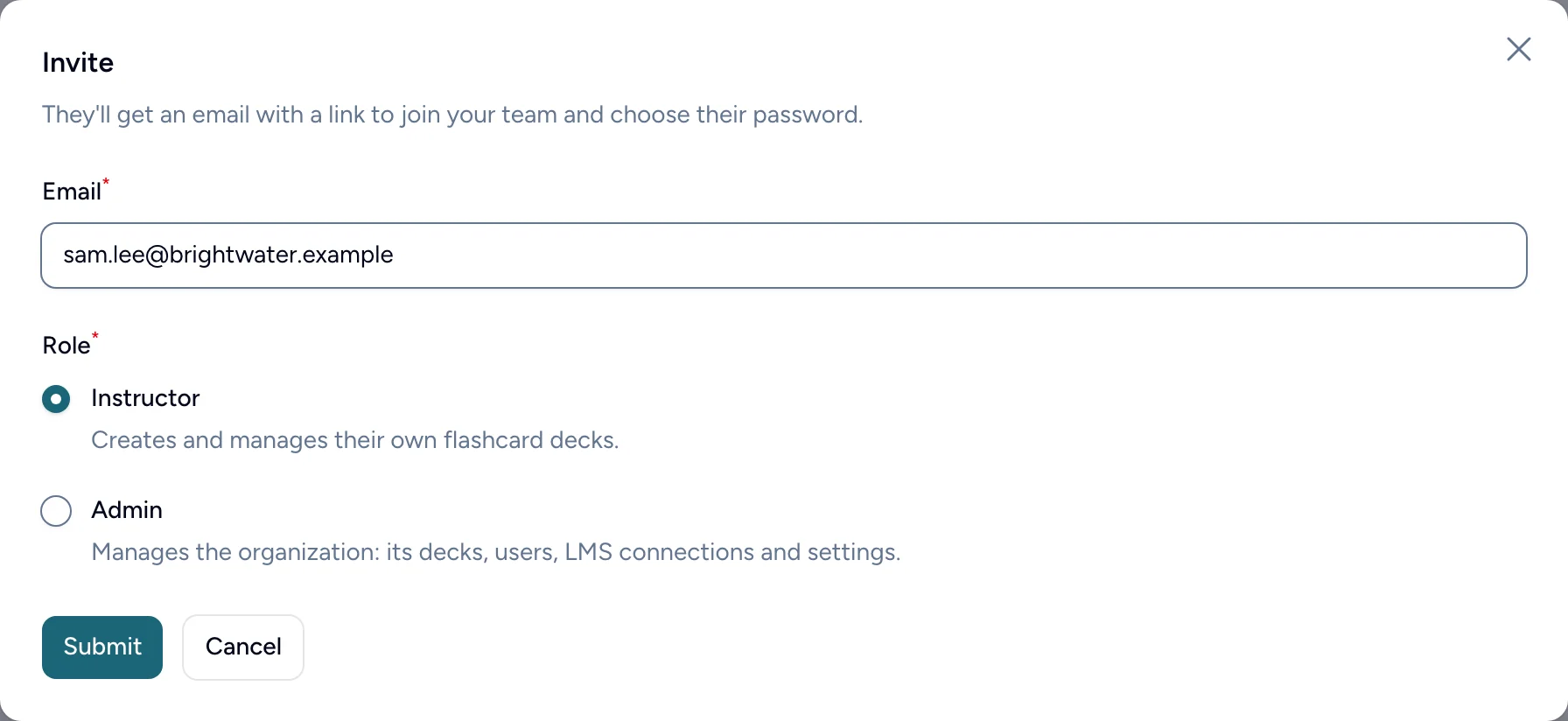
Admins can bring colleagues into Flash Reference from the Users page. Select Invite, enter an email address and choose Instructor or Admin. The person gets an email with a link to join your team and choose a password.

Invitations last 7 days, and you can resend or withdraw one that hasn't been accepted. Your first admin is always included; inviting more admins needs a plan that includes multiple admins.

The Invite form, with an email address and a choice of Instructor or Admin
Invite someone and choose their role.

Read the guide

  • Admins
  • Instructors

Connect your LMS with LTI 1.3

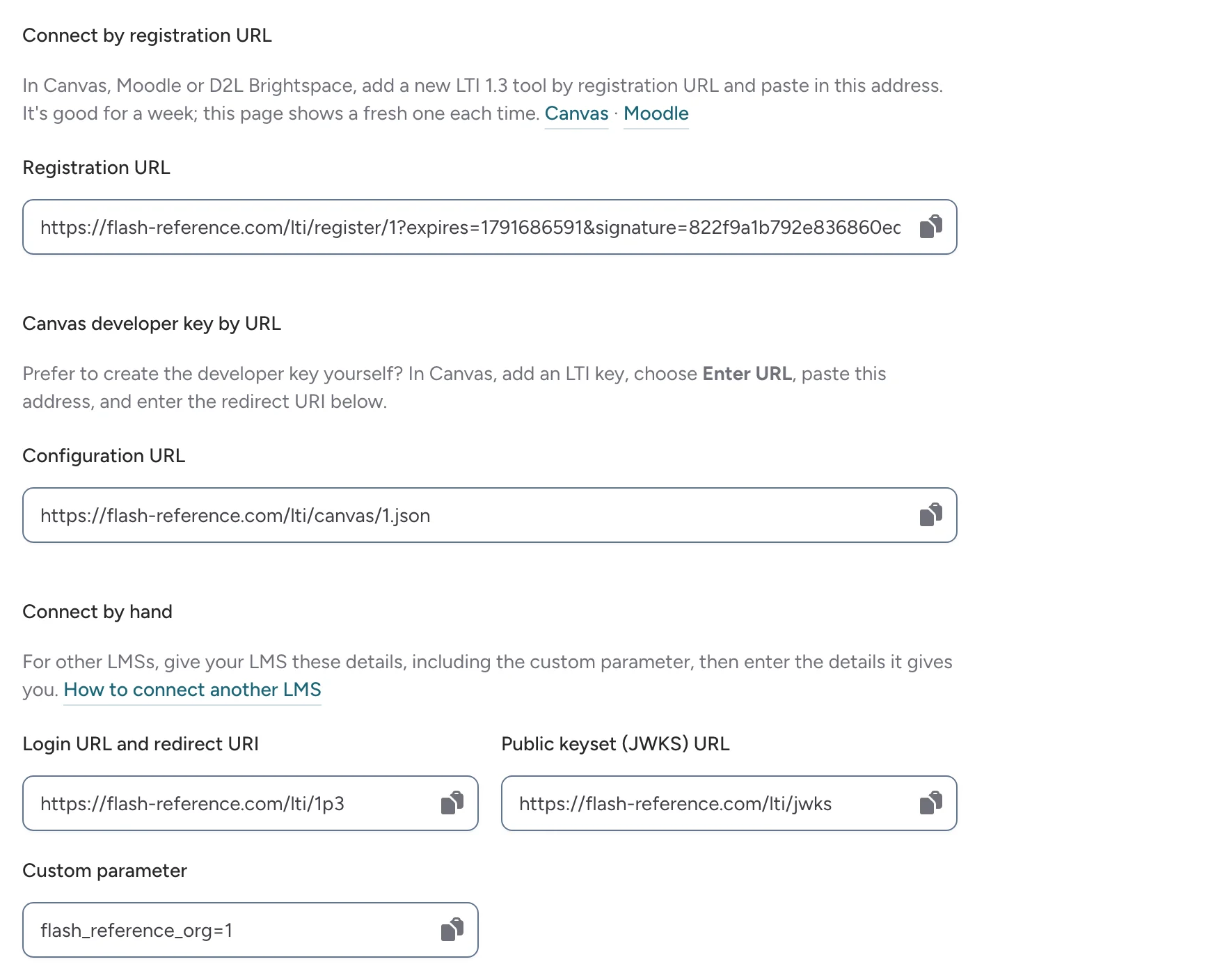
Flash Reference now connects with LTI 1.3, the newer standard for LMS tools. In Canvas, Moodle and D2L Brightspace, an admin connects by pasting one Registration URL, found under Settings → LTI 1.3. Other LMSs that support LTI 1.3 can be connected by hand.

With LTI 1.3, instructors in Brightspace and Schoology can choose decks from a list inside their course, as Canvas and Moodle instructors already do. Connections made with a consumer key and secret keep working.

The LTI 1.3 tab of Settings, with the registration URL, the Canvas configuration URL and the details for connecting by hand
Everything your LMS needs for LTI 1.3, in one place.

Read the guide

  • Students
  • Instructors

Students can study a deck as multiple choice

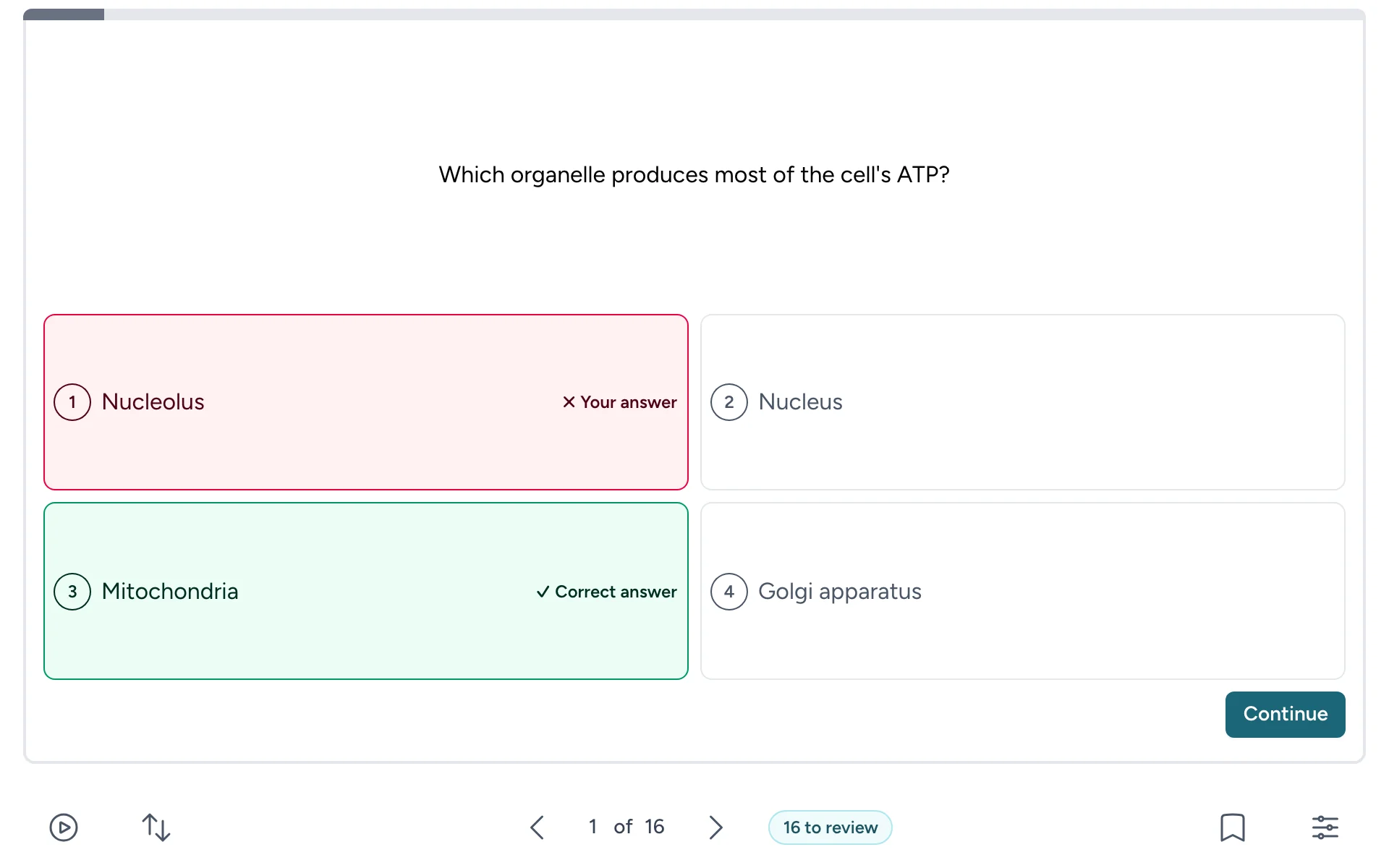
Multiple choice gives students another way to test themselves: each card becomes a question with four answers to choose from. The wrong answers come from the deck's other cards, and students see the right one as soon as they answer.

Turn it on in the deck's Settings, on the Study options tab, and students can switch to it while they study. A deck needs at least four different short answers first. Right answers count as Know it and wrong ones as Still learning, so they show in your results.

A multiple-choice question with four answers, the student's wrong answer and the correct answer marked
After answering, students see which answer was right.

Read the guide

  • Students
  • Instructors

Students can pick up where they left off

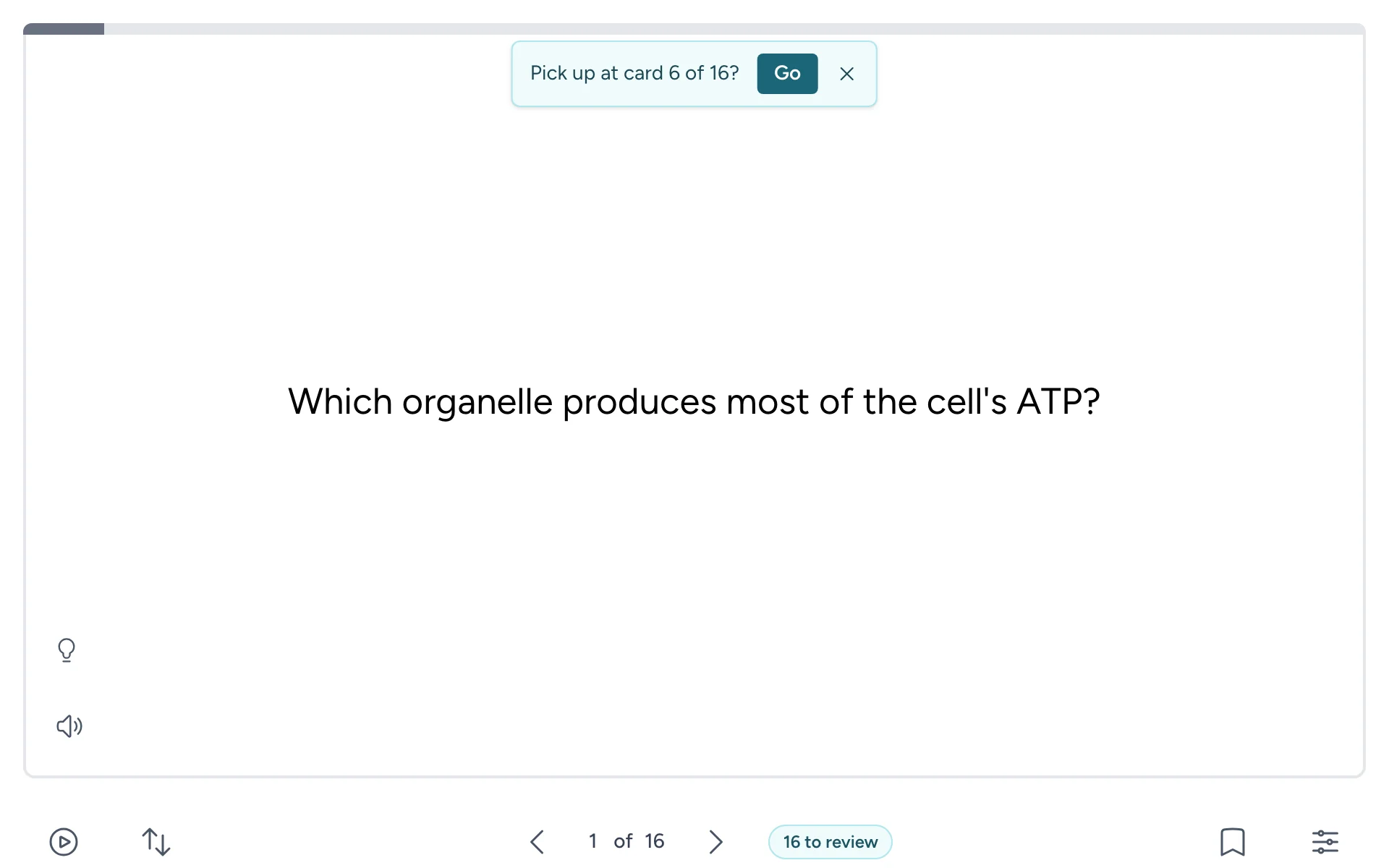
When students open a deck from your course, their progress is now saved to them: their marks, their review schedule and the card they stopped on. If they stopped partway through in the last two weeks, Flash Reference offers to take them back there next time.

If their connection drops, marks wait in the browser and are sent when it's back. Students should open the deck from your course each time, not from a browser bookmark: each visit's link stops working after 12 hours without use.

A card with "Pick up at card 6 of 16?" and a Go button at the top
Flash Reference offers to take students back to where they stopped.

Read the guide

  • Instructors

Emails tell you how students are doing on your decks

Flash Reference now emails you the first time a student studies one of your decks, with a link to its results. On Mondays, a weekly email sums up how students did on your decks in the past week, with the hardest cards, for up to five decks. It's only sent in weeks when students studied.

Both go to the deck's owner and contain counts, never students' names. Turn either off in Notification settings, under your name in the top corner, or with Unsubscribe in the email.

Read the guide

  • Admins
  • Instructors

A checklist to get your first deck to students

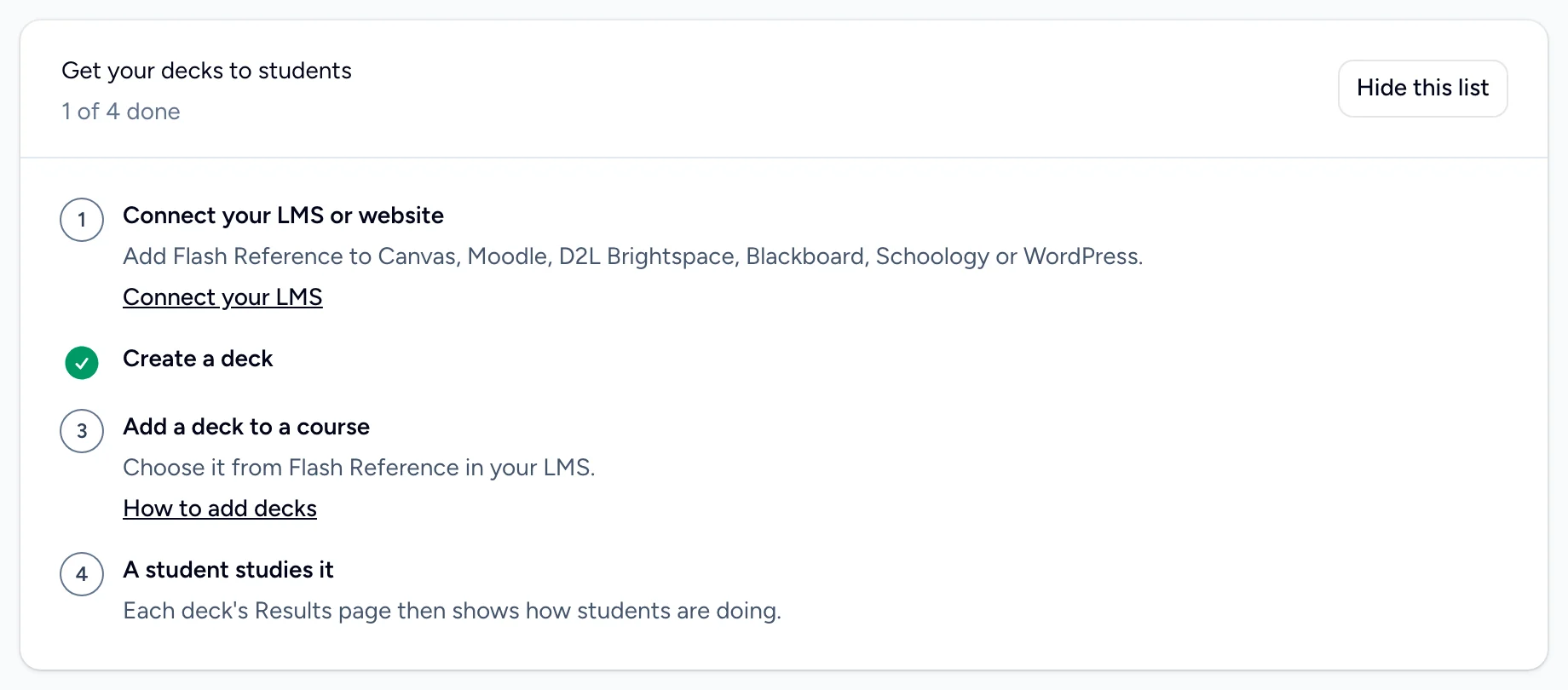
Until your organization is set up, the home page opens with Get your decks to students: four steps from connecting your LMS to a student studying your first deck. It ticks off each step as you do it, and Hide this list puts it away.

During the free trial, a banner shows when the trial ends, and we email whoever manages billing a week before, the day before, and when students can no longer open your decks.

The Get your decks to students checklist, with one of four steps done
The checklist ticks off each step as you do it.

Read the guide

  • Students
  • Instructors

Students can review cards just before they'd forget them

Spaced repetition brings each card back just before a student would forget it. Cards they know return after longer and longer gaps; cards they're still learning return soon. A few minutes every day or two works better than one long session before a test.

Turn on Spaced repetition on the Study options tab of the deck's Settings. Students can then choose Review to study the cards that are due, plus a few new ones each day. Schedules are saved when students open the deck from your course.

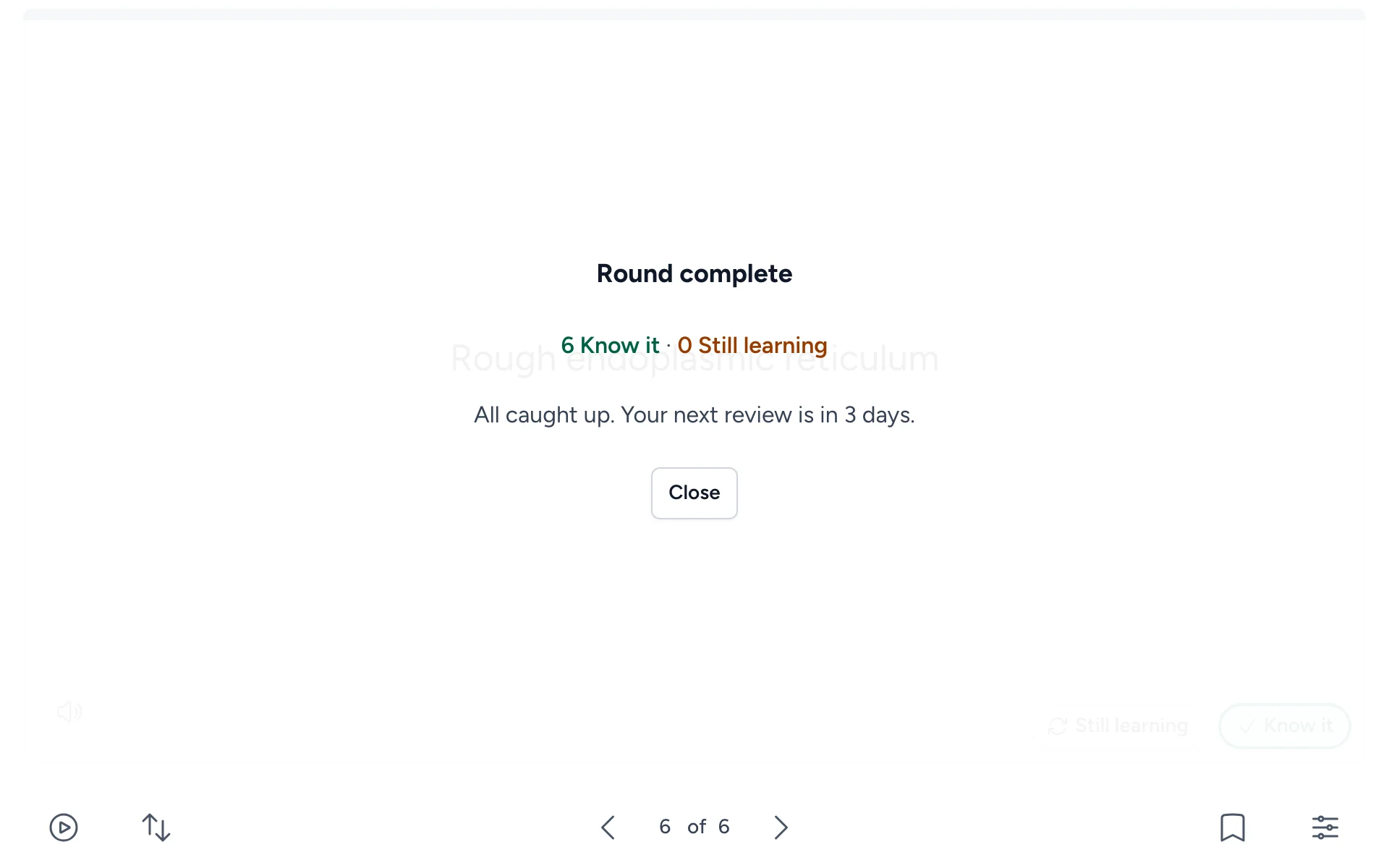
The end of a review round: 6 Know it, 0 Still learning, and the next review in 3 days
At the end of a round, students see when their next review is.

Read the guide

  • Students
  • Instructors
  • Admins

WordPress sites can save students' progress

Students who study a deck on your WordPress site while logged in can now have their marks and review schedule saved, just as they are from your LMS.

An admin sets it up once: use version 1.1 or later of our plugin, create a site secret on the Integrations tab of Settings, and paste it into WordPress.

Visitors who aren't logged in study as guests, and nothing is saved for them. To ask them to log in first, turn on Require login in the plugin's settings.

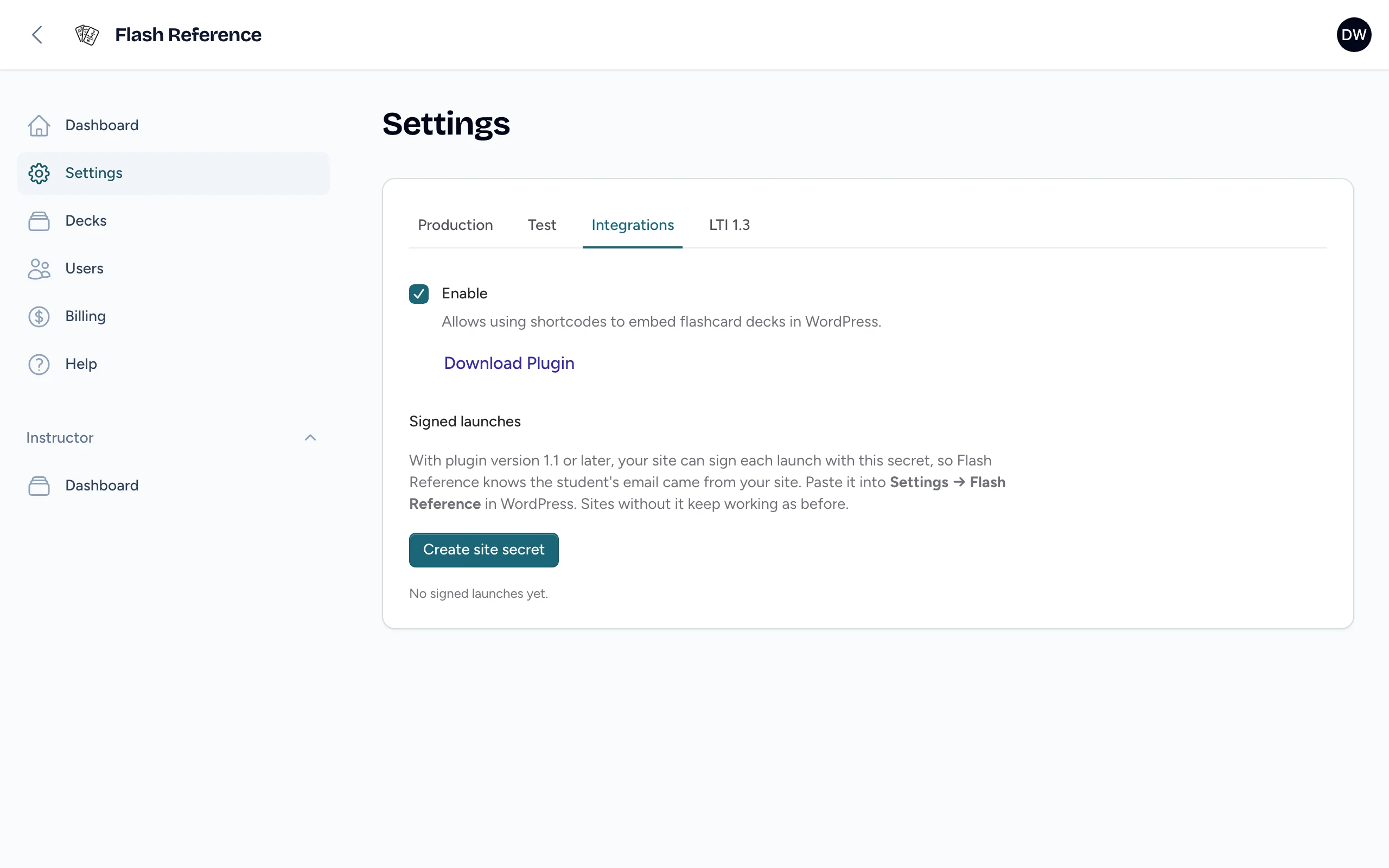
The Integrations tab of Settings, with WordPress turned on, a Download Plugin link and a Create site secret button
Admins create the site secret on the Integrations tab of Settings.

Read the guide

  • Students
  • Instructors

Students can mark what they know

After flipping a card, students now choose Still learning or Know it. At the end of the deck they see how they did, and can study just the cards they're still learning instead of starting over.

Marking is on for every deck unless you turn it off on the Study options tab of the deck's Settings.

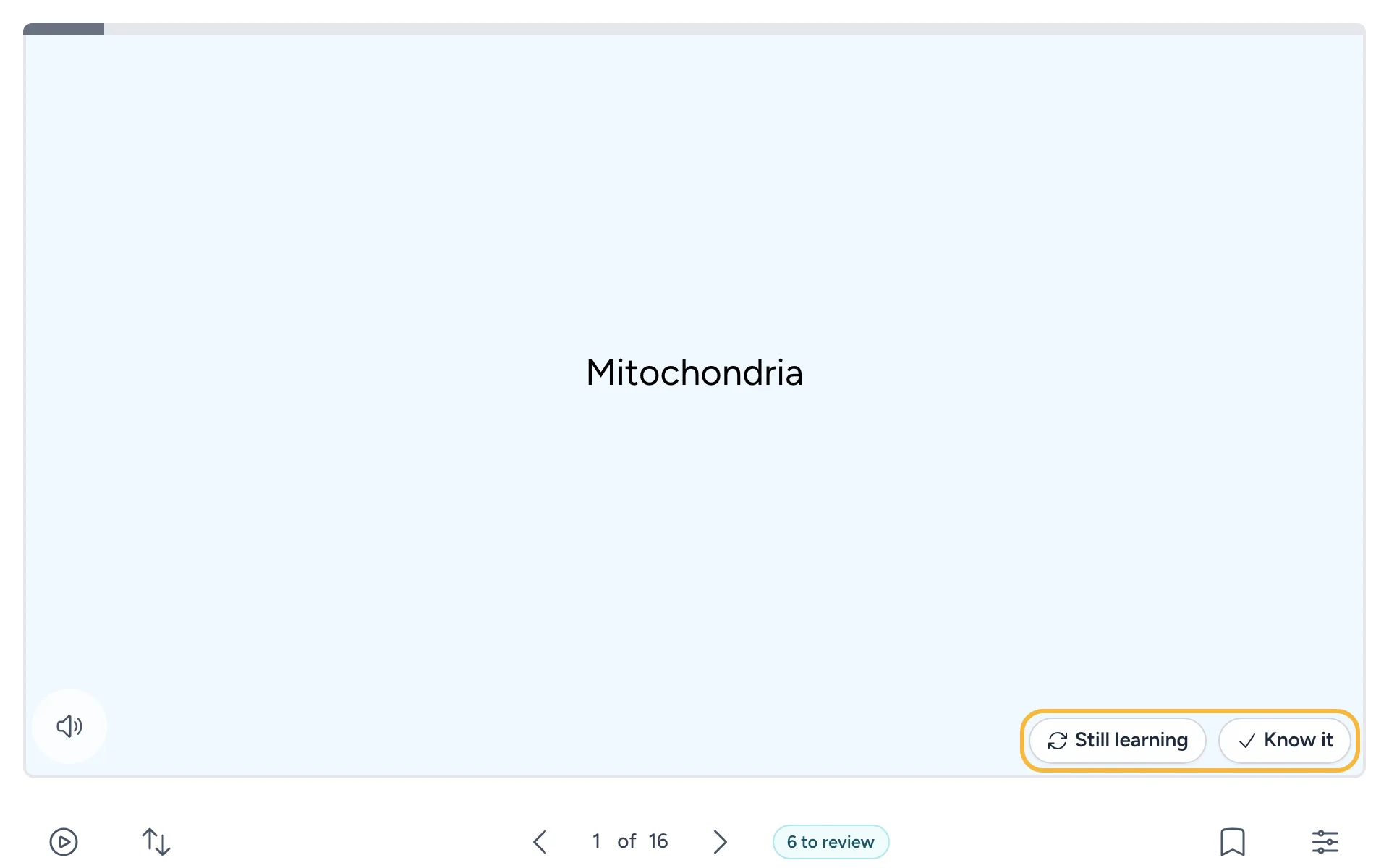
A flipped card with Still learning and Know it buttons
Students mark each card after they flip it.

Read the guide

Questions about a change? See the guides, or contact support.