Flash Reference

What's new

What's new in Flash Reference

New features and improvements, newest first. Each one says who it affects, so you can skip what isn't for you.

  • Students
  • Instructors
  • Admins

Step-by-step guides for students, instructors and admins

Flash Reference now has step-by-step guides with pictures of the real app. Students learn how to open and study a deck, instructors how to build decks and read results, and admins how to set up the account, manage people and handle billing. Setup guides cover Canvas, Moodle, D2L Brightspace, Blackboard Learn, Schoology, other LMSs and WordPress.

Select Help in the sidebar of your dashboard or admin pages to open your guide, or Docs on our website. Students can read theirs without signing in.
Read the guide

  • Students
  • Instructors
  • Admins

A round of smaller fixes and improvements

These went live together:

  • Any card can have a hint, not only cards with a picture.
  • Deleting a card asks you to confirm first.
  • Adding cards from a list saves the hint you put between the front and back.
  • Signing in takes you straight to the right page for your role.
  • In your LMS, Choose a deck has a cleaner look, an Add button on each deck, and a New Deck button that opens the new deck form.
  • Your LMS secrets in Settings have a copy button.
  • Removing someone from your organization keeps their decks: you choose the instructor who takes them over.
  • Restrict Access to Learning Management System now keeps a deck off WordPress sites, and students there are asked to open it from their course.

  • Students
  • Instructors
  • Admins

Easier to use with a keyboard, screen reader or zoom

Students can now study a deck from the keyboard alone, and screen readers announce each card, the answer when it's flipped, marks and multiple-choice results. Card text grows with the browser's zoom and text size, and Single-key shortcuts can be turned off in Settings for people who use speech input.

Instructor and admin pages start with a Skip to content link, and cards can be put in order with arrow buttons instead of dragging.

Our accessibility statement and conformance report say what we've tested, what we haven't yet, and what still needs work.

Read the guide

  • Students
  • Instructors

Students can study a deck as multiple choice

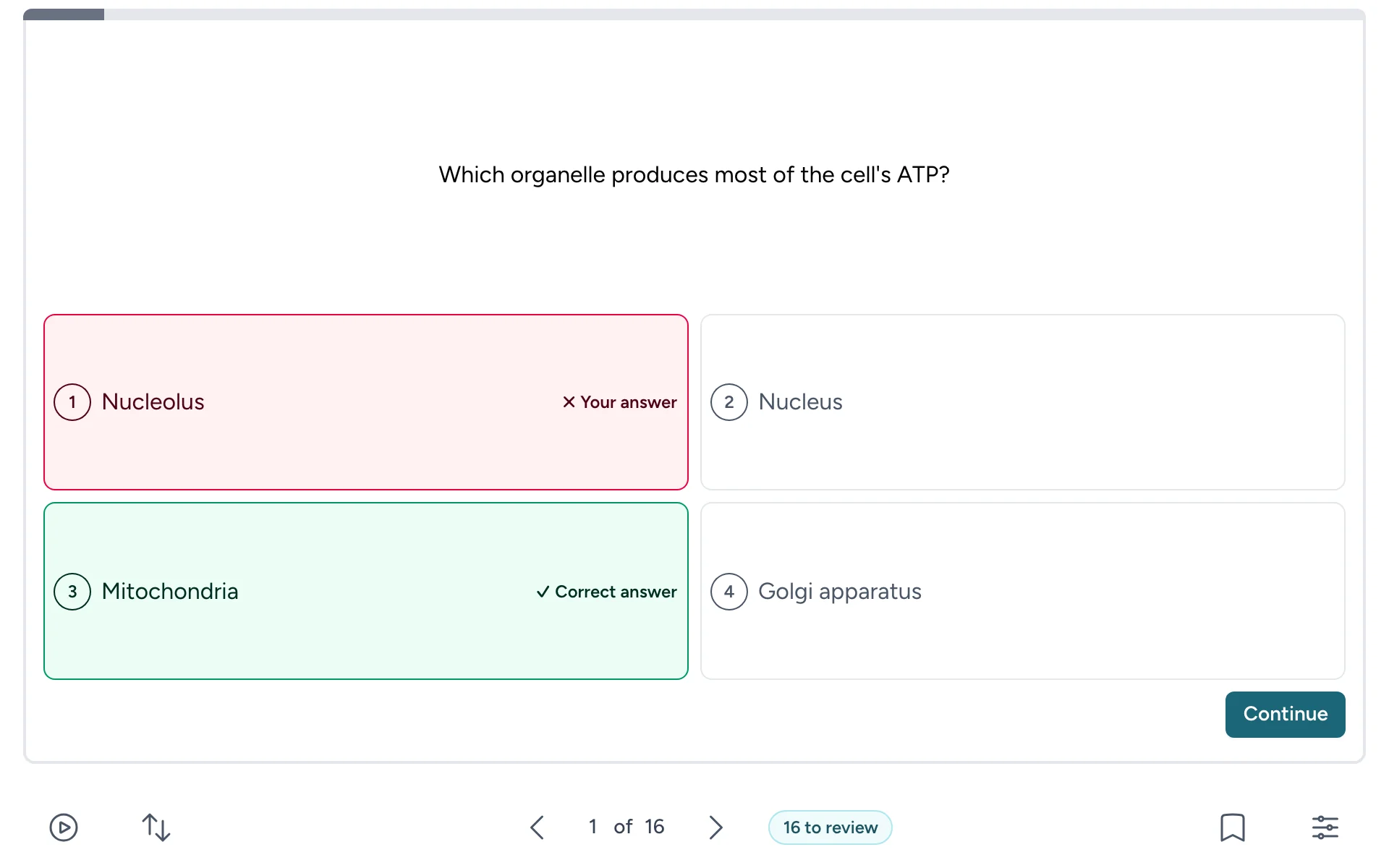
Multiple choice gives students another way to test themselves: each card becomes a question with four answers to choose from. The wrong answers come from the deck's other cards, and students see the right one as soon as they answer.

Turn it on in the deck's Settings, on the Study options tab, and students can switch to it while they study. A deck needs at least four different short answers first. Right answers count as Know it and wrong ones as Still learning, so they show in your results.

A multiple-choice question with four answers, the student's wrong answer and the correct answer marked
After answering, students see which answer was right.

Read the guide

  • Students
  • Instructors

Students can pick up where they left off

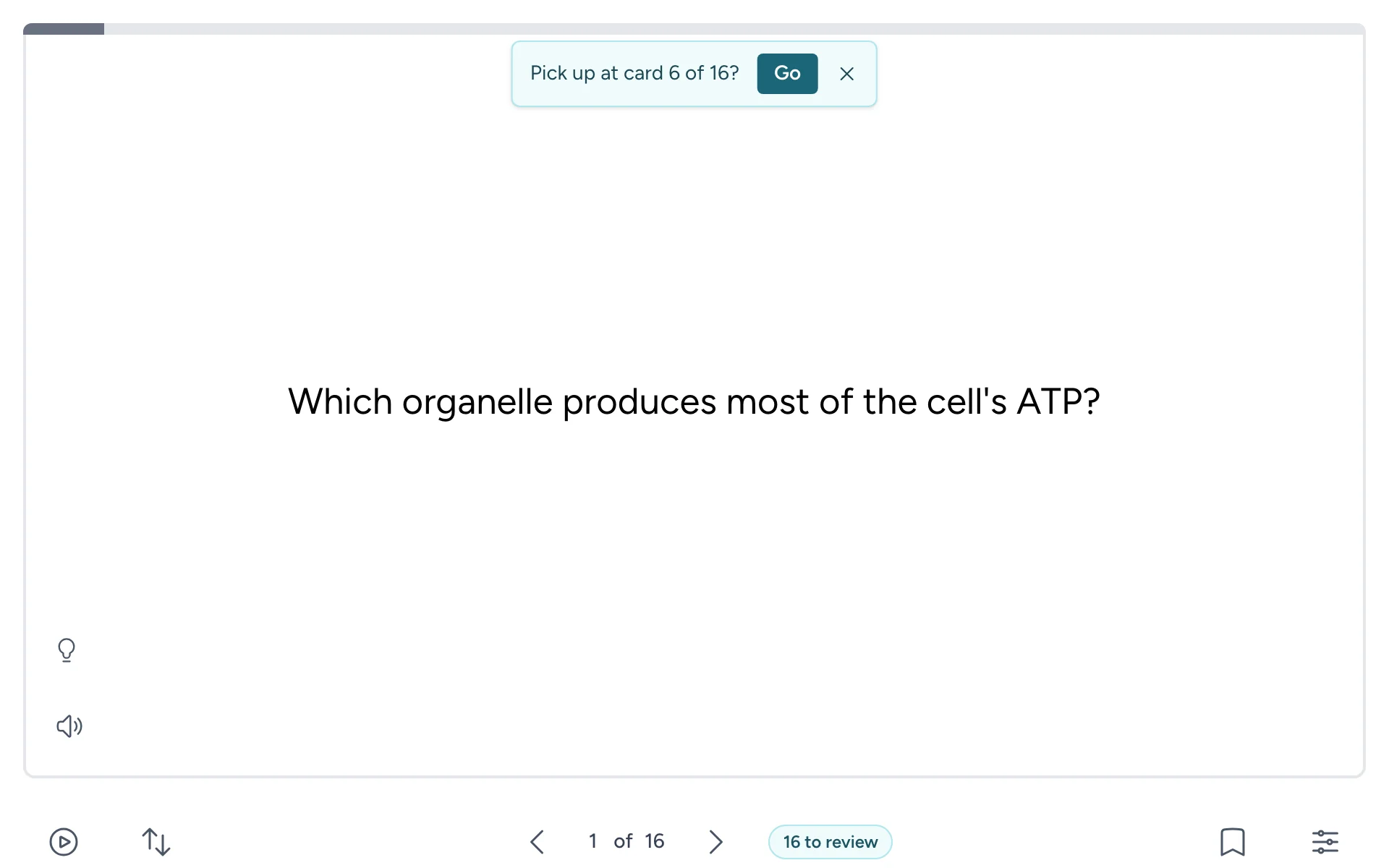
When students open a deck from your course, their progress is now saved to them: their marks, their review schedule and the card they stopped on. If they stopped partway through in the last two weeks, Flash Reference offers to take them back there next time.

If their connection drops, marks wait in the browser and are sent when it's back. Students should open the deck from your course each time, not from a browser bookmark: each visit's link stops working after 12 hours without use.

A card with "Pick up at card 6 of 16?" and a Go button at the top
Flash Reference offers to take students back to where they stopped.

Read the guide

  • Students
  • Instructors

Students can review cards just before they'd forget them

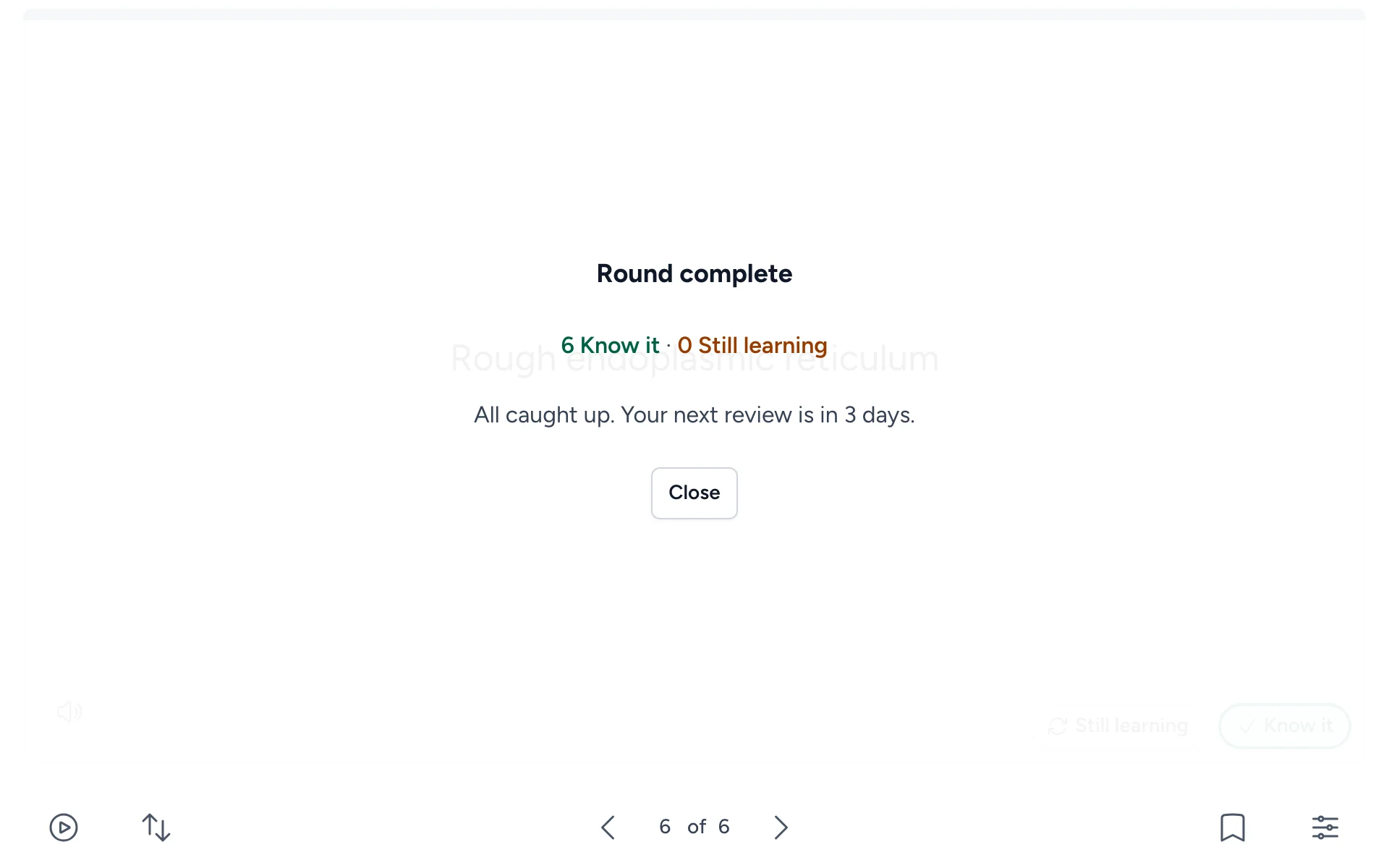
Spaced repetition brings each card back just before a student would forget it. Cards they know return after longer and longer gaps; cards they're still learning return soon. A few minutes every day or two works better than one long session before a test.

Turn on Spaced repetition on the Study options tab of the deck's Settings. Students can then choose Review to study the cards that are due, plus a few new ones each day. Schedules are saved when students open the deck from your course.

The end of a review round: 6 Know it, 0 Still learning, and the next review in 3 days
At the end of a round, students see when their next review is.

Read the guide

  • Students
  • Instructors
  • Admins

WordPress sites can save students' progress

Students who study a deck on your WordPress site while logged in can now have their marks and review schedule saved, just as they are from your LMS.

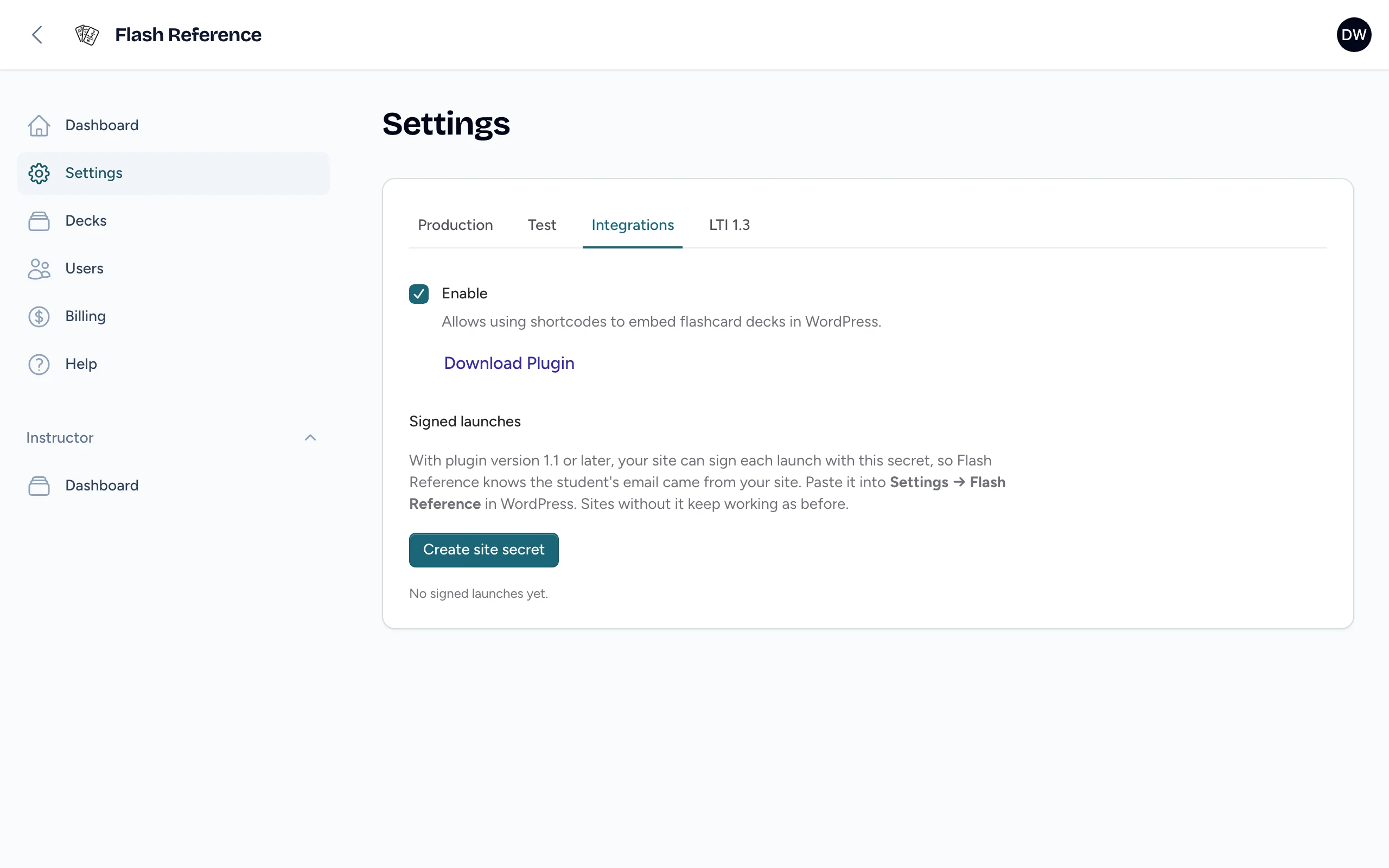
An admin sets it up once: use version 1.1 or later of our plugin, create a site secret on the Integrations tab of Settings, and paste it into WordPress.

Visitors who aren't logged in study as guests, and nothing is saved for them. To ask them to log in first, turn on Require login in the plugin's settings.

The Integrations tab of Settings, with WordPress turned on, a Download Plugin link and a Create site secret button
Admins create the site secret on the Integrations tab of Settings.

Read the guide

  • Students
  • Instructors

Students can mark what they know

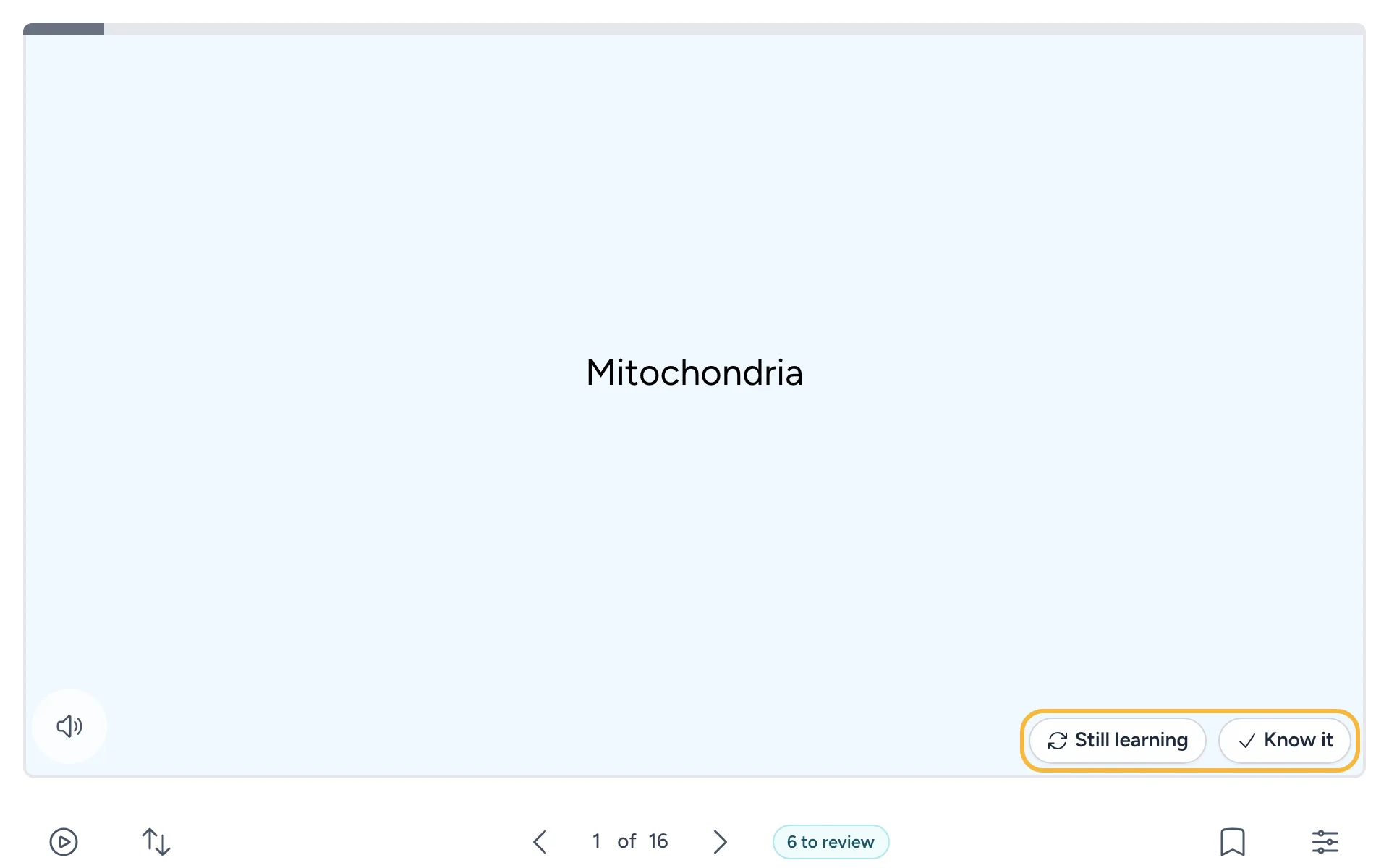
After flipping a card, students now choose Still learning or Know it. At the end of the deck they see how they did, and can study just the cards they're still learning instead of starting over.

Marking is on for every deck unless you turn it off on the Study options tab of the deck's Settings.

A flipped card with Still learning and Know it buttons
Students mark each card after they flip it.

Read the guide

Questions about a change? See the guides, or contact support.